Bookings
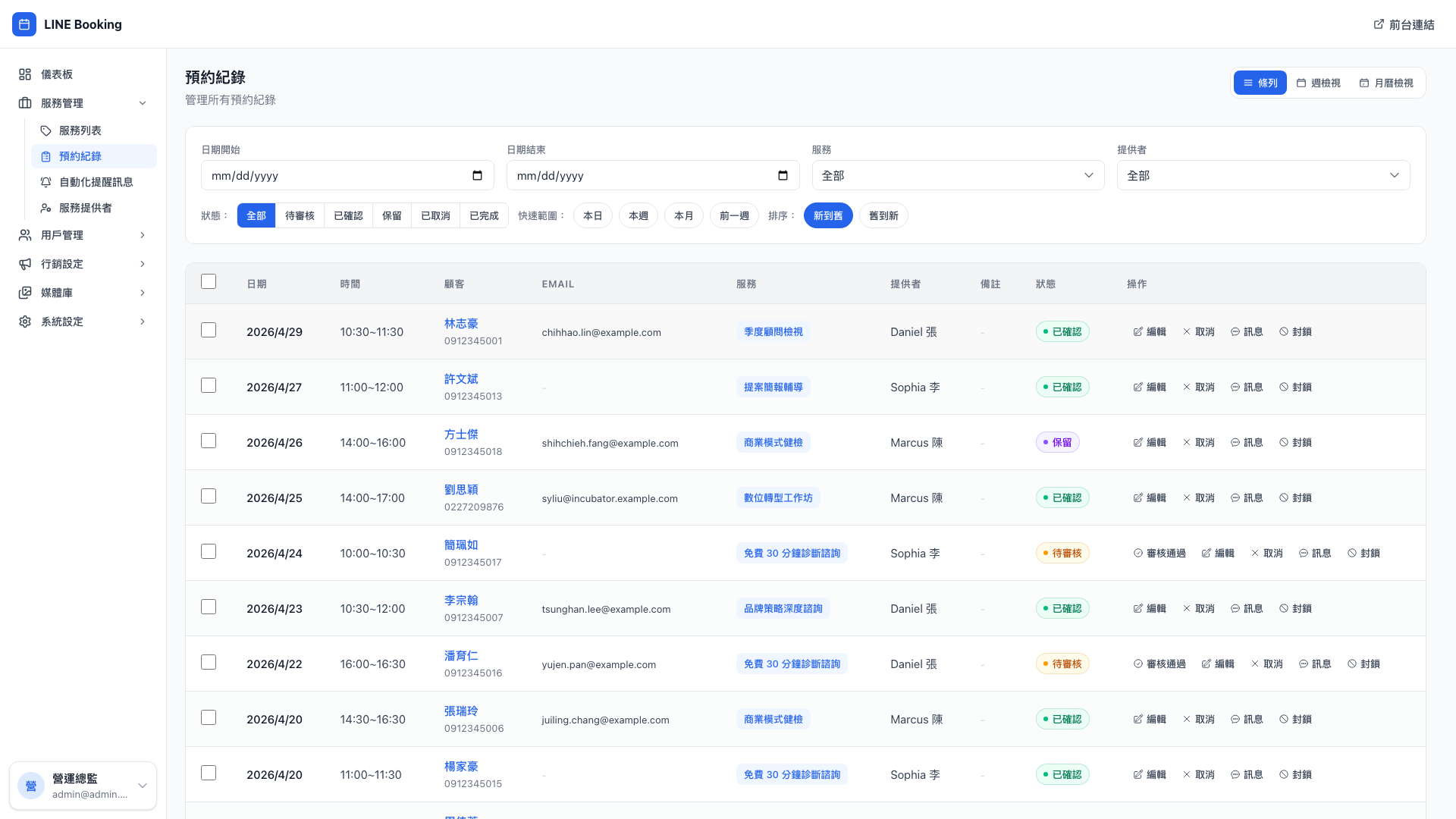
Every client booking lives here. This is the page a manager opens most often each day, because rescheduling, cancelling, adding notes and messaging — everything to do with handling clients — starts here.
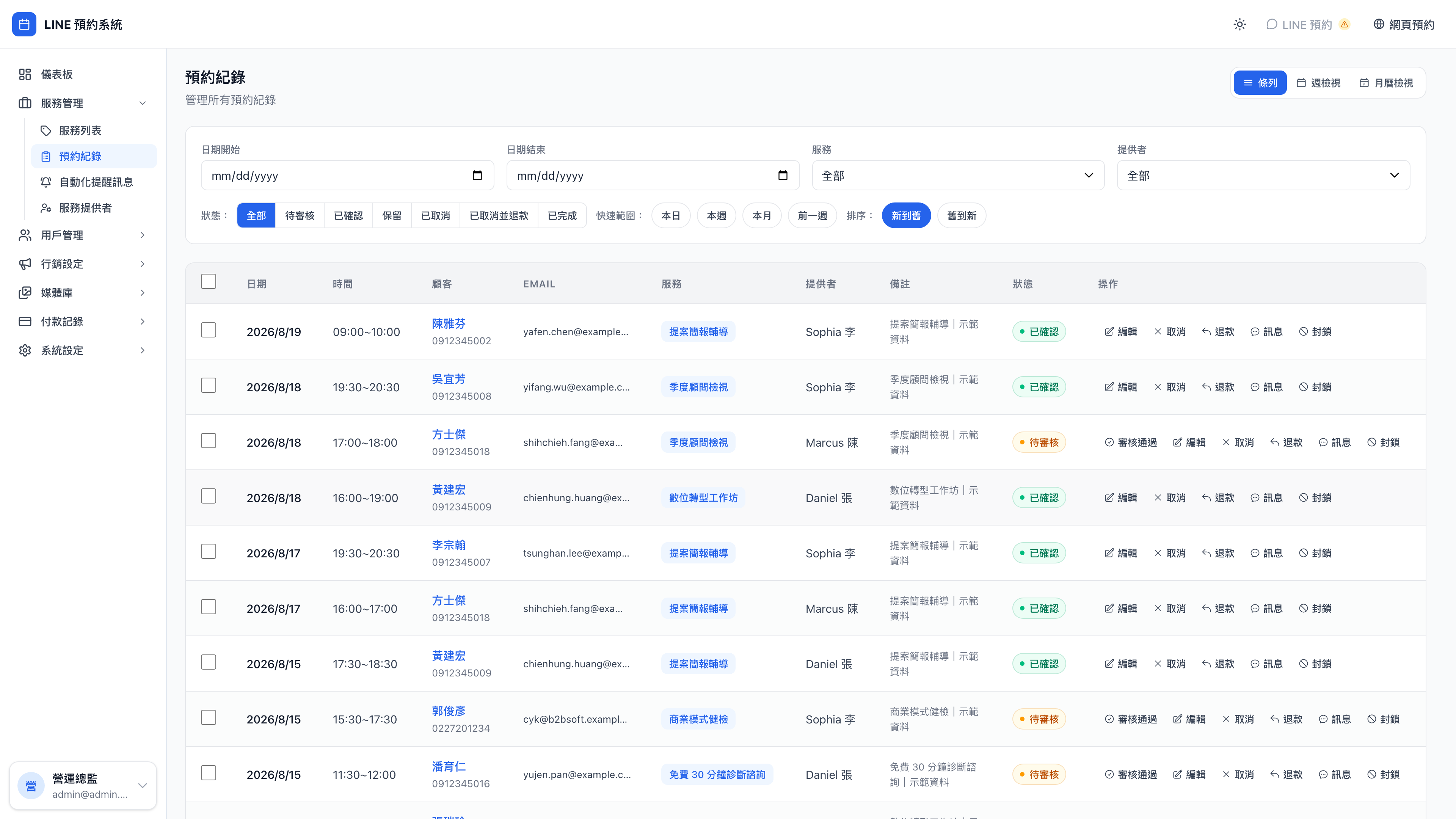
The week view shows every provider's schedule for the week, making it obvious who's busy and who isn't:
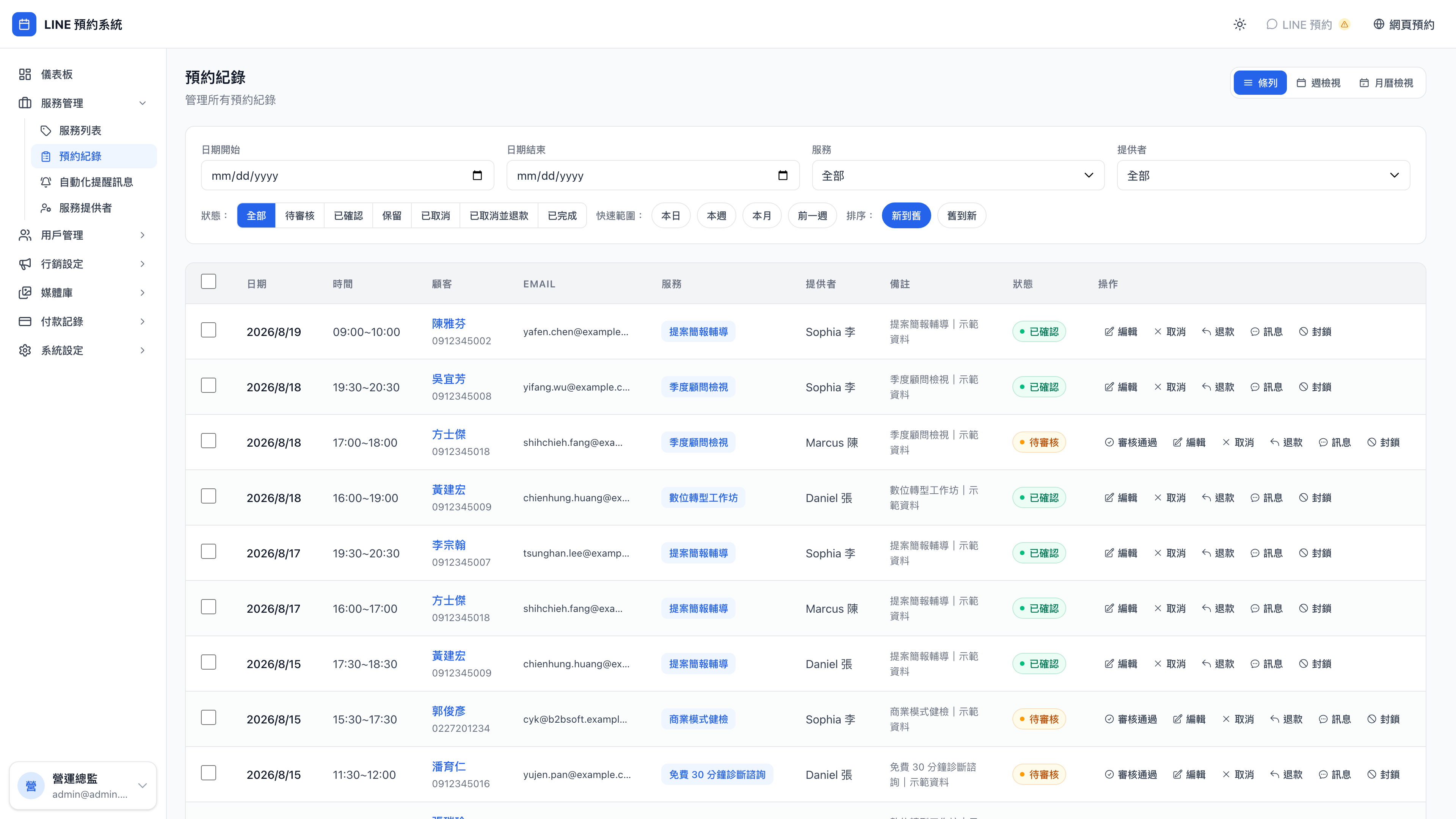
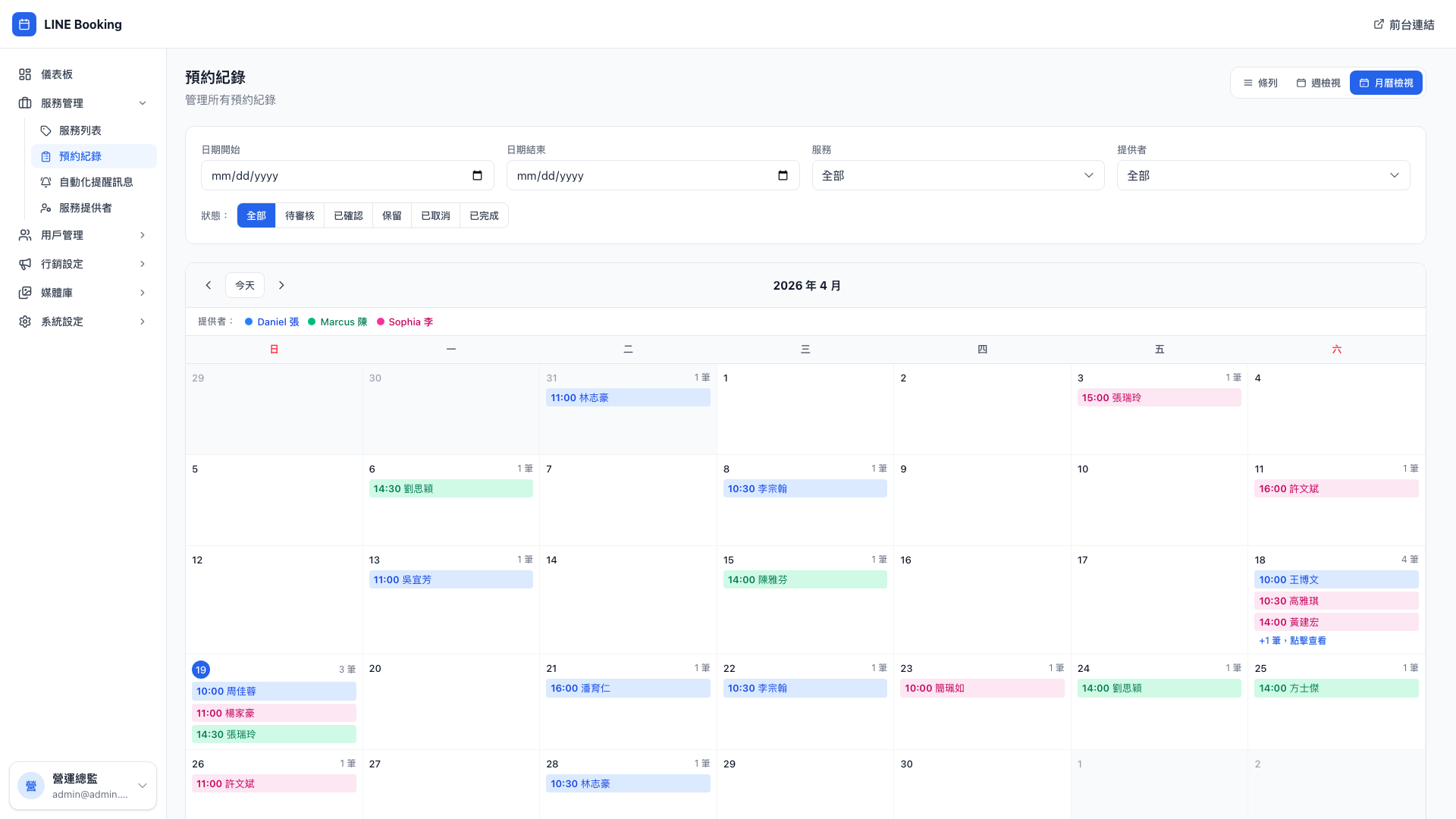
The month view shows how full the month is, which is useful for longer-term planning:
Clicking any booking opens a side drawer where you can reschedule, message the client, or jump to their profile:
Three views
| View | What it looks like | Best suited to |
|---|---|---|
| List | One row per booking, with checkboxes for bulk actions | Searching for a client, cancelling several at once, reviewing a date range |
| Week | Monday-to-Sunday timeline, one color per provider | Planning the week's roster, seeing who's fullest, filling gaps |
| Month | How many bookings on each day of the month | Understanding how busy the month is, and seasonal patterns |
Use case: when to switch between them
Arriving in the morning: open the list, filter to today, and scan today's six bookings.
A quiet afternoon: switch to the week view, see which days have gaps, and consider sending a "this week only" offer to fill them.
Month-end review: switch to the month view, compare against last month to see which weeks grew and which shrank, and set marketing priorities for next month.
No view is better than another — you switch based on what you're trying to do.
The five booking statuses
| Status | Meaning | What the client sees |
|---|---|---|
| Pending approval | Submitted but not yet confirmed | "Booking requested" |
| Confirmed | The slot is locked in | "Booking confirmed" |
| Completed | The service has been delivered | "Completed" |
| Cancelled | Cancelled by the client or the business | "Cancelled" |
| On hold | Set aside for a decision later | "In progress" |
Question: Is "completed" set automatically or by hand?
By hand, by default. Once a booking's time has passed, the system moves it to the top of the list flagging that it should be marked completed, and one click does it.
Why not automatic? Because the client may not have shown up, may have left early, or may have changed service on the day — it takes your confirmation that it genuinely was completed.
Setting a booking to completed triggers:
- Awarding points (if a completion reward is configured)
- Issuing tickets (if a campaign is attached)
- Sending a thank-you message (if a post-service reminder is configured)
- Firing Meta Pixel's Purchase event (if conversion tracking is set up)
Filtering and search
The filters above the list:
- Date range — "this month only", "next week only"
- Status — pending / confirmed / cancelled…
- Service — business model reviews only, brand strategy only…
- Provider — Daniel's bookings only
- Keyword — searches client names, phone numbers and notes
Use case: clearing the pending list at month end
At month end, open the list → filter status to pending approval → and clear out anything overdue in one pass (message the client to reschedule, or cancel it).
This is routine month-end work that stops the pending pile growing. Counseling practices and law firms accumulate them especially easily — a client submits a request, the business hasn't decided, and six months later it's awkward.
What you can do with one booking
Clicking a booking opens a side drawer where you can:
- Reschedule or change provider — for a client changing their plans; the system messages them to confirm automatically
- Change status — mark completed, cancelled or on hold manually
- Send a message — over LINE or email to this client
- Block the client — if you don't want to take them again (added to a blocklist)
- View their profile — linking to their spending history, points balance and tags
Question: Is the client notified when I reschedule?
Yes, automatically. The system sends a LINE message using the reschedule notification template (customizable on the service settings page), which by default reads: "Your {{服務名稱}} has been moved to {{新日期}} {{新時間}}".
So you don't need to message the client separately after rescheduling. If you have anything extra to say (explaining why, for instance), send that as another message.
Note: get the client's agreement before rescheduling
The system sends an update notification automatically, but that isn't the same as the client agreeing. The recommended process:
- Use Send a message to discuss the new time
- Wait for them to agree
- Then change the time
Changing it unilaterally in the admin risks the client only seeing the message the next day and being unhappy to find their time moved. That matters most for high-value services — consulting, legal, aesthetics — where the client has likely rearranged their day around that slot.
Bulk actions
In list view each booking has a checkbox on the left, and ticking several reveals an action bar above:
- Bulk cancel — cancel several at once (a provider off sick, for instance)
- Bulk delete — remove the records entirely (careful — this can't be undone)
- Send message — message all those clients at once
Use case: a provider off at short notice
Daniel has a family matter and is off tomorrow. Open Bookings → filter date to tomorrow and provider to Daniel → select all → bulk cancel → bulk message: "Our consultant has a personal matter to attend to; we'd be grateful if you could rebook today's appointment…"
Five bookings handled in three minutes, far faster than messaging one by one.
The same applies elsewhere: a yoga teacher down with flu, a tutor with something urgent, a lawyer called into court that day.
Bulk delete and bulk cancel are very different
- Bulk cancel: the status becomes cancelled, the record remains, and it's still visible in the client's history
- Bulk delete: the record disappears entirely, and it never appears in the client's spending history
Use cancel for day-to-day operations. Delete is only for test data and malicious bookings. Deletion can't be undone.