Signing in
The admin URL
The admin URL format is https://your-domain/signin
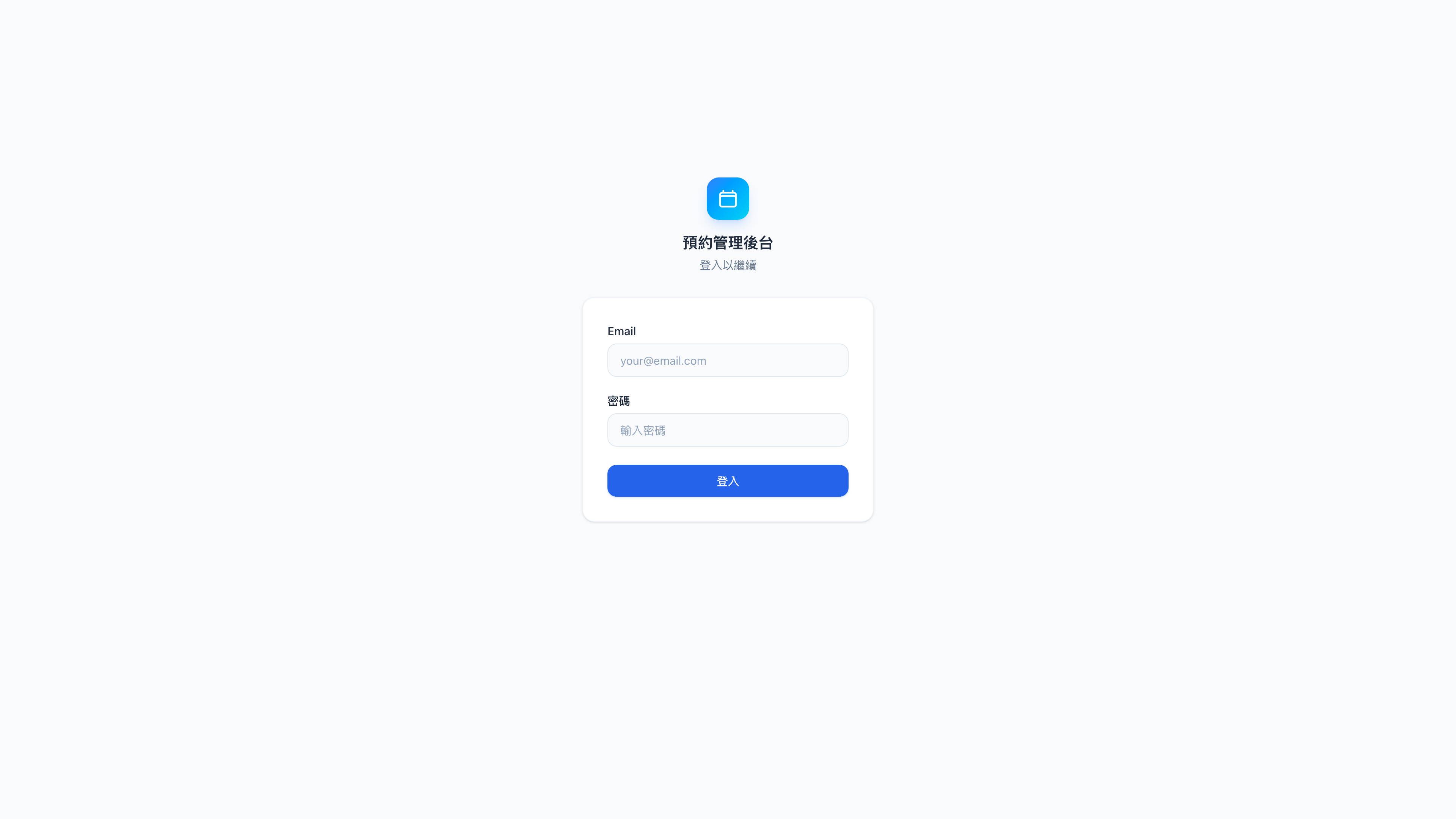
Open it in a browser and enter your email and password to sign in.
The demo business credentials
So you can follow this manual against a real screen, we've built a demo dataset for Mingjing Strategy — a fictional business consultancy used to demonstrate every feature. Whatever industry your own business is in (counseling, tutoring, aesthetics, yoga…), the logic is the same; only the names and services differ.
| Role | Password | |
|---|---|---|
| Operations director (admin) | admin@mingjing.consulting | admin123 |
| Senior consultant, Daniel | daniel@mingjing.consulting | provider123 |
| Brand marketing consultant, Sophia | sophia@mingjing.consulting | provider123 |
| Digital transformation consultant, Marcus | marcus@mingjing.consulting | provider123 |
Change these passwords before going live
The demo passwords are published in this manual. Anyone who reads it can sign in to your admin with admin@mingjing.consulting / admin123.
Before you let real clients near it, change them. To do so: sign in, click your avatar in the top right → Profile → set a new password.
The first screen after signing in
A successful sign-in lands on the dashboard — the admin's home page, showing today's bookings, what's coming up, and this week's figures.
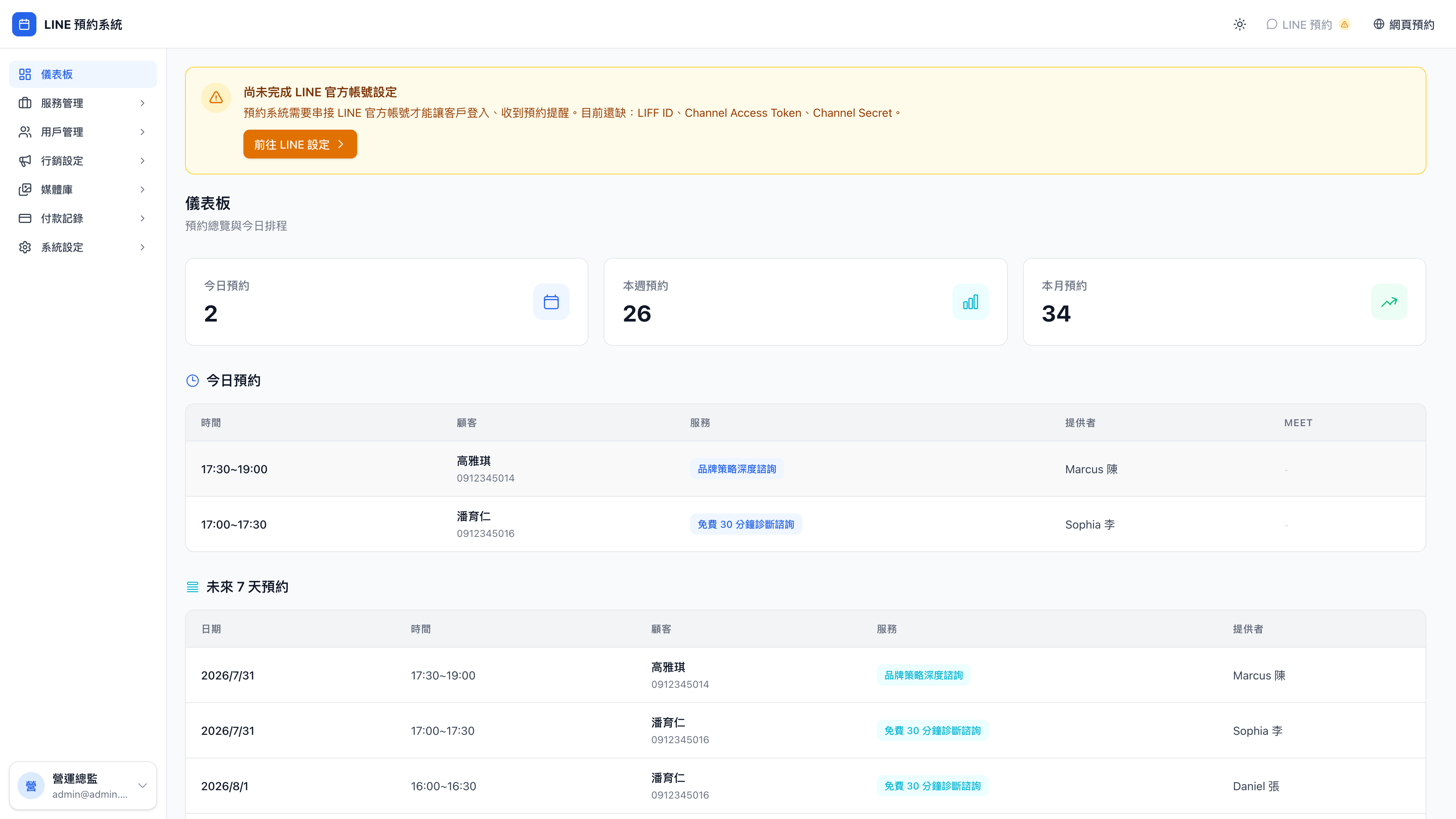
For how to read it, see the dashboard page.
Different roles see different things
Two kinds of people can sign in, and their interfaces and permissions differ completely:
| Admin (owner / manager) | Provider (consultant / teacher / coach) | |
|---|---|---|
| See all bookings | ✓ | ✗ (only their own) |
| Change business settings | ✓ | ✗ |
| See all customers | ✓ | ✗ (only those they've served) |
| Send group messages | ✓ | ✗ |
| Appear on the client booking page | ✗ | ✓ |
Question: I'm both the owner and I see clients — which am I?
Create both. Use the same email to create a record under admin accounts and another under providers, and the system treats you as admin plus provider.
Signing in gives you the full admin, and you also appear on the client booking page for clients to choose. This is the most practical setup for a small studio (one or two people) — solo consultants, private tutors, yoga teachers running their own studio, and counselors just starting out are all in this position.
Forgotten password
There's currently no self-service reset (to avoid it becoming a hole through which someone breaks into your account).
The process:
- Find another admin
- Ask them to open the admin accounts page, find your account, set a new password and tell you
- Sign in with it and change it again yourself
Note: if you're the only admin and you forget your password
There's no way to resolve it yourself — Zenbu technical support has to reset it manually. Try not to end up here: two or more admins backing each other up makes it much harder to lock yourself out.
Next
Once you're in, start exploring. A suggested reading order:
- System settings — set your business name and LINE connection first
- Providers — create your consultants, teachers or staff
- Services — design the bookable services
- Media library — upload photos of your business and services
- Promotions — design an opening offer or a new-client gift
Work through those five and your booking system is open for business. The rest (tags, marketing messages, conversion events) can wait until you have real clients to work with.