Admin accounts
Managing who can sign in to the admin — usually the owner, the manager, the operations director, or marketing staff.
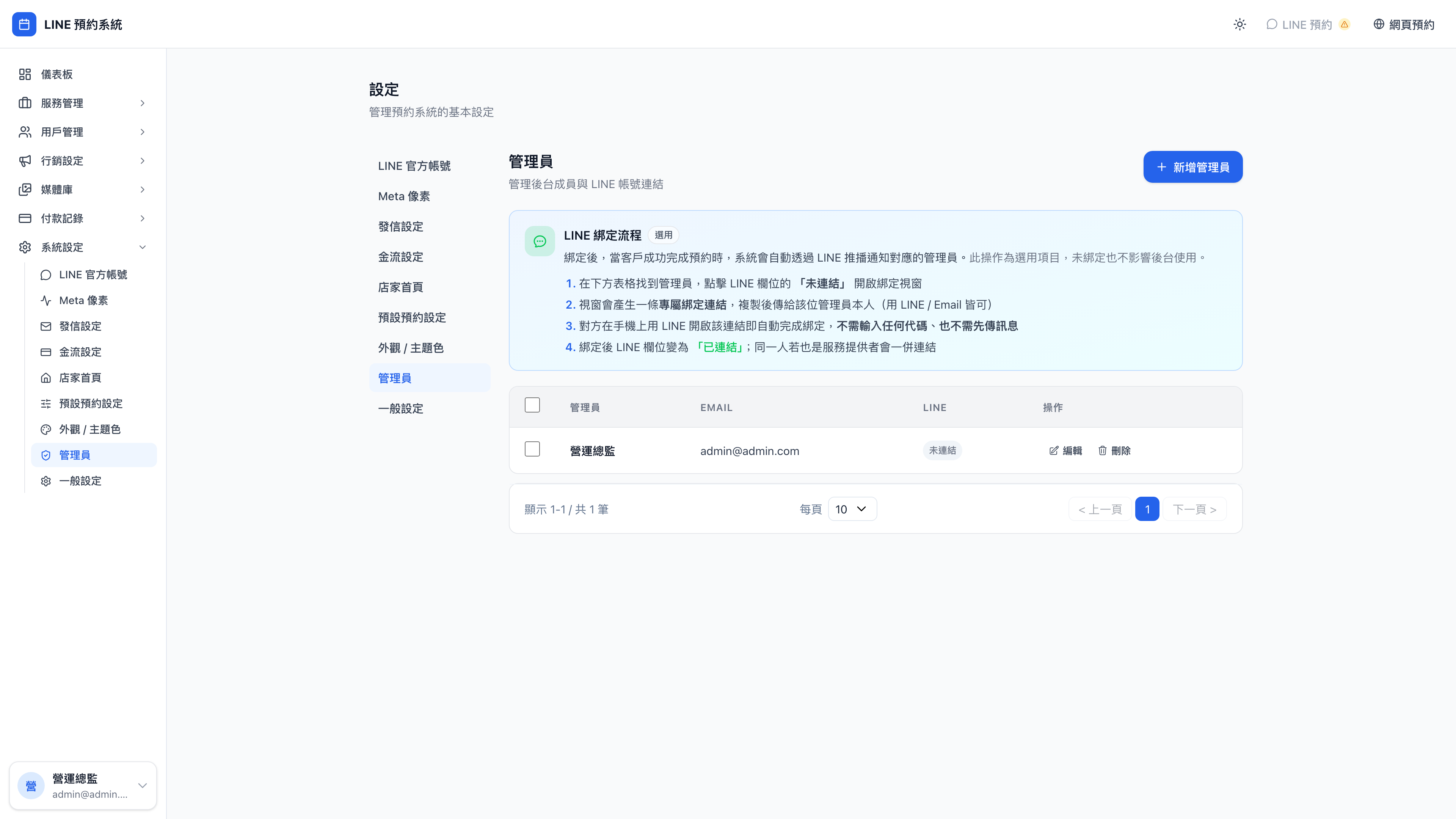
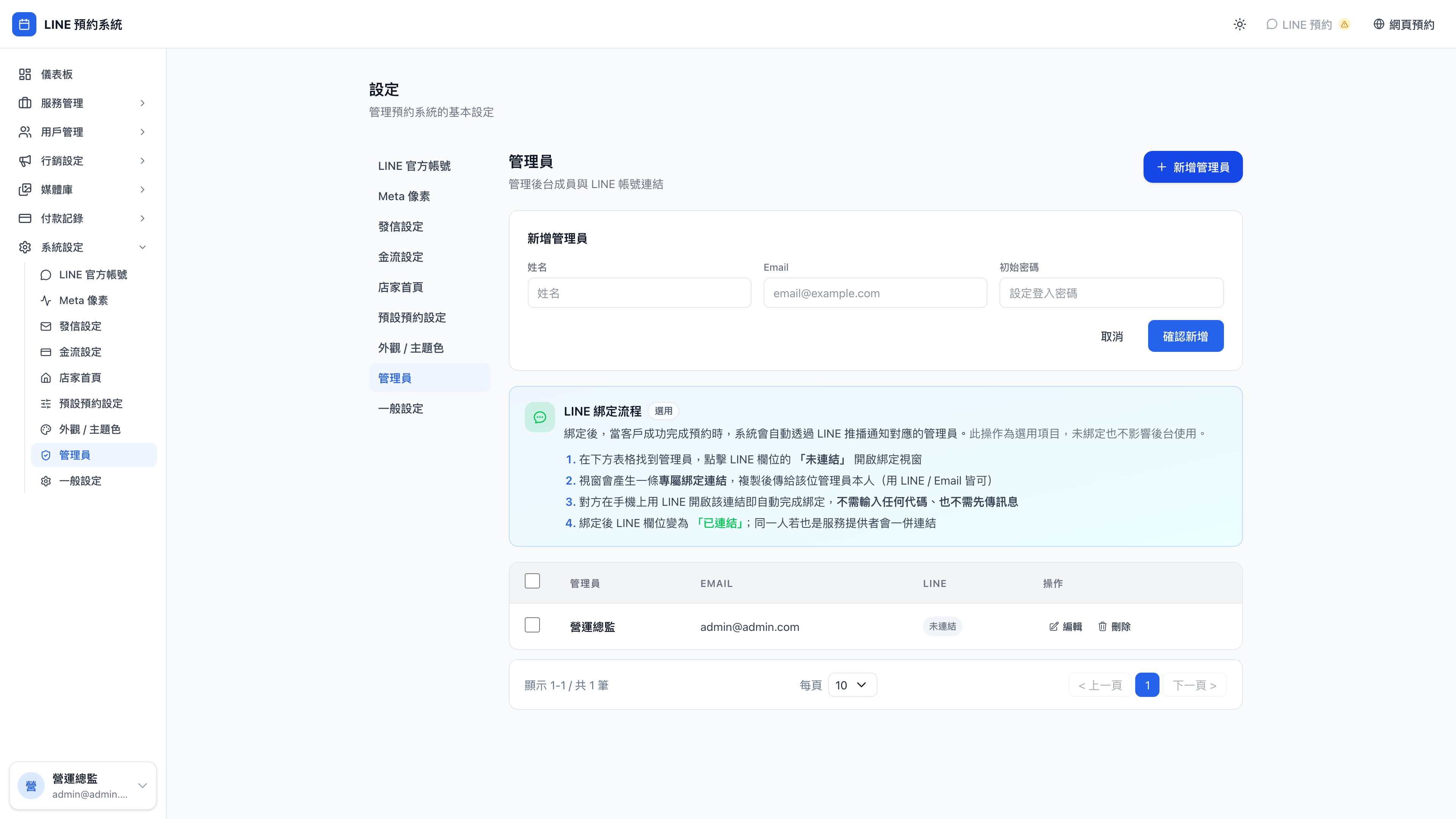
The new admin form:
Admins vs. providers
These two are commonly confused, so let's be clear:
| Admin | Provider | |
|---|---|---|
| See all bookings | ✓ | ✗ (their own only) |
| Change system settings | ✓ | ✗ |
| Manage customers, campaigns and messages | ✓ | ✗ |
| Appear on the client booking page | ✗ | ✓ |
| Has availability | ✗ | ✓ |
| Sees clients | Not necessarily | ✓ |
Question: The owner also sees clients — are they an admin or a provider?
Create both, using the same email.
The system merges the identities automatically:
- Add an admin on this page (email and password)
- Add a provider with the same email under providers
- Signing in with that email, the system treats you as admin plus provider
- Clients see you on the booking page (as a provider)
- You see the full business admin (as an admin)
This is the most common setup in a small studio — where the owner is also the consultant, therapist, coach or lawyer.
Adding an admin
- Press New admin
- Fill in:
- Name (so other admins recognize you)
- Email (their sign-in credential)
- Password (an initial one; they should change it at first sign-in)
- Save, then send them the URL, email and password
Use case: when do you need more admins?
- Dedicated marketing: marketing staff need access to marketing messages, campaigns and conversion data without touching bookings — give them admin (the system currently has no read-only role)
- A partner: who needs to see every figure and change significant settings
- Accounting / finance: who needs booking revenue and points movements — admin
- Support: who reschedules clients, sends messages and reads customer records — admin
Note: admin permissions are extensive
Admin currently means full permissions: changing settings, seeing private client information, deleting bookings. Every admin you add is another person who can do anything.
The guiding principle: as few as possible. Give it only to people who genuinely need it. Don't create accounts "so they can see things" — meet that need with exported reports and dashboards instead.
Counseling, legal and medical fields should be especially careful — a client trusted "my therapist / lawyer / doctor", which doesn't mean they trust every employee of the practice to read their records.
The demo business's default admin
Mingjing Strategy's default account:
- Email:
admin@mingjing.consulting - Password:
admin123
Change the password before going live
The demo password admin123 is published in this manual, and must be changed before you go live. Otherwise anyone who reads this manual can sign in to your admin and do anything.
To change it: sign in, open the menu under your avatar in the top right → Profile → set a new password.
Removing an admin
Click Delete on the relevant row. That person then:
- Loses admin access
- Keeps their action history (who changed which booking) intact
The last admin can't be deleted
The system prevents you deleting your way to having no admins at all. If you're currently the only admin and want to leave:
- Add a new admin first
- Hand over
- Then delete yourself
Get the order wrong and you lock yourself out, and technical support has to rescue you from the database.
Password management
Each admin can change their own password under Profile after signing in.
Question: What if I forget my password?
The system has no self-service password reset (with few admin accounts per business, self-service is more of a security hole than a convenience).
If you forget it:
- Find another admin
- They find your account on this page → set a new password → tell you
- Sign in and change it yourself
If you're the only admin and you've forgotten it — contact technical support, who can reset the password hash directly in the database. This is an uncommon emergency.