Providers
This page manages the people who actually deliver your services — consultants, therapists, lawyers, coaches, teachers, doctors.
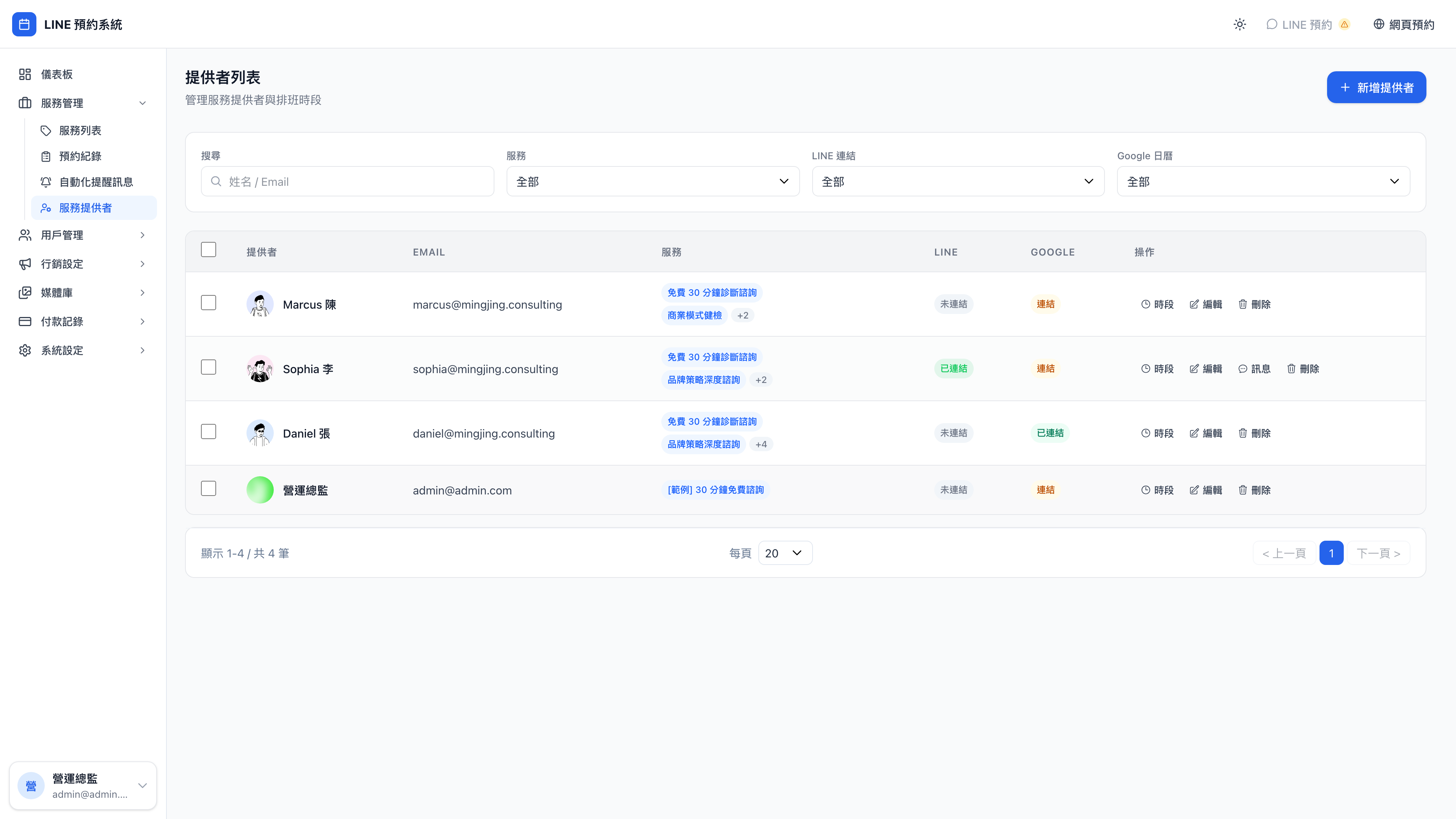
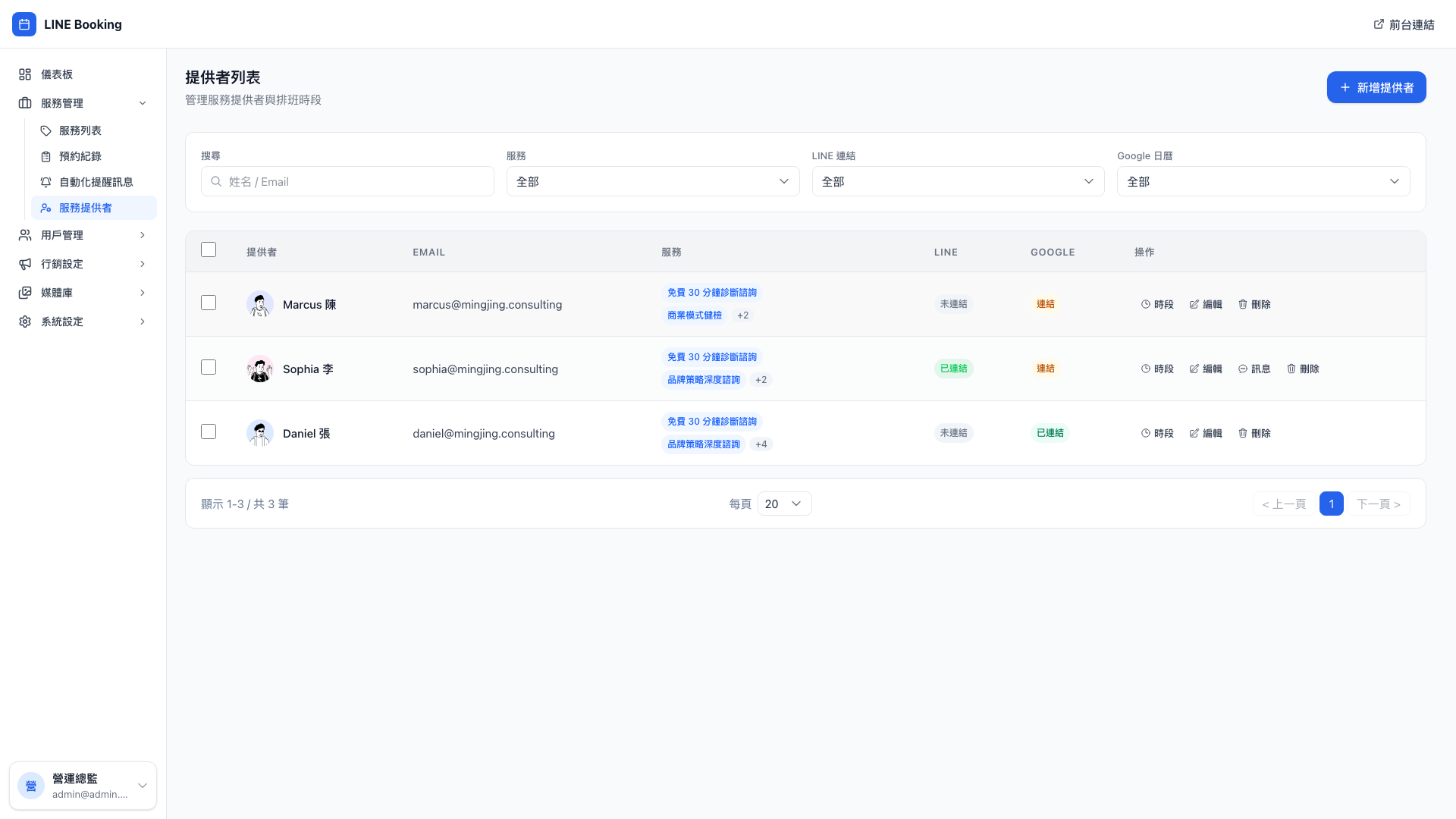
Clicking any of them opens their detail page, where you set availability, the services they offer and Google Calendar integration:
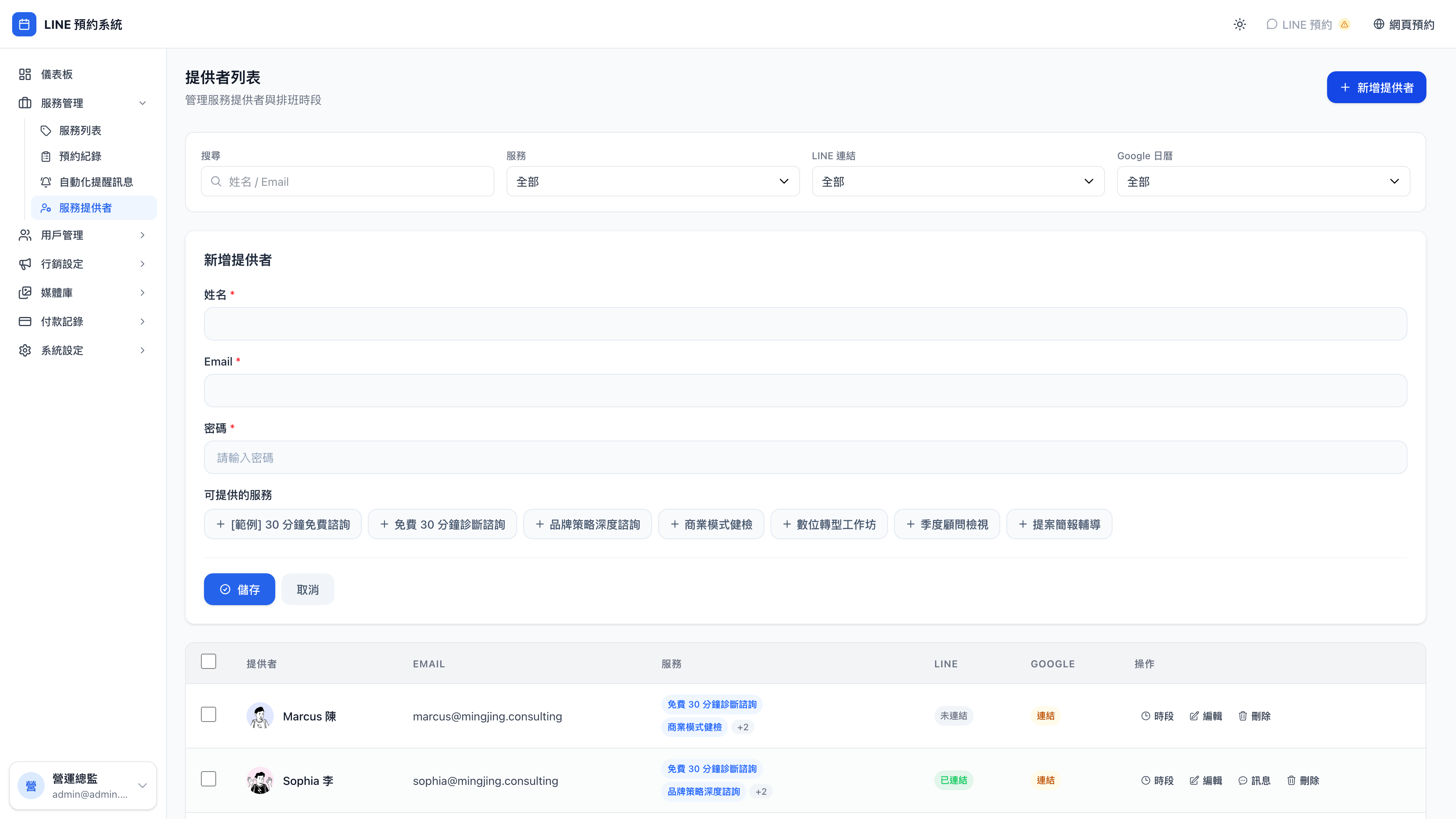
The new provider form:
A provider is someone a client can ask for
Every provider has:
- Profile details (name, email, password)
- An avatar (which clients see on the booking page)
- The services they deliver
- Their working hours
- A Google Calendar link (optional)
- A LINE link (optional)
Use case: a new colleague's first day
The demo business, Mingjing Strategy, has hired a consultant, Sophia Lee. On this page the operations director:
- Adds "Sophia Lee" with her email and an initial password
- Ticks the services she delivers (brand strategy consulting, free diagnostic, quarterly review, pitch coaching)
- Sets her hours (Monday to Friday, 10:00–19:00, with lunch 12:30–13:30)
- Picks a professional photo of her from the media library
Once saved, clients see Sophia on the booking page, and Sophia can sign in with those credentials as a provider to see her own bookings.
The same process applies to a new therapist, a newly hired tutor, a lawyer joining the practice, or a yoga teacher coming on board — the logic is identical.
Each provider's own availability
Click any provider to set which hours on which days of the week they take bookings.
Question: How should availability be configured?
Think of it this way: whatever hours you enter are the only hours clients can pick on the booking page.
An example:
- Monday to Friday, 10:00–19:00
- Saturday and Sunday off
- Lunch 12:30–13:30 (marked as an excluded period)
Lunch must be marked as an excluded period, or the system will let clients book straight through it.
Other common patterns:
- A yoga teacher: Tuesday, Thursday and Saturday mornings 06:00–09:00, plus Tuesday, Wednesday and Friday evenings 19:00–22:00 (two separate blocks)
- A counselor: Wednesday to Friday only, 13:00–21:00 (some therapists work afternoons onward only)
- A part-time lawyer: Saturdays only (weekdays at the firm, casework on Saturdays)
Question: Something came up on one particular Tuesday — how do I change it?
Two approaches:
- A permanent change (Tuesdays off from now on) → edit the availability and switch Tuesday from bookable to unbookable
- A temporary change (off next Tuesday) → bulk-cancel that day's bookings under Bookings, or use exclude a specific date on the availability page to exclude just that one day
For everyday time off, excluding a specific date is the lightest touch and doesn't affect other weeks.
Google Calendar integration (optional)
Each provider can link their own Google account on the My settings page, so bookings sync to their Google Calendar automatically.
Use case: no clashes with personal commitments
Daniel's Google Calendar holds his personal commitments — the dentist, family gatherings, a second job. Once linked:
- A client booking Daniel's time → added to his Google Calendar automatically
- Daniel adds "dentist 3:00–4:00" to his calendar himself → the system sees the clash and clients can't book that slot
He no longer has to reconcile two systems by hand, and never hits "the system said I was free, but I already had something".
This is most valuable for part-time providers: the therapist with a day job who takes evening sessions, the lawyer at the firm on weekdays taking cases at weekends — anyone whose time is claimed by two sides.
Note: only the primary calendar is checked
If your Google account has several calendars ("family" and "work", say), the system checks only the primary calendar for clashes by default. To change that, specify a calendar ID in your personal settings.
LINE link (optional)
A provider can enter their own LINE account ID under My settings. Once linked:
- They can message clients on LINE directly from the booking interface without switching to the LINE app
- They can receive booking notifications ("you have a new client at 10am tomorrow")
Question: What if a provider doesn't want to use their personal LINE?
They can leave it unlinked — it's optional. Without it, booking notifications go out from the business's Official Account, and the client still sees "your consultant is Daniel" in the message. They just can't message Daniel directly.
Most businesses do it this way: clients communicate only through the Official Account, providers' personal LINE accounts stay private, and it's easier to keep control. High-privacy fields — counseling, law, medicine — should certainly be set up this way.
What a provider sees when they sign in
When a provider signs in with their own email and password, they get a personal view of the admin:
- Only their own bookings (not other providers')
- Only the clients they've served (not the whole client list)
- No ability to change service settings, promotions or system settings (admins only)
- An extra My settings page for their own availability, avatar and Google / LINE integration
Use case: checking tomorrow's schedule on the way home
Sophia is on the train home and wants to know what time to come in tomorrow. She signs in on her phone → and the dashboard shows tomorrow immediately: "10:00 brand consulting, Mr. Chen; 14:00 pitch coaching, Ms. Lin."
No phone call to the front desk, no waiting for the owner to post in a group chat in the morning. Providers being accountable to themselves is enough.
Disable vs. delete
Each provider in the list has two actions:
| Action | When to use it |
|---|---|
| Disable | The provider has left or is on parental leave, but their booking history must be retained for accounting |
| Delete | Test data, or an account created by mistake |
Deleting also deletes all their booking history
If a consultant leaves, do not delete them. Use disable.
Disabling removes them from the client booking page and prevents them signing in, while keeping their past bookings, client service records and points history intact.
Deleting takes all their booking history with it, and you lose that part of your revenue record, which makes accounting afterwards a mess. That matters especially in high-value consulting — a single booking might be NT$18,000, and you can't let that simply vanish.