System settings
Everything you configure once for the whole system lives here. Nine tabs down the left; work through them in order and you're ready to take bookings.
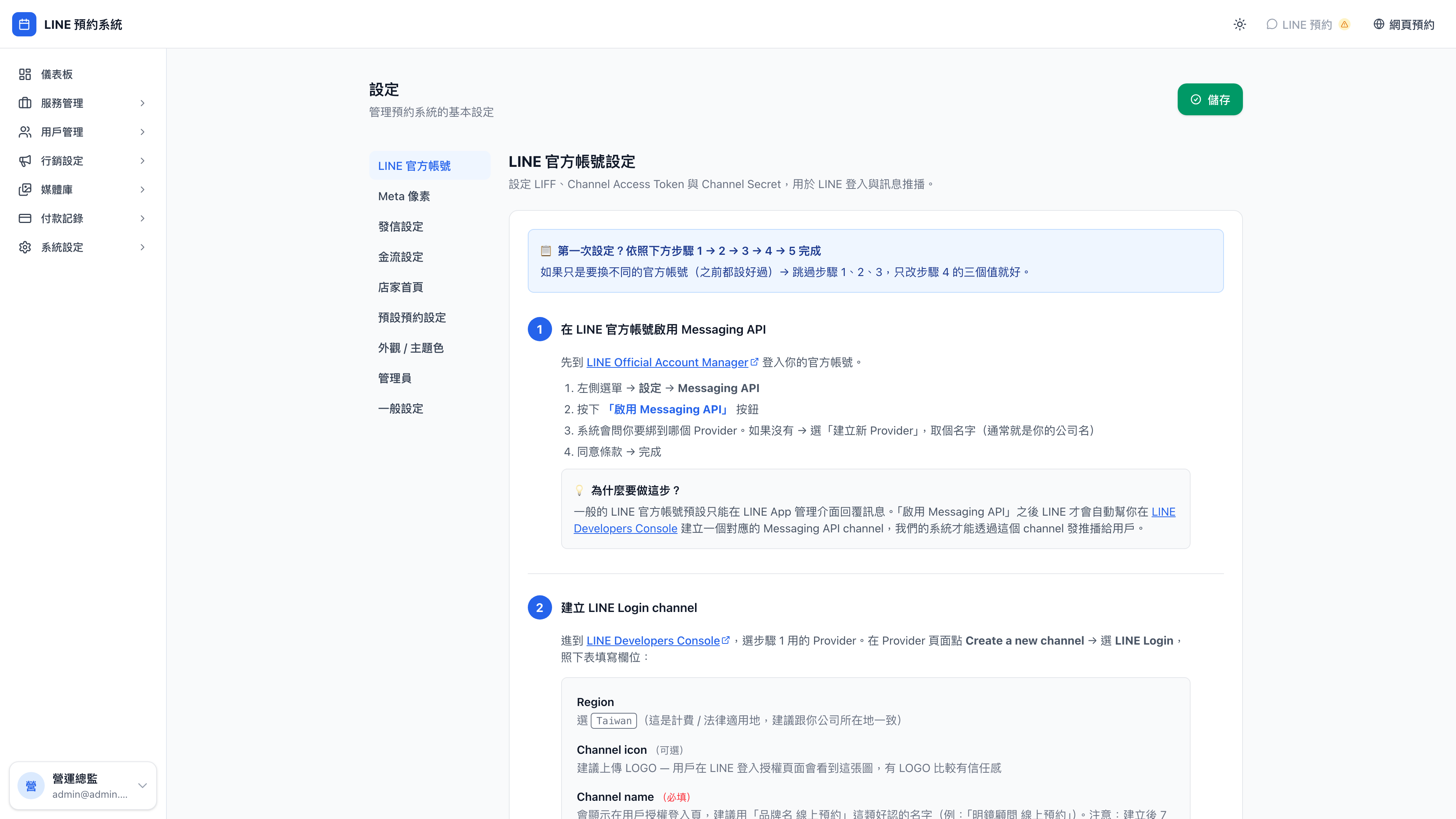
What order should I do these in?
For a first launch:
- LINE Official Account — without it, clients can't book through LINE
- Business home page — the frontage clients see
- Default booking settings — how far ahead people can book, and how late they can cancel
- Payment settings — only if you're taking money
- The rest (Pixel, email, appearance, admins) can wait
LINE Official Account
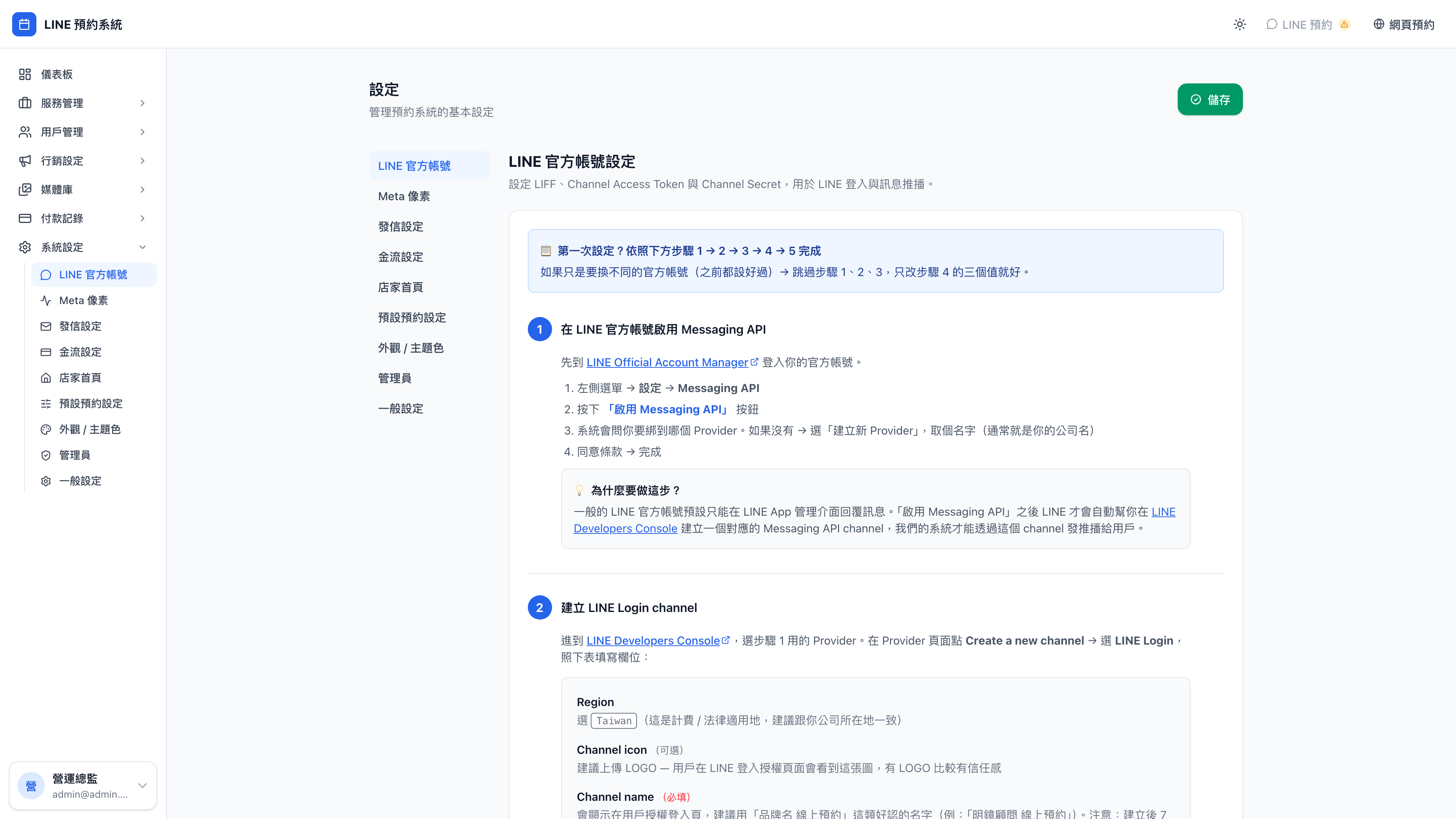
Enter the Channel Access Token and Channel Secret, and point the Webhook URL back at this system in the LINE Developers Console. The page has step-by-step guidance to follow.
Question: Do I have to have a LINE Official Account?
Not necessarily. Without LINE, clients can still complete a booking through the web booking page — they just won't get automatic LINE reminders (email is used instead).
Meta Pixel
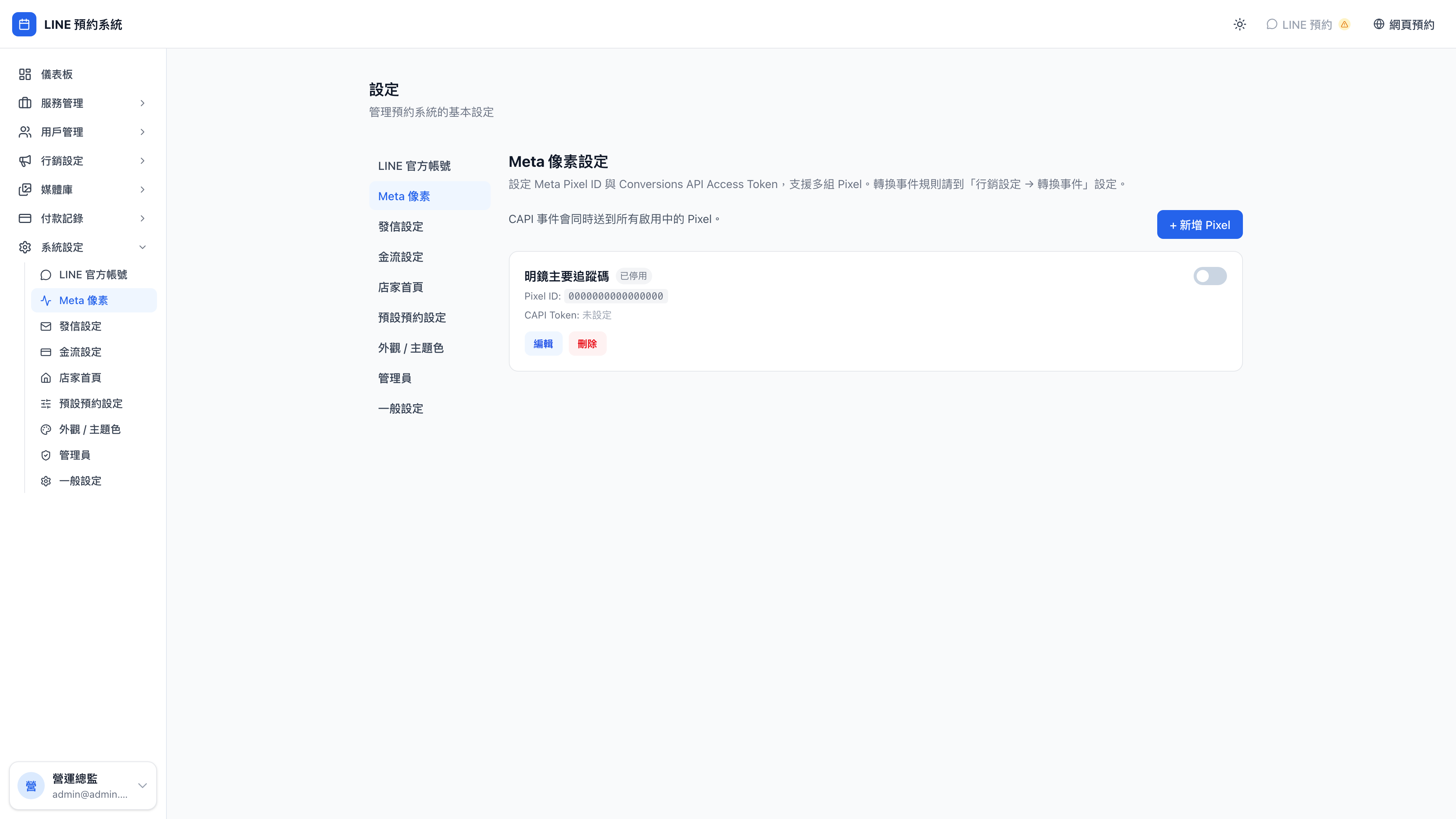
Once a Pixel ID is entered, the key actions in the booking flow are reported back to Meta for ad performance tracking. Which actions to track is configured under conversion events.
Email settings
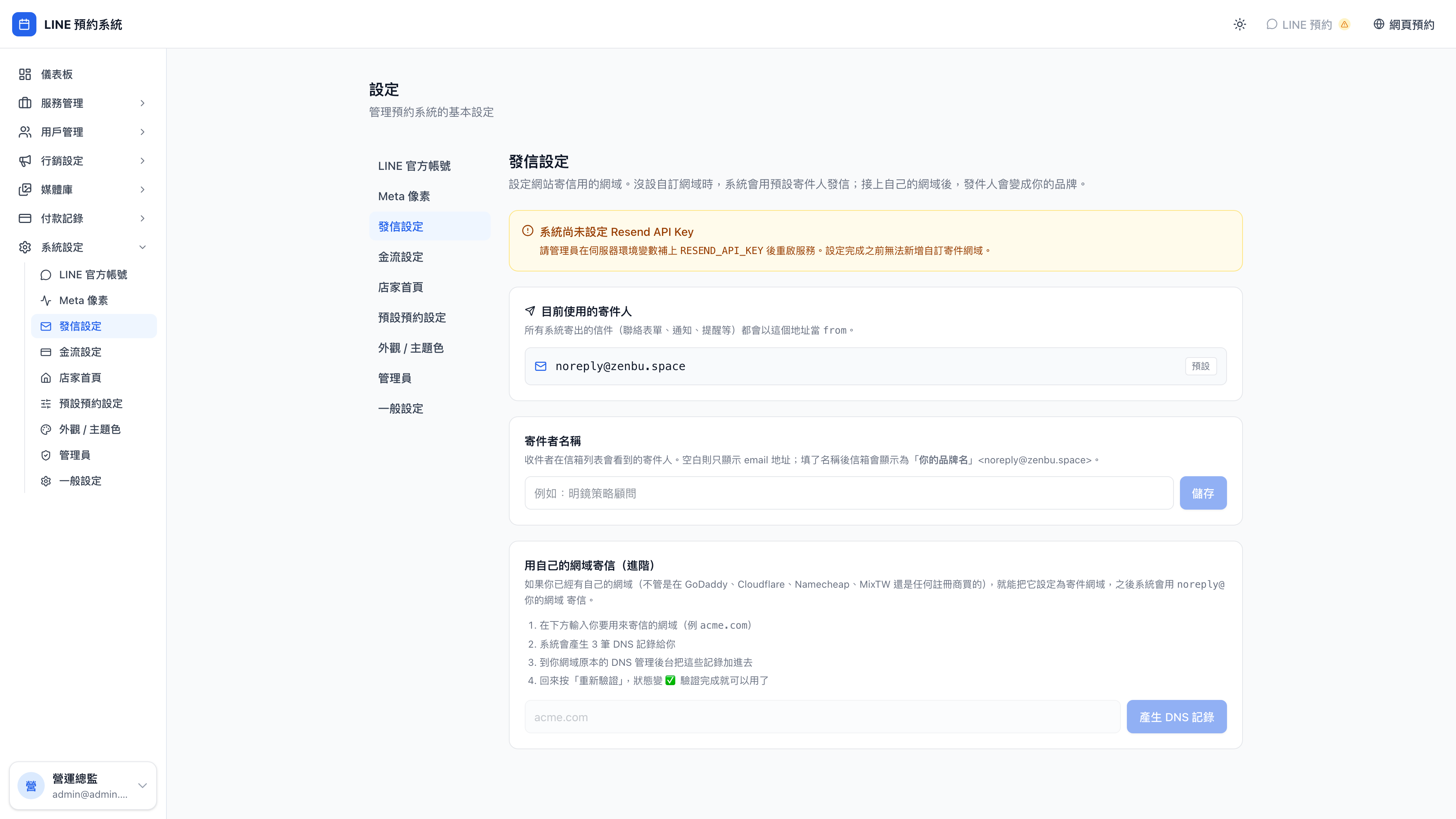
Which SMTP server the system's reminders and notifications go out through. Without this, email reminders aren't sent at all.
Payment settings
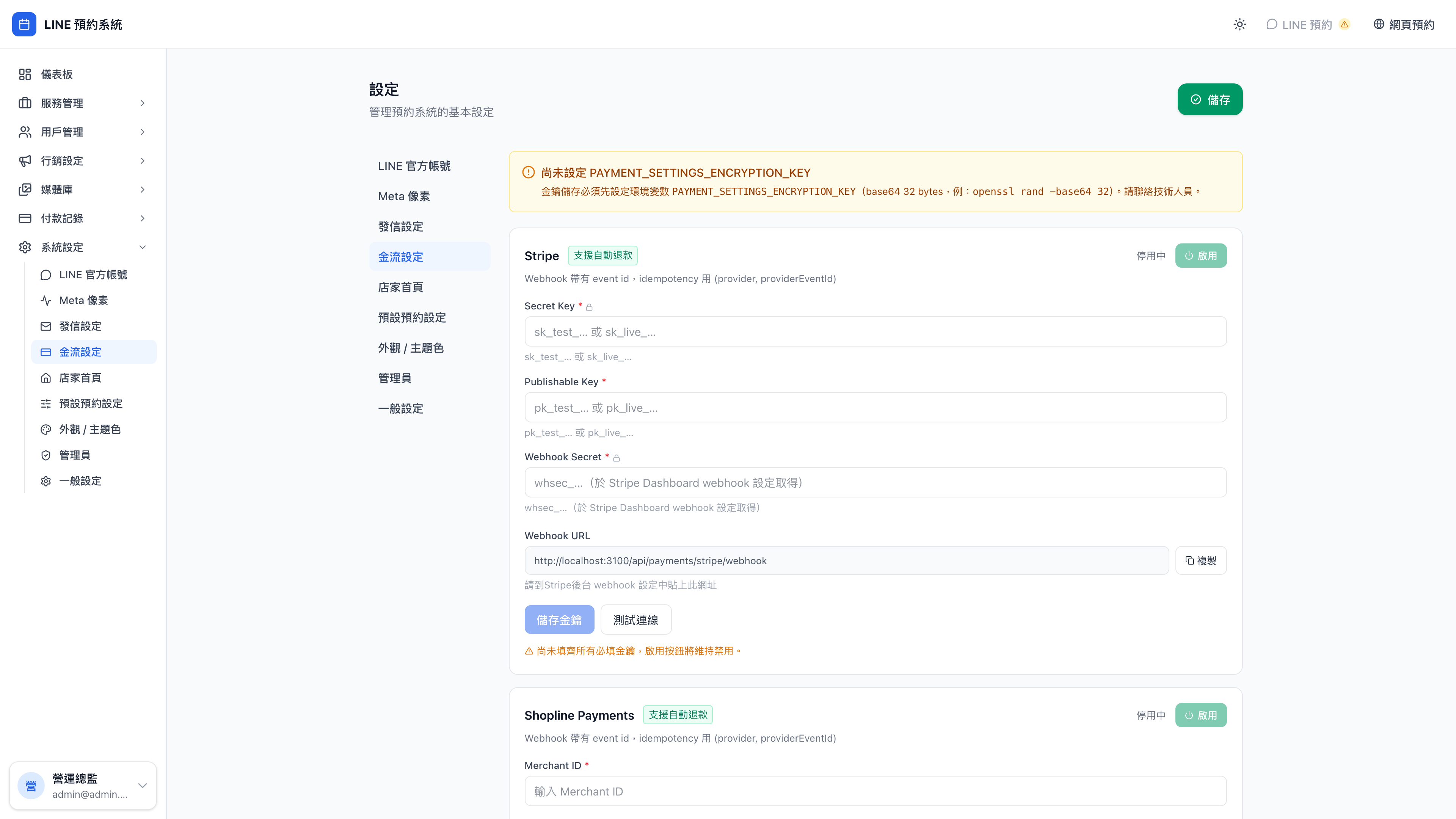
ECPay, NewebPay and Stripe are supported. Once configured, priced services can actually be paid for, and the results land in payment records.
Business home page
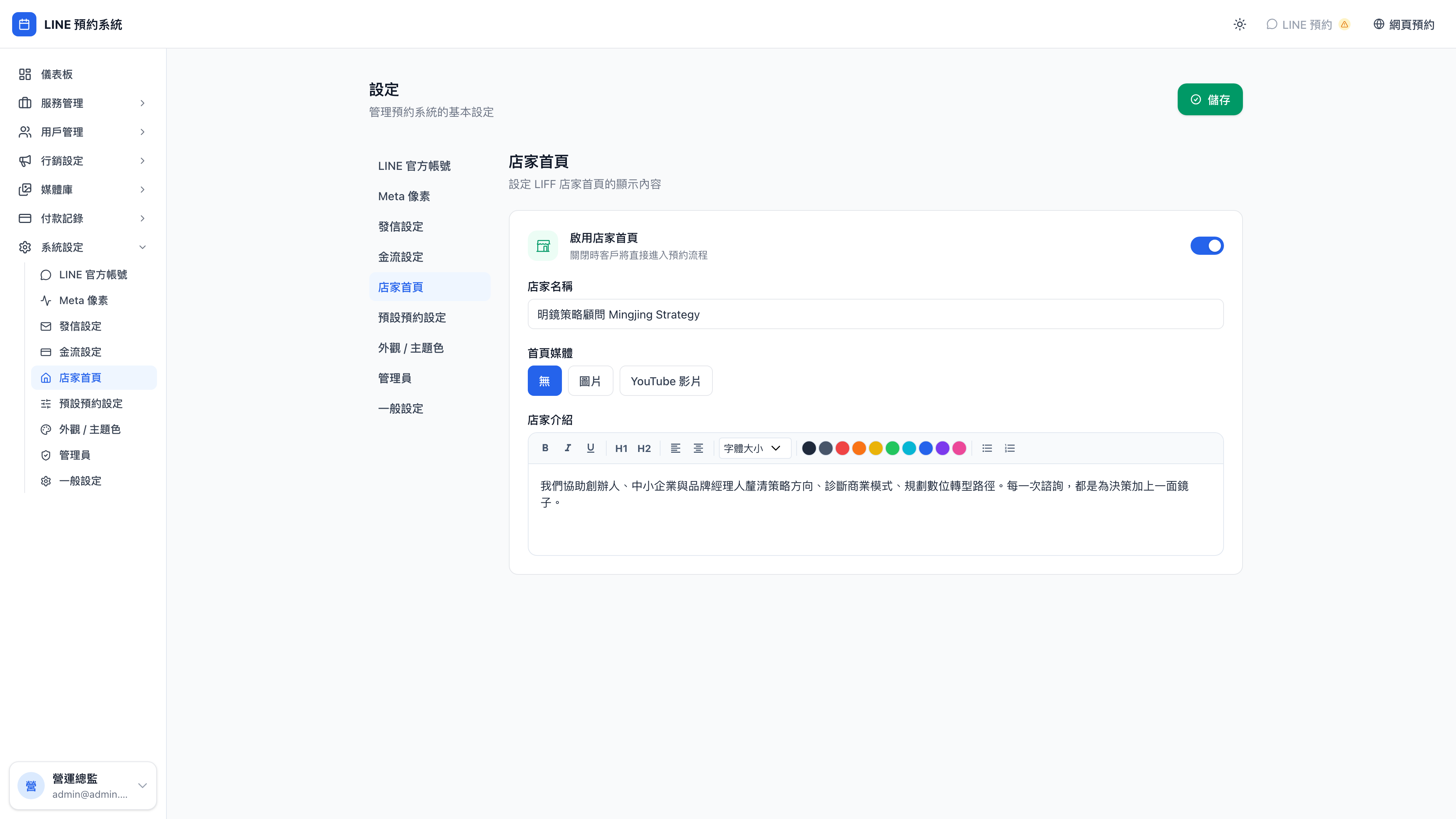
The first screen clients see when they open your booking link: business name, description, cover image and contact details.
Default booking settings
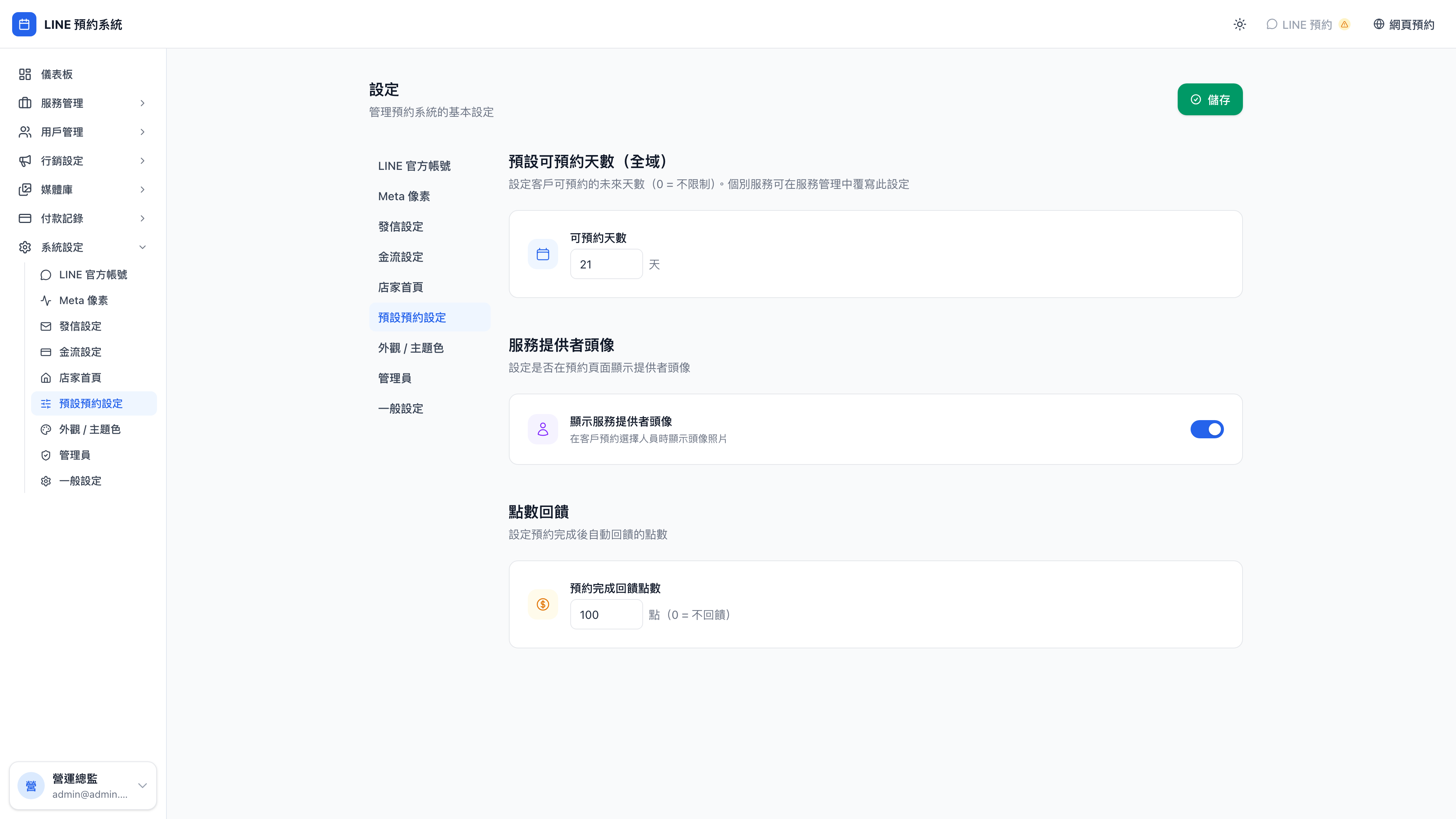
Site-wide defaults for booking rules — how far ahead people can book, how many hours before the cutoff falls, and whether clients can cancel or reschedule themselves. Individual services can override these.
Question: Do changes here apply to services that already exist?
No. These are the defaults used when creating a new service. Existing services must each be edited under services.
Appearance & theme color
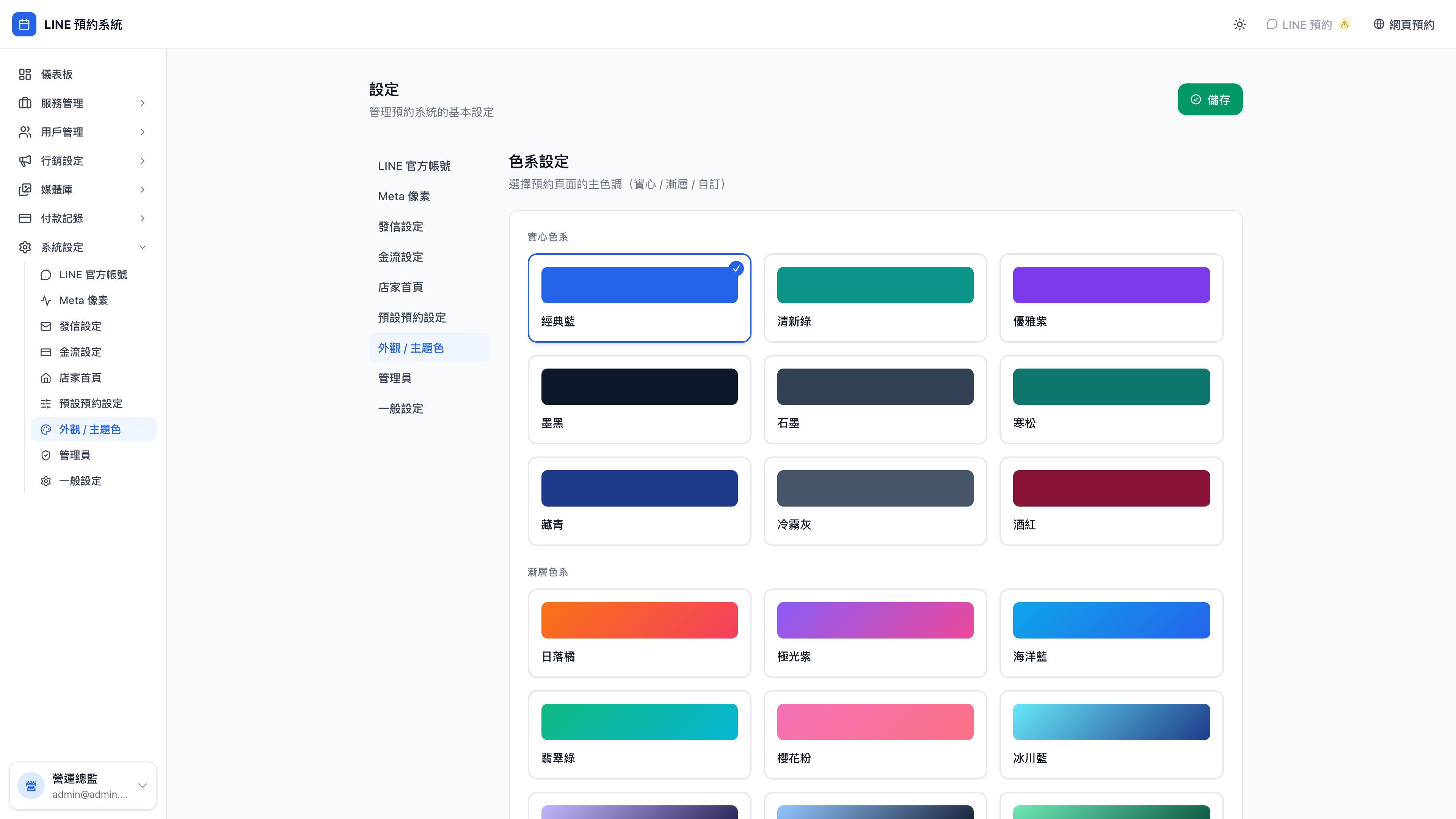
The primary color of the client-facing pages. Changes apply immediately.
Admins
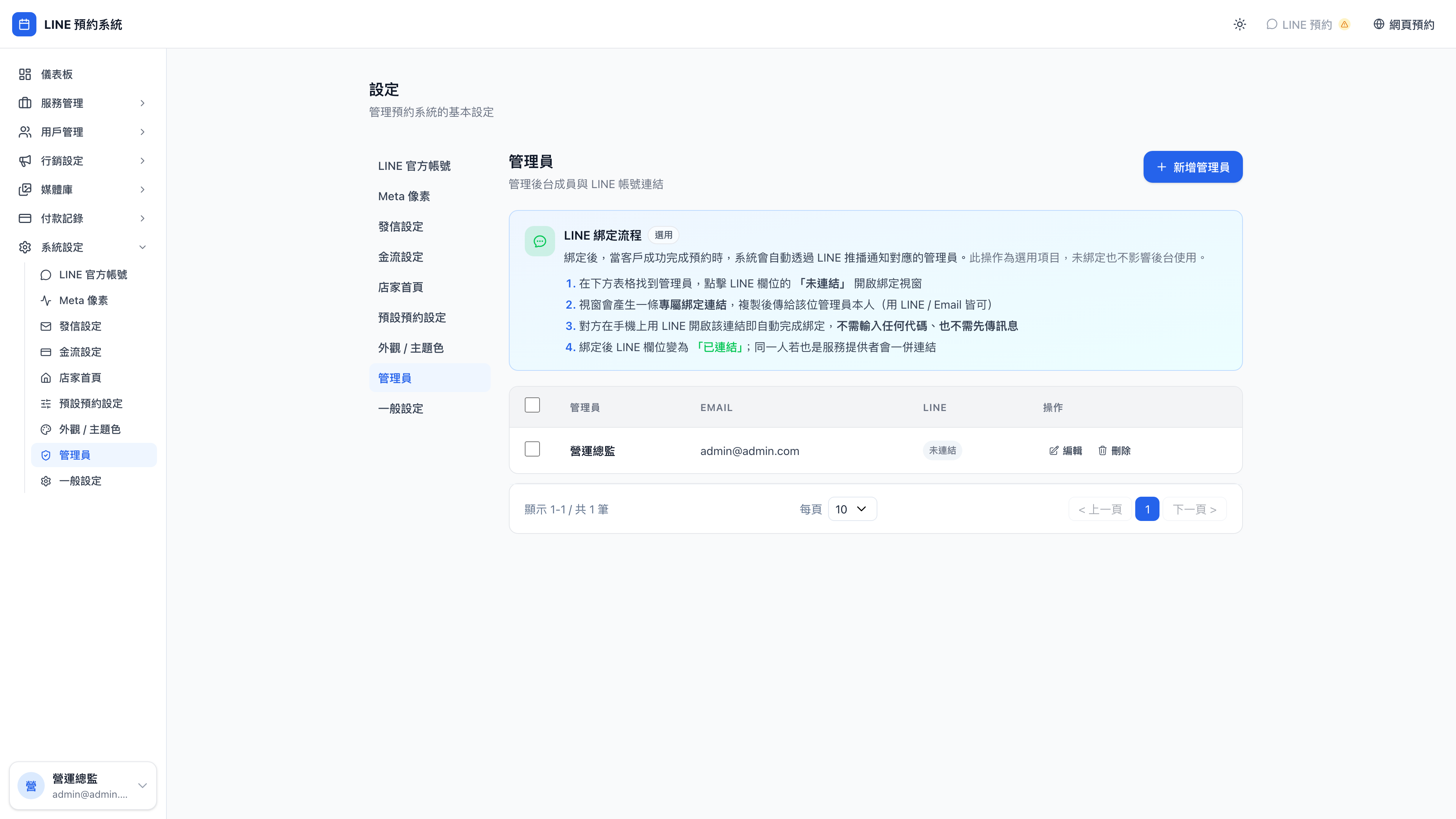
Who can sign in to this admin. Distinct from team members — a team member is someone who gets assigned services, an admin is someone who can operate the admin. The two can overlap, or not.
General settings
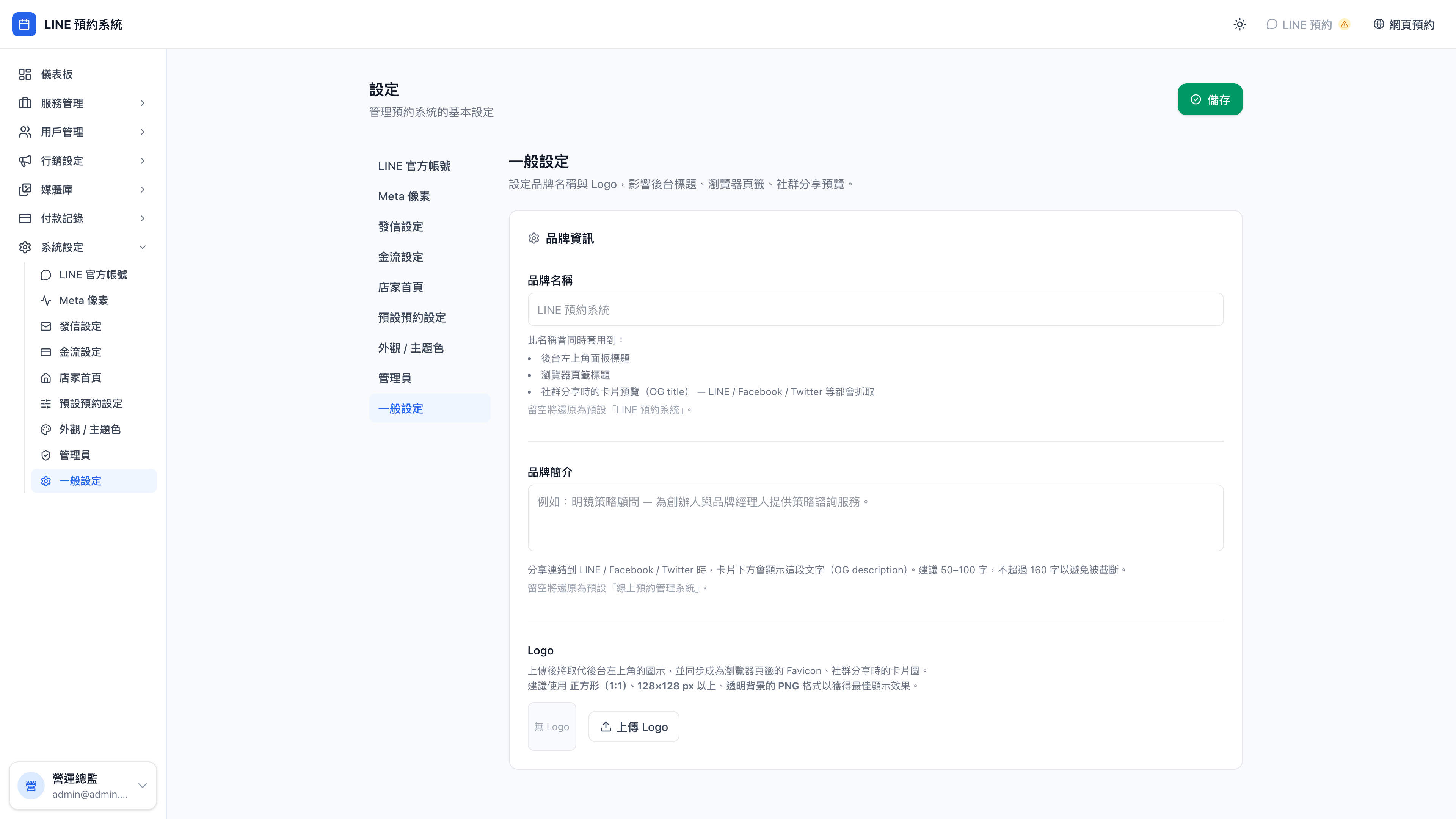
Site-wide basics such as timezone and locale.