Appearance & theme color
This page determines the colors and visual theme used across the entire LIFF signup flow, the live rooms and the admin. Changes sync to every client immediately, with no refresh needed.
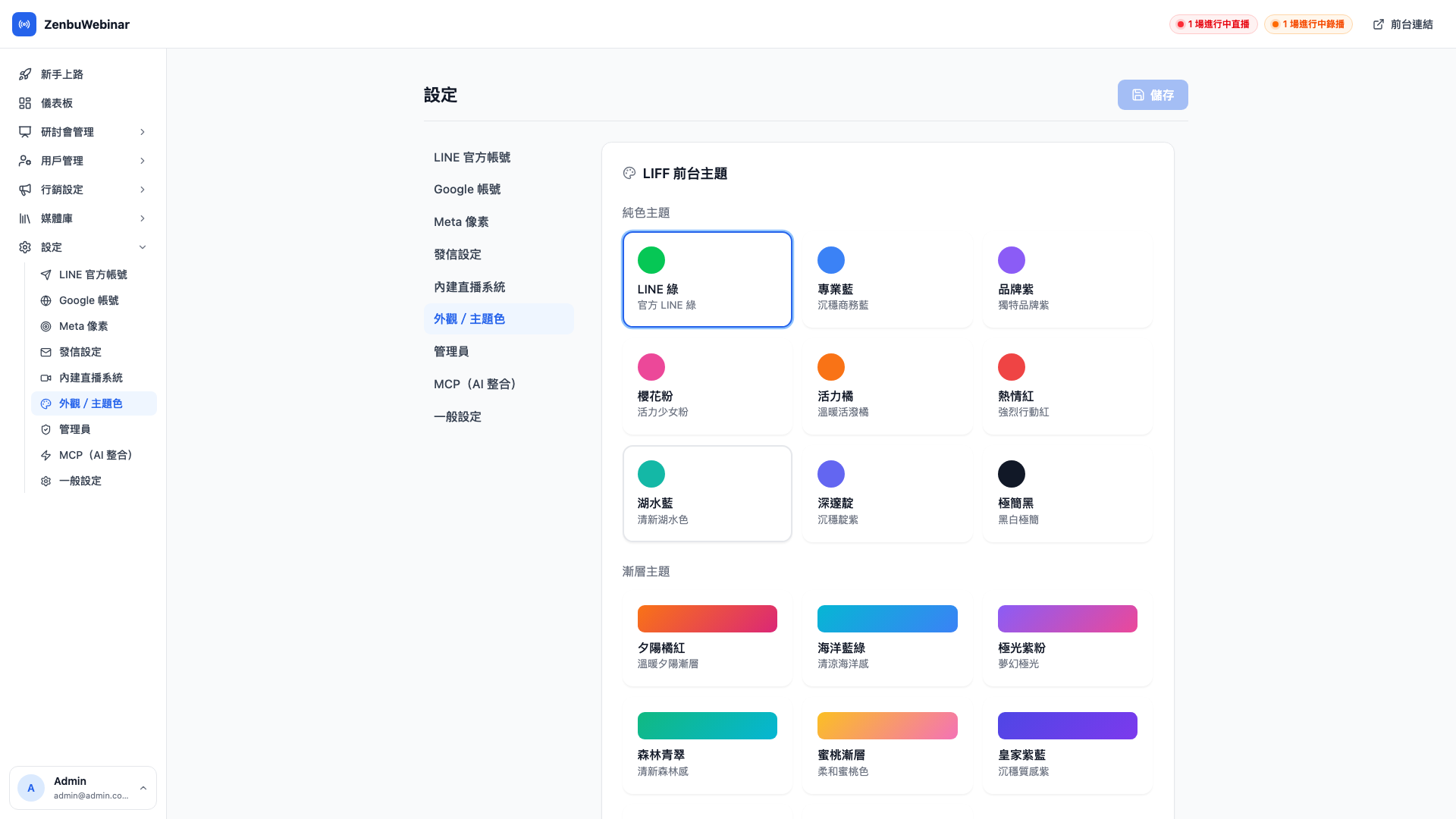
Three ways to choose a color
| Method | Purpose |
|---|---|
| 9 solid presets | The simplest — one click from LINE green to minimal black |
| 8 gradient presets | For something more designed: sunset orange-red, aurora purple-pink, deep midnight |
| Custom colors | Your own brand hex codes |
Once chosen, the preview area below shows immediately how buttons, cards and text look under the new theme.
Use case: applying the AI × E-commerce Growth Camp brand colors
Cheng-han's brand primary is deep blue #1E3A8A with orange #F97316 as an accent. The process:
- Paste
#1E3A8Ainto the custom colors section as the primary - The preview recolors instantly; confirm the button and link colors look right
- Leave primary text white (the text on buttons)
- Use a light
#F5F5F5for the page background and white for cards - Use dark gray
#1F2937for primary text - Press Save at the top right
The next time a student opens the signup page, they see the complete new palette.
The five custom color fields
| Field | What it affects | Recommended value |
|---|---|---|
| Primary (buttons) | Primary buttons, signup buttons, link color | Your brand primary |
| Primary text | Text on primary buttons | Usually #FFFFFF |
| Page background | The whole page background | Light gray, or a light brand tint |
| Card background | The background of section cards | Usually #FFFFFF |
| Primary text color | Heading and body text | Dark gray #1F2937 |
Question: Can I paste hex codes directly?
Yes. Every field has a hex text box beside it accepting #FF5733, the same without the # as FF5733, or shorthand like #fff. The system normalizes it to #RRGGBB.
The 9 solid presets
| Preset | Color | Best for |
|---|---|---|
| LINE green | #06C755 | Matching LINE's own look |
| Professional blue | #3B82F6 | Business and enterprise |
| Brand purple | #8B5CF6 | Creative and knowledge work |
| Cherry pink | #EC4899 | Fashion and women's audiences |
| Vivid orange | #F97316 | Marketing and events |
| Bold red | #EF4444 | Strong calls to action |
| Lake teal | #14B8A6 | Health and wellbeing |
| Deep indigo | #6366F1 | Technology and AI |
| Minimal black | #111827 | Premium and minimal |
The 8 gradient presets
Gradient presets mainly affect how primary buttons look, giving a more designed feel than a solid color:
Sunset orange-red, ocean blue-green, aurora purple-pink, forest green, peach gradient, royal purple-blue, lime lemon, deep midnight.
Question: Do gradients only show on buttons?
Yes. Gradients appear on primary buttons (the signup button, the enter live room button); other elements such as cards and text stay solid, so the screen doesn't become too busy.
The preview area
The preview shows three common elements live:
- Primary button (using the primary color)
- Secondary button (neutral)
- Card (using the card background and primary text colors)
Any color change is reflected immediately, so you can see the result before deciding to save.
LIFF-side settings
The show cover images in the LIFF session list toggle controls:
- On: session cards show a cover thumbnail (visually rich)
- Off: a plain text list (higher information density)
Use case: choosing a session card style
With few sessions (under 10), turn cover images on to make the screen feel full. With many sessions (weekly ones, say), consider turning them off so the list is more compact and attendees see more sessions at a glance.
Note: press Save after changing colors
Everything on this page is live preview plus manual save. Changing a color and leaving the page does nothing. Once you're happy, press Save at the top right to push it to every client.