Sessions
A "session" is the configuration for one webinar. This page handles creating, editing and deleting them, and shows the status of every session you have.
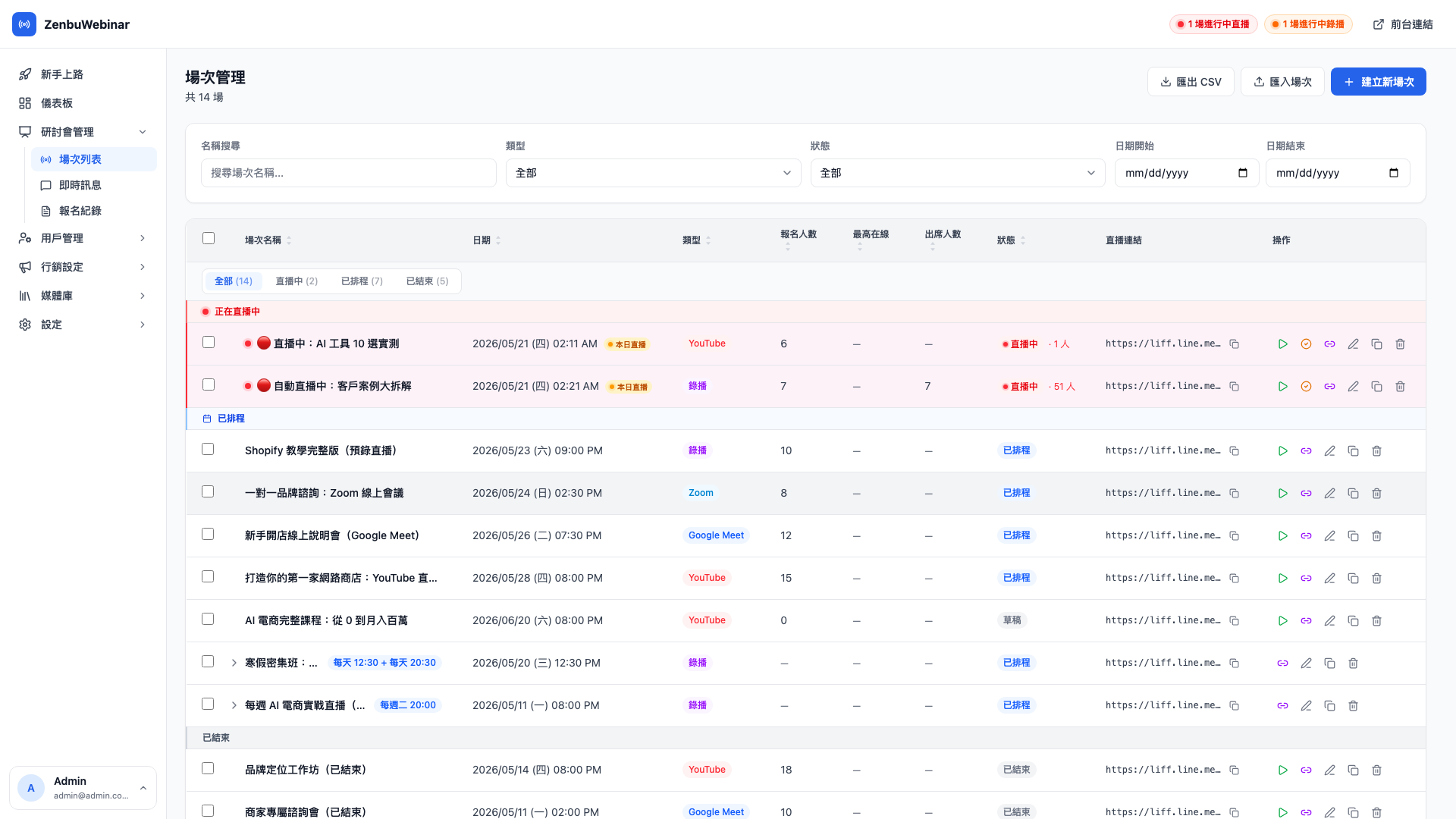
What counts as a session?
- A one-off stream — "10 AI Tools Put to the Test", 8pm on 3/15
- A weekly recurring stream — "AI E-commerce in Practice, every Tuesday at 8pm"
- Parallel time slots — "Winter intensive: choose either 12:30pm or 8:30pm, every day"
- A pre-recorded video — people sign up and watch whenever, or it plays out automatically on a schedule
All of these are a session.
Creating a session
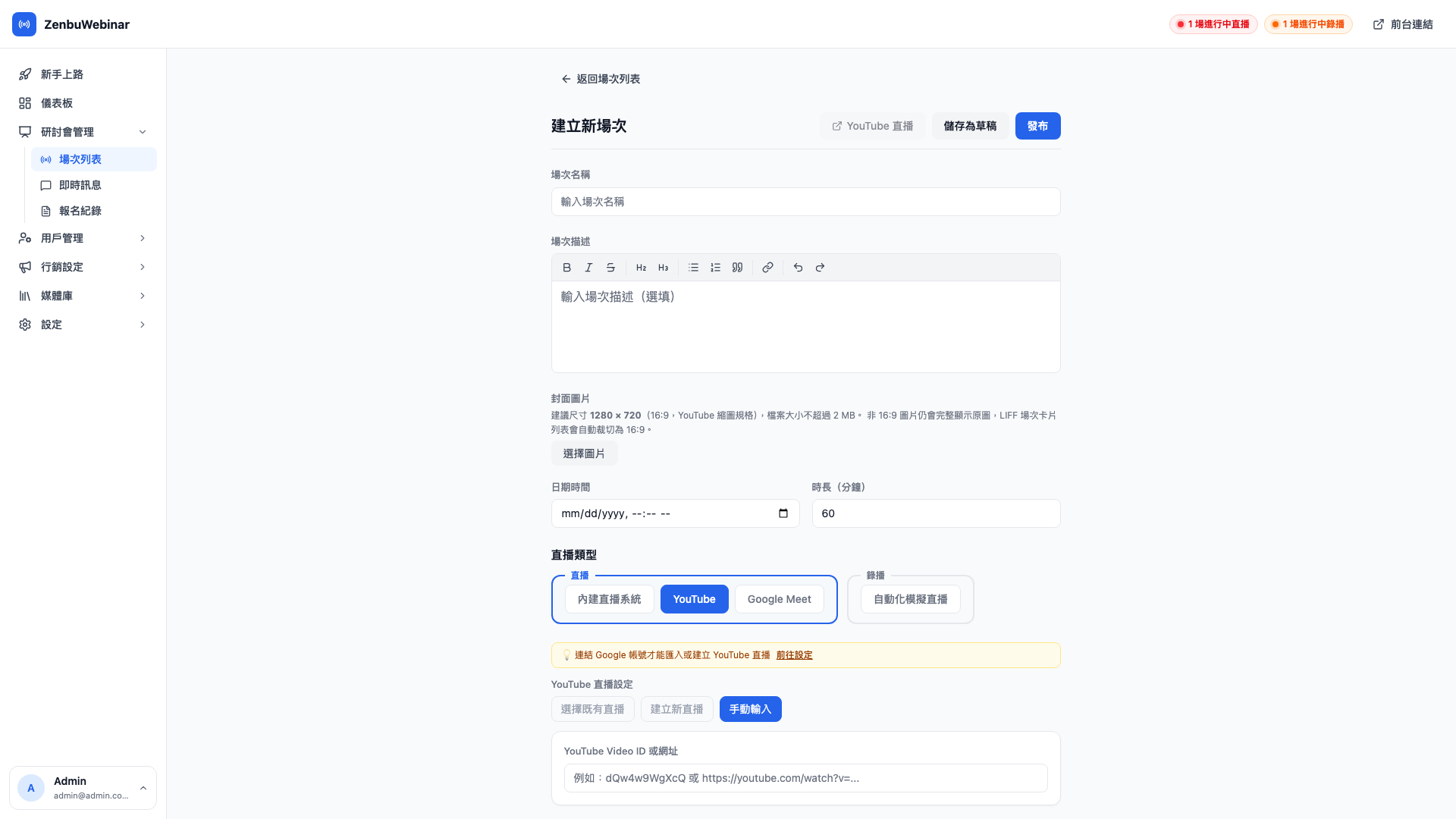
- Click New session, top right
- Fill in the basics: title, description, cover image, scheduled time, duration
- Choose a stream type (see below)
- Configure recurrence if you need it
- Configure the signup fields (name and email by default; you can add phone, company and so on)
- Configure the notification rules (automatic LINE messages before the stream, after signup, after it ends — see message automation)
- Configure any consent checkboxes (a privacy policy, for instance)
- Save
The navigation down the left of the edit page
A session has a lot of settings, so the edit page has a guide menu down the left (basics, stream settings, signup fields, notification rules…), with each block of settings as its own card.
- Click a menu item to jump straight to that block
- As you scroll, the menu highlights the block you're currently in
- Each block is a separate card, so it's obvious at a glance what's still unconfigured
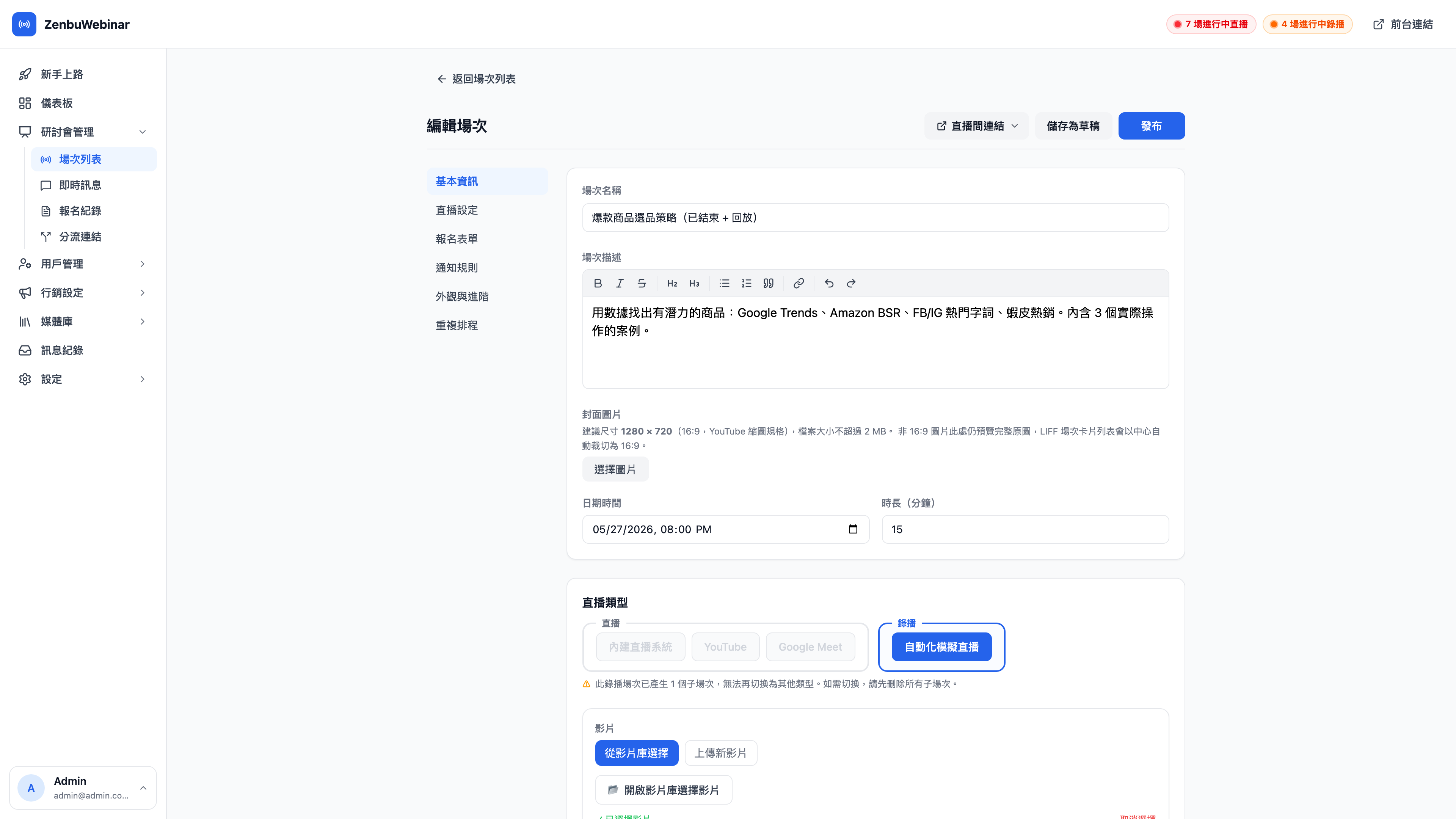
Question: Do the options change with the stream type?
Yes. The form shows only the fields relevant to the stream type you chose — "simulated viewer count" and "allow replay viewing" appear only on pre-recorded sessions, and "enable attendee camera monitoring" only on built-in streaming. Not seeing a setting after picking the wrong type is expected behavior.
Question: Can I test the signup flow on myself while it's still a draft?
Yes, and here's the recommended process: fill everything in → save as a draft → copy the signup link and run through the whole flow yourself in LINE on your phone, confirming the fields, the reminders and the LINE notifications all work → then switch it to Published.
The four stream types
| Type | How it works | What attendees see | Best for |
|---|---|---|---|
| YouTube | You stream on YouTube | An embedded YouTube window inside LIFF | Large public talks, and when you want YouTube to drive traffic |
| Google Meet | You run a Meet call | A button that opens Meet | Two-way meetings and small-group teaching |
| Built-in streaming | Native browser streaming (LiveKit) | Sub-second latency streaming inside LIFF | Highly interactive courses, and when you want attendee camera monitoring |
| Pre-recorded | A recorded video played automatically | A video player inside LIFF | Recorded courses and automated simulated-live sessions |
Use case: a mixed strategy
Cheng-han, who teaches "AI × E-commerce Growth Camp", arranges it like this:
- The first session is a public YouTube stream to collect leads (and pick up search exposure)
- From the second session onwards he switches to built-in streaming for the paid advanced course (attendees can only watch inside LIFF, so the content doesn't leak)
- Revision sessions use pre-recorded playback every Friday (recorded once, played repeatedly)
Question: Where did Zoom sessions go?
Zoom integration is temporarily hidden pending the LINE Marketplace review process, so it isn't shown by default. It will return to the list once that opens up.
Recurrence
If you want the same topic to play weekly, daily or in set slots, there's no need to create it by hand each time — turn on recurrence.
Four recurrence modes:
| Mode | How you configure it |
|---|---|
| No repeat | The default — a single session |
| Weekly | Pick a day and a time (every Tuesday at 20:00, say) |
| Parallel slots | Set several rules (daily at 12:30 plus daily at 20:30) |
| Manually chosen dates | Pick the dates and times from a calendar (for irregular schedules) |
Optional limits:
- End date — stop generating new occurrences after a given day
- Maximum occurrences — stop after 12 in total, for instance
Use case: a winter intensive
Two weeks over the winter break, with 12:30pm and 8:30pm slots each day, ending after 20 sessions. The configuration is:
- Recurrence: parallel slots
- Rule 1: daily at 12:30
- Rule 2: daily at 20:30
- Maximum occurrences: 20
- End date: 2/15
The system schedules all 20, each with its own signup link, its own reminders and its own attendee list.
Question: Recurrence or creating each week by hand — which is better?
Recurrence means configuring once and letting the system schedule ahead; the downside is that every occurrence shares the same title and description.
If your topic changes weekly, create one-off sessions by hand. If the content is identical each time (the same recording used for weekly revision, say), recurrence saves the most effort.
The occurrences that recurrence generates
With recurrence on, the system generates an occurrence for each point in time. Every occurrence is independent:
- It has its own signup link (people sign up for "the session on that date", not for the whole series)
- It has its own attendee list and signup records
- It has its own reminders (attendees of one occurrence only get the reminders for that occurrence)
You can expand a session in the list to see the status, headcount and action buttons for each occurrence.
LINE session list display settings (recurrence only)
With recurrence on, a series can accumulate a great many occurrences. LINE session list display settings control how many, and how far ahead, a user sees in the session list inside LINE (LIFF). The three fields can be used alone or in combination:
| Field | Nature | Best for |
|---|---|---|
| Maximum sessions shown | A hard count limit | Worth setting in every case; if left blank it defaults to 10 |
| Only show before this date | An absolute point in time | Campaigns with a definite end date (a winter intensive running only until 2/28) |
| Only show within N days from now | A rolling window that advances each day | Open-ended recurring sessions (a weekly stream where you only ever want to expose the next 7 days) |
The three conditions are intersected: a session must satisfy the count limit, fall before the absolute date, and fall within the next N days to appear. If both "before this date" and "within N days" are set, the stricter (earlier) one governs. Leaving a field blank or at 0 disables that rule.
Use case: a weekly stream that only shows "the next one"
Yi-chun runs "AI E-commerce in Practice" every Tuesday at 8pm. She doesn't want people seeing ten weeks of sessions in LINE at once — just the next one or two:
- Only show within N days from now: 7
- Maximum sessions shown: 2
The list then always shows at most two sessions within the next 7 days, rolling forward automatically each day — with no need to come back weekly and push the date out by hand.
Question: What's the difference between "only show before this date" and "only show within N days from now"?
"Before this date" is a fixed cutoff: once that day arrives nothing shows any more, and you have to move it by hand. "Within N days" is a rolling window that advances daily, which suits long-running recurring sessions with no end date. Leaving both blank means no time restriction at all, bounded only by "maximum sessions shown".
The three-way "Enter live room" button
Every row in the session list has an Enter live room button, which expands into different options depending on the session type:
- YouTube / Meet — one click through to the relevant platform
- Built-in streaming — split into instructor and attendee buttons (the instructor gets controls and camera; attendees only watch)
- Pre-recorded — one click to preview the player
Copy signup link is in the same popover, ready to share to social, ads or email.
The four session statuses
| Status | Visible to users | When it switches automatically |
|---|---|---|
| Draft | No | While you're still building it |
| Published | Yes, and open for signups | When you switch it manually |
| Live | Yes, and the live room can be entered | When the scheduled time arrives |
| Ended | Still visible, but closed to signups (unless replay is enabled) | Once the start time plus the duration has passed |
Note: statuses switch automatically, but cancelling is manual
Statuses change on their own — you don't need to move a session from Published to Live to Ended by hand. But if you have to cancel one at short notice, remember to come back and set it to Draft, or delete it.
Allow replay viewing (pre-recorded sessions)
A pre-recorded session ends by default once its scheduled end time passes. If you want registrants to watch the whole thing afterwards, turn on Allow replay viewing in the stream settings on the edit page.
Doing so reveals several sub-settings:
| Setting | What it does |
|---|---|
| Allow scrubbing | On, replay viewers can drag the timeline and fast-forward freely; off, they can only play through in order |
| Replay open for N days | Counted from the scheduled end time, after which it closes automatically (0 = open forever). The replay room shows a countdown |
| Show messages during replay | Whether the chat / message panel appears in the replay room (off means video only) |
On the attendee side: entering the live room after the stream has ended shows This stream has ended plus a Watch replay button, which plays from the beginning. The replay room shows a gray Replay marker in the top left (not a red LIVE one) and a note reading Replay open until… (see the attendee documentation).
Use case: a 3-day replay window that creates pressure
Cheng-han wants his pre-recorded course "Bestseller Product Selection" to feel like "watch now or miss it":
- Allow replay viewing: on
- Allow scrubbing: off (he wants them to watch it through, not skip to the conclusion)
- Replay open for: 3 days
People who signed up but didn't attend get the replay link an hour after the stream ends, see a countdown reading "Replay open until X", and are far more likely to watch it immediately rather than putting it off indefinitely.
Question: How is "allow replay viewing" different from the older "replay" switch in the stream settings?
The older replay switch is a plain on/off with no control over scrubbing, how many days it stays open, or whether messages show. Allow replay viewing is its more capable successor — use it on new sessions so you have full control over the replay experience and the window.
Note: the open period counts from the scheduled end time
The countdown is anchored to the session's scheduled end time (start time plus duration), not to when a given user opens it. So "open for 3 days" is the same deadline for everyone, and once it passes the replay closes for all of them and shows "replay has ended".
Simulated viewer count (social proof)
Pre-recorded and built-in streaming sessions have a simulated viewer count setting:
- Starting count — what viewers see when the stream begins (50, say)
- Ceiling — the figure it climbs towards (200, say)
- Volatility — how fast it grows and fluctuates
With it on, the top of the LIFF live room shows "XXX watching now", giving a sense that plenty of people are there.
Question: Will people notice the count is simulated?
The figure fluctuates within about ±10, which reads as more genuine than a hard-coded number. It is still simulated, though, so decide whether to use it according to your own business standards.
Signup count boost
With show signup count on the session page enabled, you can also set a base count boost:
- The count shown to users = actual signups + the boost
- Set it to 50 with 12 actual signups, and users see "62 people have signed up"
- Signup records in the admin are unaffected; only the user-facing display changes
This is commonly used for the cold start of a new session, to avoid an off-putting "1 person has signed up".
What if there's nothing available to sign up for?
Don't let people arrive to nothing — turn on the waitlist, capture them now, and notify them automatically the moment a new session is published.