Built-in streaming
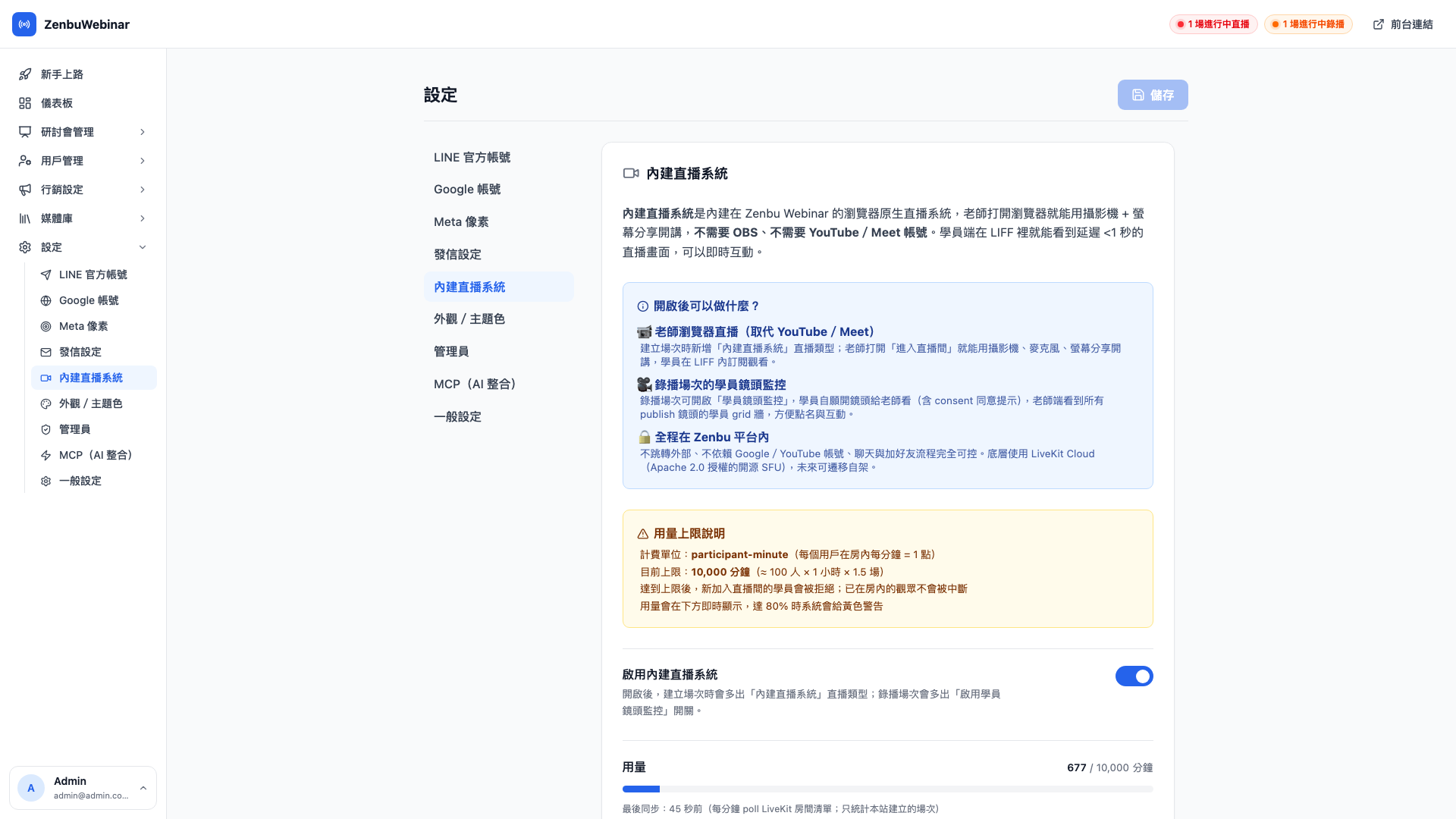
Built-in streaming is zenbu webinar's own native browser streaming, built into the admin and independent of YouTube and Google Meet. The instructor opens a browser and presents with camera and screen share; attendees see the stream inside LINE with under a second of latency. Nothing leaves the platform, and no Google account is required.
Why does this exist?
YouTube and Meet are convenient, but three things about them frustrate webinar organizers:
- The chat isn't yours — comments live inside YouTube or Meet and can't be tied to your LINE user records
- 10–30 seconds of latency — by the time you see a question, the video has moved on several sections
- An external account is needed — attendees who aren't signed in to Google struggle to participate
Built-in streaming solves all three at once: the chat is inside LIFF, latency is under a second, and no external account is involved.
Use case: the Thursday live class of the AI × E-commerce Growth Camp
Cheng-han streams at 8pm every Thursday. On YouTube, students constantly complained "can't you see my question?". After switching to built-in streaming:
- Students comment in LIFF and it appears instantly on the instructor's grid wall
- The instructor can promote a student's camera to the main view, which feels like a physical classroom
- After the stream, the message history is filed automatically under that session's Live messages tab
Before you enable it
Built-in streaming uses LiveKit Cloud as its underlying infrastructure, and is billed in participant-minutes (one user in a room for one minute = 1 unit).
Question: Does enabling it start costing money automatically?
You aren't charged, but it does consume your allowance. There's a default free allowance each month (10,000 minutes ≈ 100 people × 1 hour × 1.5 sessions). At 80% usage the system shows a yellow warning; at 100% new attendees are turned away from live rooms (sessions already in progress are not interrupted).
Question: How do I control usage?
Two levels:
- Set a cap — adjust the limit up or down by hand on this page
- Per-session choice — for a large session where attendance may spike, consider using YouTube instead (which doesn't consume this allowance)
Enabling it
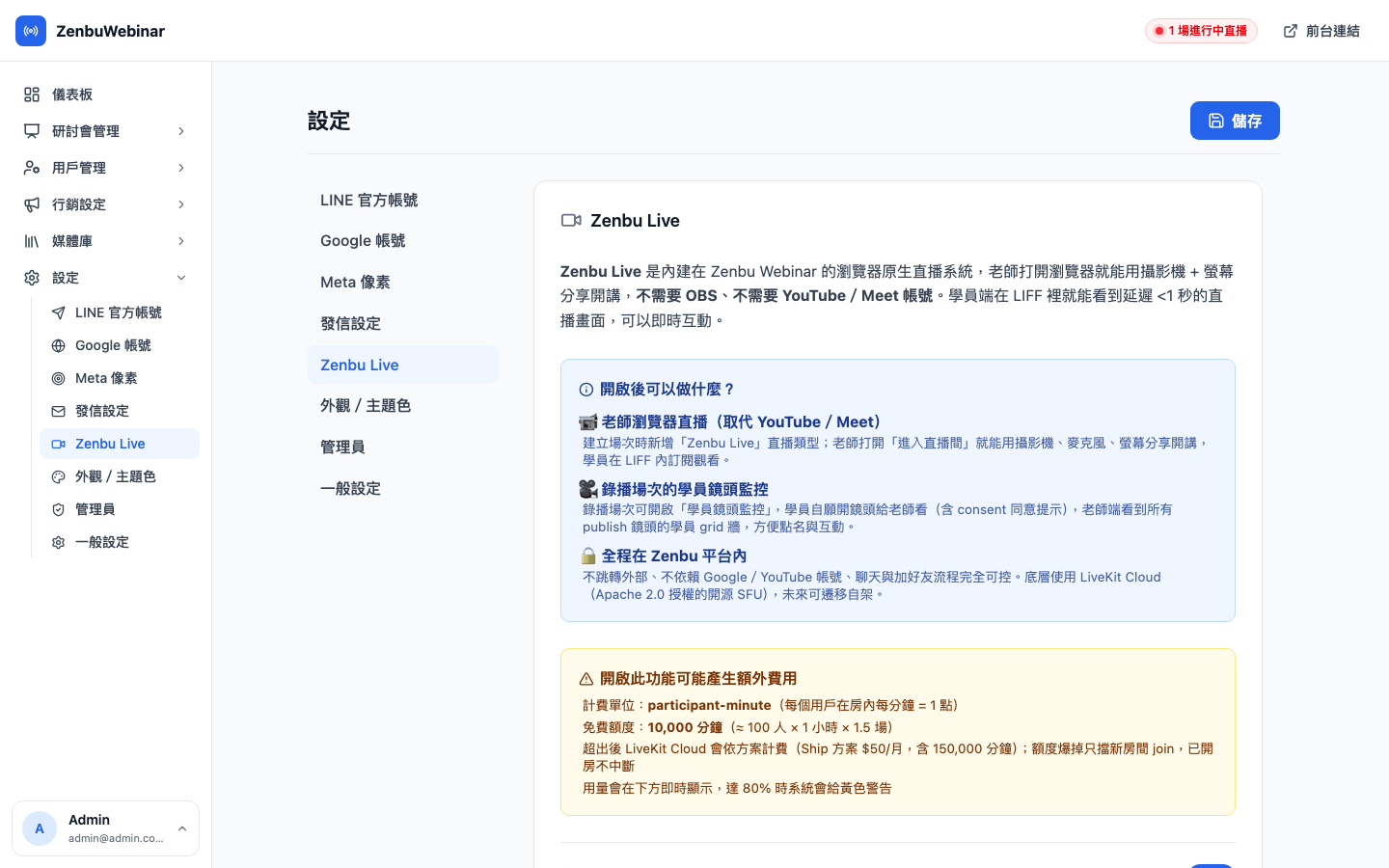
- Go to Settings → Built-in streaming
- Read the usage and cost notes
- Switch on Enable built-in streaming at the top
- Once enabled, Built-in streaming appears as a stream type when creating sessions, and pre-recorded sessions gain an enable attendee camera monitoring toggle
Turning the switch off retains the settings on sessions already using it, but new sessions no longer offer the option.
Usage monitoring
The lower half of the page shows, in real time:
| Metric | Notes |
|---|---|
| Used this month | Cumulative participant-minutes |
| Cap this month | The minute limit you set |
| Utilization | Progress bar color: green (< 80%) / yellow (80–99%) / red (at the cap) |
| Last synced | The system polls LiveKit Cloud once a minute; this shows how long ago the last sync was |
Use case: approaching the cap
Cheng-han has a large public talk next week, estimated at 300 people × 90 minutes = 27,000 minutes — well beyond the 10,000 default. A week ahead he raises usage cap to 35,000, leaving some headroom. On the day the usage curve updates live, and the yellow warning at 28,000 tells him he's still comfortably inside it.
Setting the usage cap
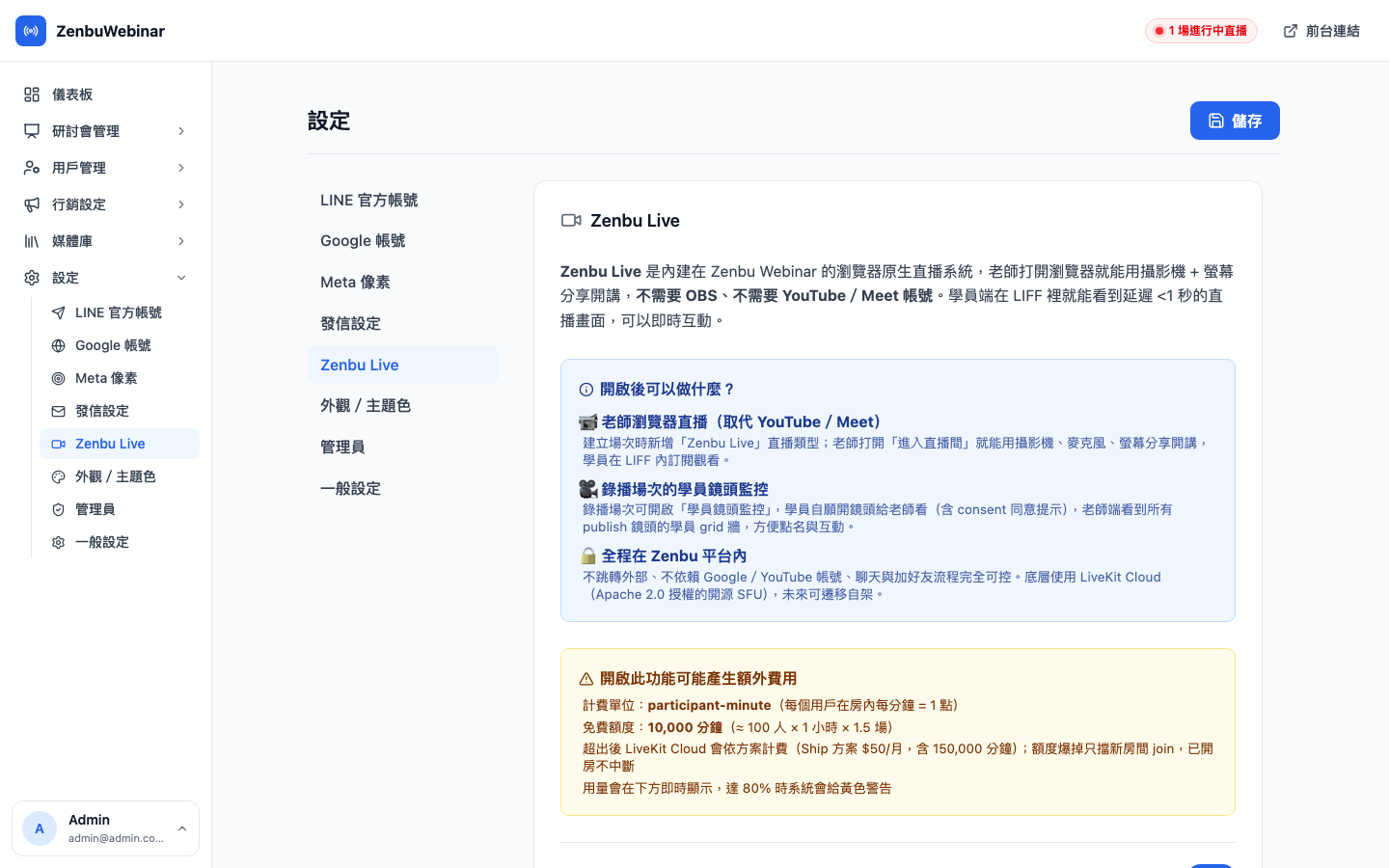
The usage cap (minutes) field below is adjustable. Enter a new figure and press Update cap.
Behavior once the cap is reached:
- New attendees are turned away from live rooms (they see "the live room has reached capacity")
- Attendees already in the room are unaffected, and the stream plays out
- You see a red warning and can raise the cap immediately to unblock it
Note: the cap is there to protect you
This limit isn't imposed by LINE or Zenbu — it's a safeguard against runaway usage (a stream shared into an external community, say, bringing a sudden flood of viewers). The actual LiveKit bill is the zenbu webinar platform's responsibility.
How it integrates with sessions
Once enabled, creating a session gives you:
- Built-in streaming as an additional stream type (alongside YouTube, Google Meet and pre-recorded)
- An enable attendee camera monitoring toggle on pre-recorded sessions — letting attendees voluntarily turn on their camera for the instructor to see (with a consent prompt), for interactive pre-recorded sessions
For the instructor interface and the attendee LIFF experience, see Sessions and Attendee experience → Joining the live room.