Media library
Every video and image you upload is managed here in one place.
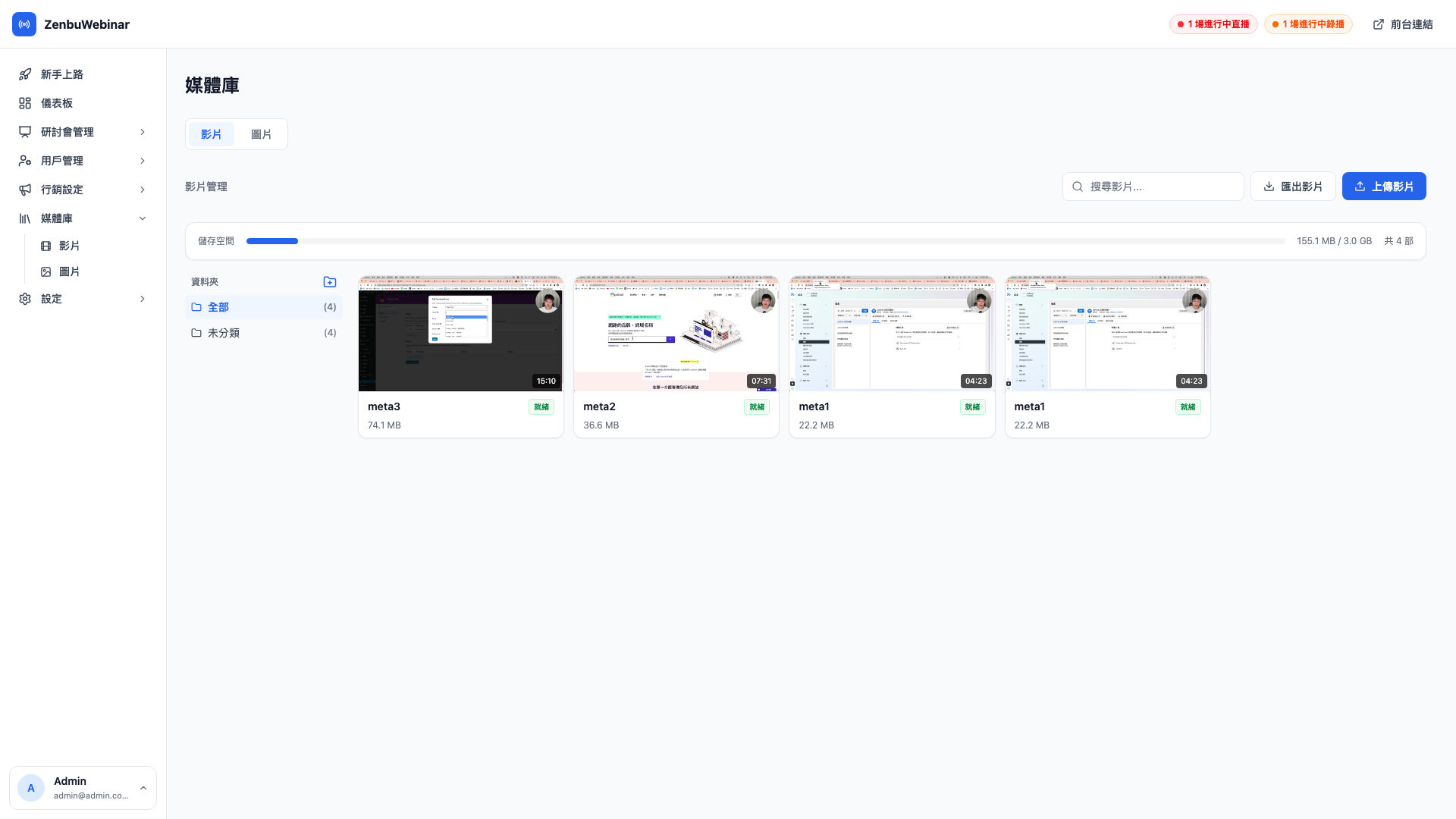
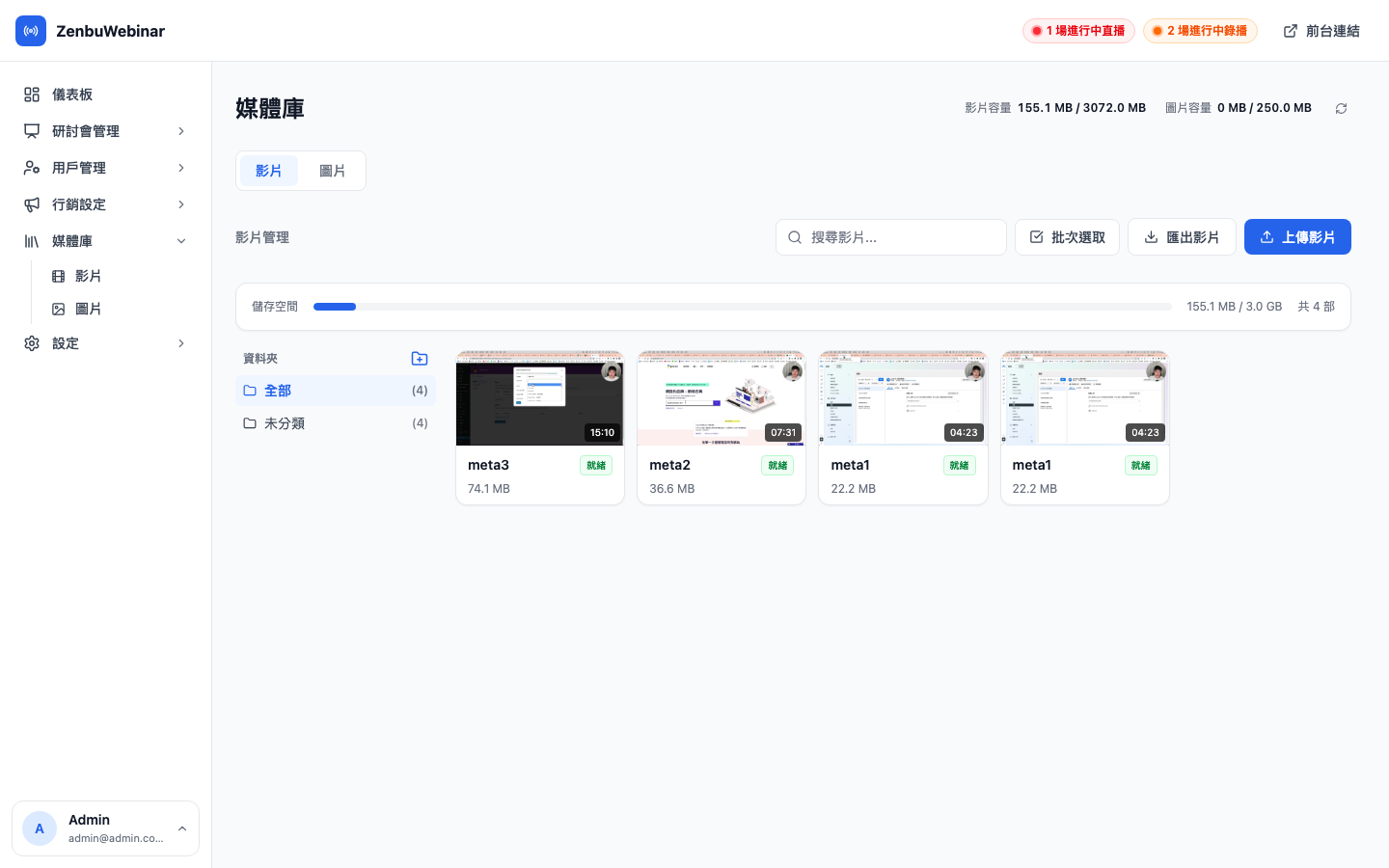
Two tabs
Videos
Used by pre-recorded session types. Once uploaded, a video can be chosen while creating a session.
The upload process:
- Click Upload video
- Choose the file (there's no size limit, but larger files take longer to process)
- Wait:
- Uploading — the file is transferring to the cloud
- Processing — the cloud is transcoding, usually a few minutes to a few tens of minutes
- Ready — processed and usable in a session
- Failed — transcoding errored, usually an unsupported file format
Question: Which format is most reliable?
MP4 with H.264 encoding almost always works. Other formats (MKV, MOV) usually work too, but occasionally fail to transcode. Recording straight to MP4 saves the most trouble.
Images
Used for session covers, images inside LINE messages and so on. Uploading gives you a URL to paste wherever an image is needed.
Message scripts (videos only)
Every video can carry a message script.
Question: What is a message script?
Say you've recorded a one-hour course video. You know that:
- Minute 10 is a strong passage where you want to hold the audience
- At minute 30 you want to invite interaction
- Minute 55 is the final call to action
A message script lets you schedule "when the video reaches second X, automatically post a message in the chat". Viewers receive your pre-arranged comments as they watch, so it feels as though other students are watching along — though it's simulated. This matters especially for pre-recorded sessions, where it solves the empty-room problem of nobody commenting because nobody is commenting.
One video can have several scripts:
- Main script — the general script for this video, used by default in every session
- Session-specific script — override it for one session without affecting the others
The time field: HH:MM:SS
Each script message's trigger time is entered in three parts:
| Field | Range | Example |
|---|---|---|
| Hours | 0–9 | 0 |
| Minutes | 0–59 | 15 |
| Seconds | 0–59 | 30 |
So 00:15:30 fires when the video reaches 15 minutes 30 seconds.
Automatic naming
When you create a script, the system names it from the video title plus the creation date ("Complete Shopify Tutorial · Main script · 2026-05-19"), so you don't have to invent a name each time. You can of course rename it to something more meaningful.
CSV template download and import
Once you have dozens of script messages, it's more efficient to write them in Excel or Google Sheets and import them in one go:
- Click Download CSV template for a sample file showing the column format
- Fill it in in your spreadsheet
- Upload it back, and the system parses it into a script
For example:
| Second | Message |
|---|---|
| 60 | "First key point: the core question of brand positioning" |
| 600 | "Want to join in? Reply 1 and tell me what's troubling you most" |
| 3000 | "In summary: three steps you can act on right away" |
Folders
If you have a lot of assets, create folders to organize them ("Brand positioning", "Ad buying"…). Videos and images share the same set of folders.
Choosing a video from within the session form
The video section of the create / edit session form has two tabs: Choose from library and Upload new video. The first opens a media library popup picker:
- Videos shown as a thumbnail grid, easy to pick from at a glance
- A search box at the top (searching filename and title)
- Multi-select and delete supported (handy when clearing out old assets)
- Selecting one applies it directly as that session's video
You can choose a video without leaving the session editing flow, avoiding the tedium of going to the media library, copying a link, and coming back to paste it.
Storage limit
Each admin account has a default storage limit of 3 GB. A progress bar at the top of the media library shows current usage, turning red when you exceed it.
What happens when you're over the limit
Going over is a warning only and doesn't lock any existing media library function:
| Action | Still available when over the limit? |
|---|---|
| List uploaded videos / images | ✅ Entirely normal |
| Play existing videos | ✅ Entirely normal |
| Delete existing videos to free space | ✅ Entirely normal (and this is the recommended next step) |
| Edit a video's message script | ✅ Entirely normal |
| Upload new videos / images | ⚠️ A warning modal appears, offering cancel, continue (incurring extra cost), or contact us to upgrade |
In other words, exceeding the limit blocks uploading only; everything else carries on. The design intent is that you deal with the warning immediately (delete old files you don't need) rather than having the whole media library seize up over a quota.
The upload warning modal
Pressing Upload while over the limit shows a warning modal reading "you have exceeded your free allowance; continuing will incur additional charges", offering:
- Cancel the upload and delete old files you no longer need first
- Confirm and continue (which incurs additional cost — use it in line with your plan)
- Contact Zenbu to upgrade your quota
Question: Where does the storage progress bar's figure come from?
It's the sum of the actual file sizes in Bunny Stream and Bunny Storage. So the bar only reflects final consumption once a video has finished transcoding and its resolution variants exist. Immediately after an upload the figure may still be climbing.
How is video actually served?
Videos are hosted on Bunny Stream (a global CDN provider), so playback is fast worldwide and quality adapts automatically to the viewer's connection. The URL you see in the admin is in fact Bunny's playback URL.
Images live on Bunny Storage (another product from the same company).
None of this needs your attention — leave it to the system.
Question: Can outsiders see the videos I upload?
No. A video's playback URL is a random string, and it can only be played through your session page. It won't appear in Google results, and there's no public channel to browse.
One caveat: if a user shares your session link publicly, anyone who sees the link can come and watch. For sensitive sessions, tick registrants only in the session settings.
Question: What happens to old sessions if I delete a video they used?
Those sessions become unplayable. Users opening them see a "video not found" error.
So before deleting, confirm that every session using that video has finished and won't need a replay. If you're unsure, keeping it is the safer choice — contact Zenbu to upgrade your quota if space is tight.