User tags
A tag is a sticky note you use to categorize people. One user can carry many different tags.
Why tag at all?
Once people are tagged, you can:
- Message precisely — send only to "VIP customers" or "new friends", without bothering everyone
- Compare segments — see how differently "superfans" and "new friends" behave
- Trigger automation — use a tag as the trigger for a message flow ("the moment someone is tagged 'watched deeply', start the advanced course offer")
- Remarket on Meta — export the users behind a tag and build a Meta lookalike audience to find new customers
Two types of tag
Manual tags
Applied by you, personally. These suit anything requiring human judgment.
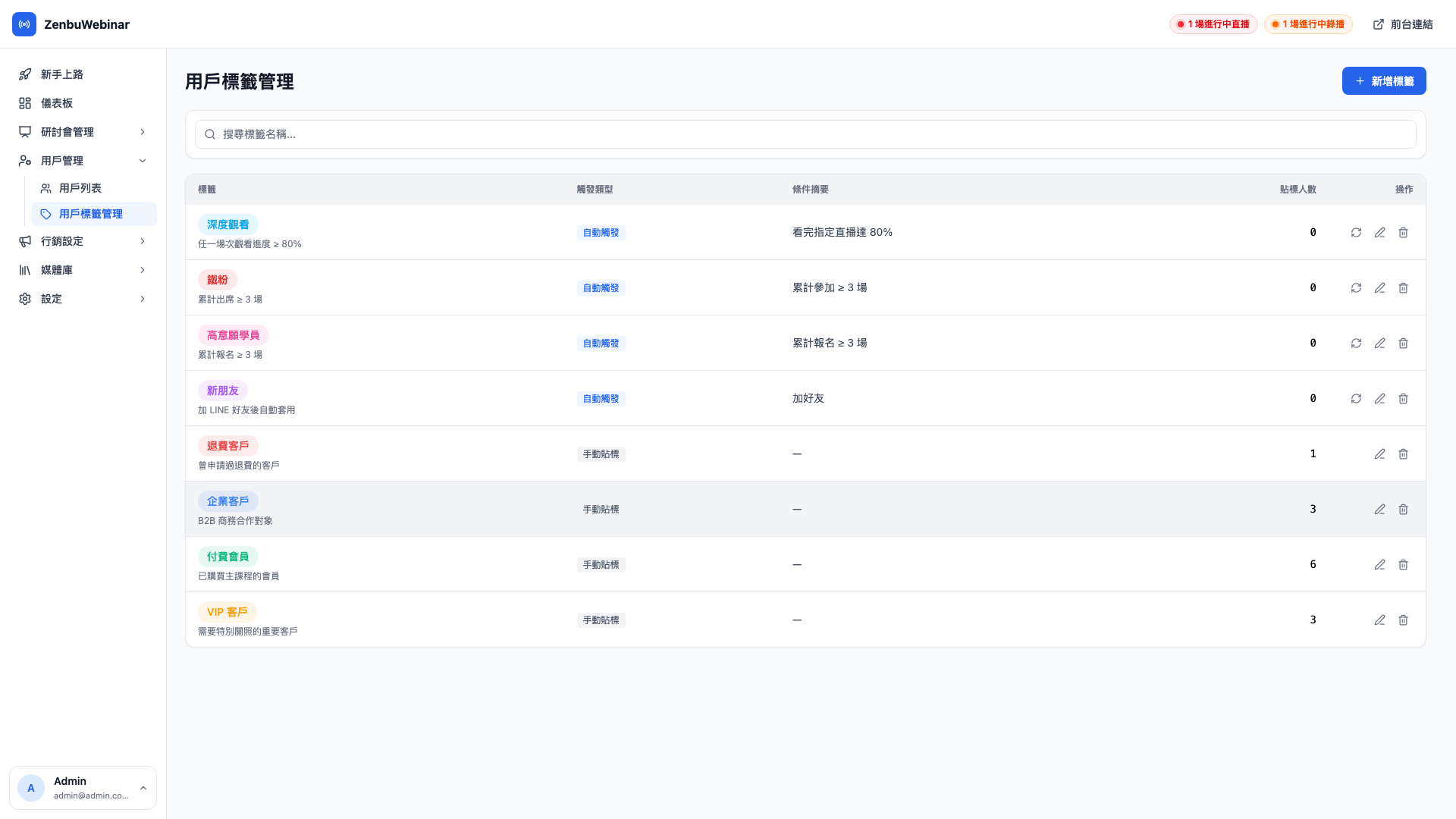
The demo business's four manual tags:
| Name | Color | Purpose |
|---|---|---|
| VIP customer | 🟠 Orange | Important customers needing special attention |
| Paying member | 🟢 Green | Has bought the main course |
| Enterprise customer | 🔵 Blue | B2B partnerships |
| Refunded customer | 🔴 Red | Has requested a refund at some point |
Use case: tagging a VIP by hand
After a consultation call you judge a customer to be high potential. Back in the admin, search their name in the user list, tick them, and click Bulk-tag → VIP customer.
The moment the VIP customer tag lands, the "VIP welcome and exclusive resources" automation starts: a LINE welcome message within 5 minutes, and a VIP-only resource pack an hour later.
Automatic tags
You set the conditions and the system applies the tag based on behavior.
The demo business's four automatic tags:
| Name | Condition |
|---|---|
| New friend | Applied automatically on adding you on LINE |
| High-intent student | Signed up for ≥ 3 sessions in total |
| Superfan | Attended ≥ 3 sessions in total |
| Watched deeply | Watch progress ≥ 80% on any session |
The full condition list:
| Condition | When it applies |
|---|---|
| Added as friend | Within N days of adding your Official Account |
| Signed up for a specific session | Registered for a given session (a specific occurrence can be named) |
| Attended a specific session | Actually turned up and met the attendance threshold |
| Reached a watch threshold | Watched N% of a session (percentage is yours to set) |
| Cumulative signups | Signed up for N or more sessions in total |
| Cumulative attendances | Actually attended N or more sessions |
| Already has another tag | Anyone carrying a given tag also gets this new one |
Conditions can be combined (all must be met before the tag applies).
Use case: automatically identifying advanced course candidates
Set the conditions to: "attended ≥ 3 sessions" AND "has the 'watched deeply' tag" AND "does not have the 'refunded customer' tag".
From then on, anyone meeting the bar is tagged "advanced candidate" automatically. This group is the core audience most likely to buy the NT$2,490 main course — advertising or offers pushed to them convert far better than to ordinary customers.
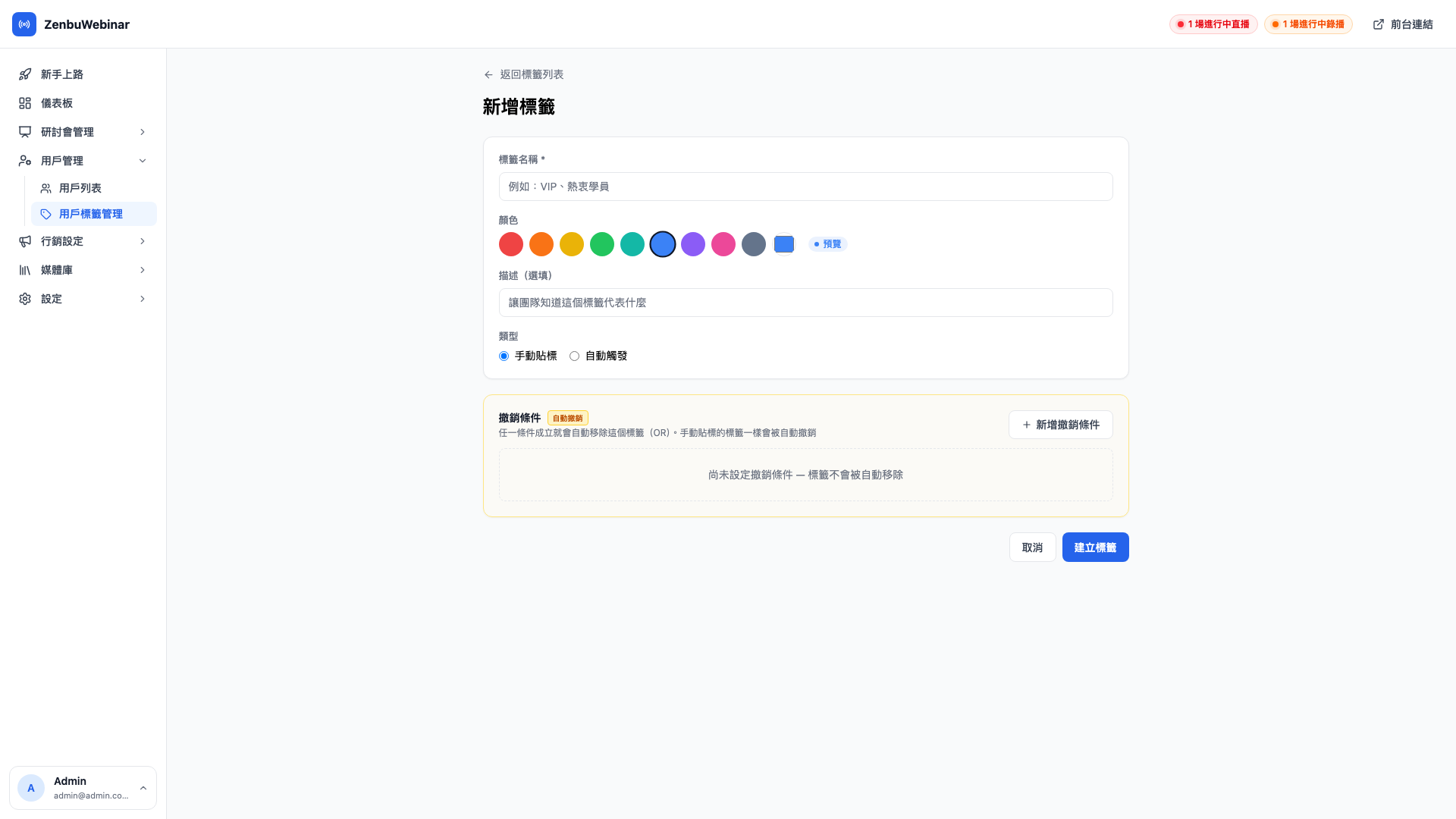
Creating a tag
- Click New tag, top right
- Enter a name ("advanced course candidate")
- Pick a color (shown as a chip in the list, for quick recognition)
- Write a description (optional — a note to yourself about what this tag is for)
- Choose a type: manual or automatic
- If automatic, add one or more conditions
- Save
What happens once a tag is applied?
Beyond being visible to you, message automation and ad tracking events can both use a tag as their trigger:
- Message automation: "when someone is tagged 'watched deeply' → immediately start the advanced course offer flow"
- Meta ad tracking: users carrying a tag can fire a
Subscribeevent to Meta Pixel in real time, feeding lookalike audience campaigns
This is exactly why automatic tags plus message automation plus ad tracking combine into very capable marketing automation.
Tags are never applied twice
A given tag appears at most once on a given user. If the conditions are met again later (they sign up for another session), it isn't reapplied and it doesn't re-trigger the message flow.
Question: How many tags can one user have?
There's no limit. Ten or twenty tags on one person is fine. Different tags represent different angles of classification (VIP or ordinary, which industry, recently active or not) and coexist without conflict.
In practice it's worth starting with 5–8 tags and expanding once you're used to them. Too many and you'll forget what each one meant.
Question: If I change a tag's conditions, are existing tags removed automatically?
No. Tags already applied stay as they are, and the new conditions only affect users evaluated from that point on.
If you want to reapply across the board, delete the tag entirely and create a new one, which makes the system evaluate everyone again.
Note: think through the impact before changing an automatic tag's conditions
Say you change "superfan" from "attended ≥ 3 sessions" to "≥ 5".
- Users who are already superfans are not un-tagged (they stay superfans)
- Users who newly reach 3 sessions no longer become superfans
- The result can be an inconsistent state where some people are superfans at 3 sessions and others need 5
The recommendation: when changing a threshold, delete the tag and rebuild it, or create a new tag under a new name.