MCP personal token
zenbu webinar has a built-in MCP server, so you can connect MCP-capable AI tools such as Claude and ChatGPT to your admin and query sessions, signups and user tags — or even create and edit records — by talking to them.
For an AI to connect safely, you first need to generate a personal access token (PAT) on this page.
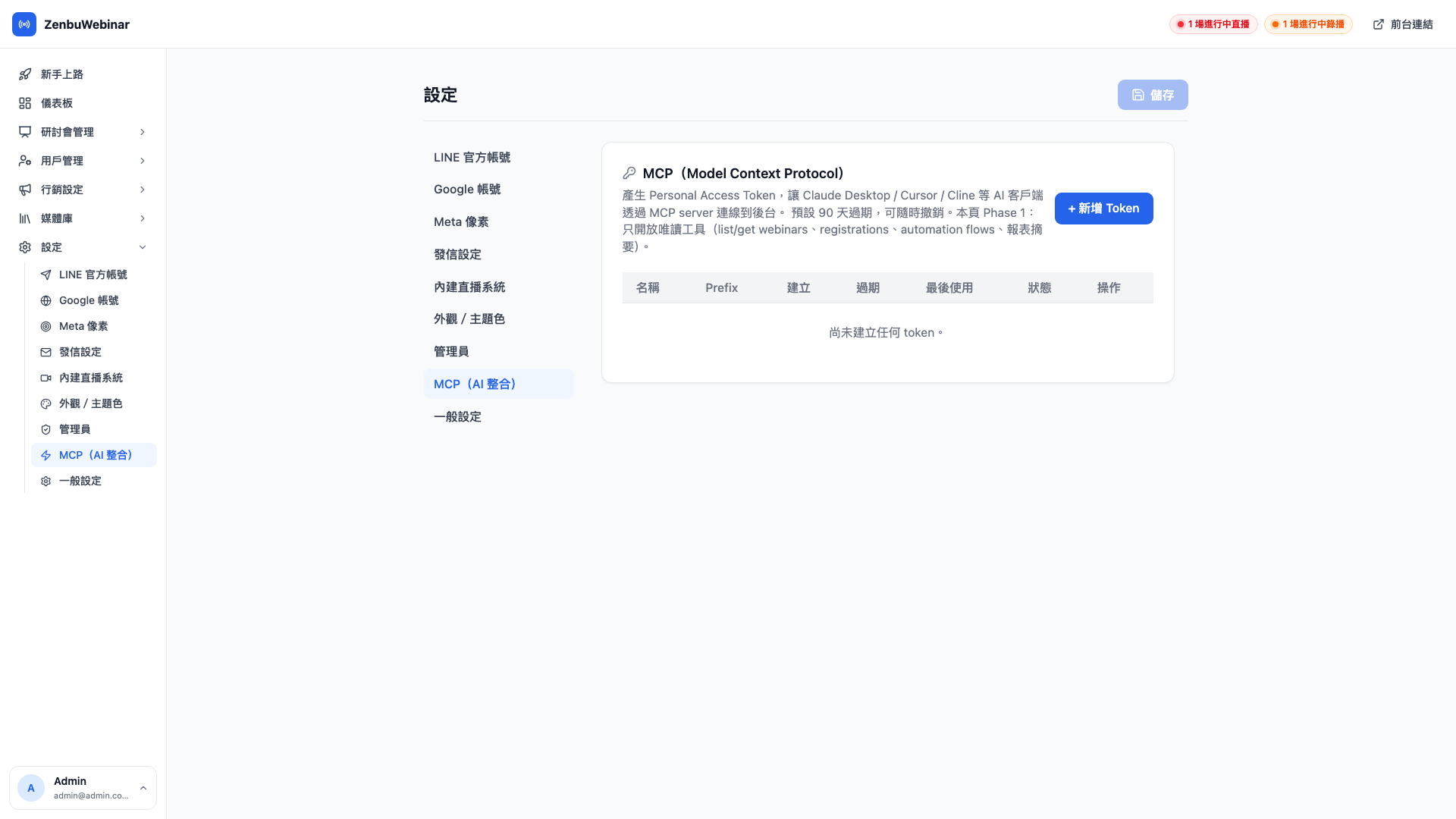
Question: What is MCP?
MCP (the Model Context Protocol) is an open protocol proposed by Anthropic that lets AI models talk to external systems through one common interface. Think of it as a USB port for AI — any MCP-capable tool (Claude Desktop, Cursor, Claude Code…) plugs in and can then see your zenbu webinar data and perform the operations you've authorized.
When would you use it?
Use case: writing a weekly report with Claude
Every week you write an operations report for your boss covering new signups, attendance rate, top sessions and active users. That used to mean signing in, copying numbers off several pages by hand, and opening Excel to calculate.
With MCP connected you simply ask Claude: "put together this week's zenbu webinar report — how does it compare with last week?" Claude pulls the data over MCP, works out the comparison, writes the whole report and hands it back. Thirty seconds.
Use case: creating sessions in bulk
You have 10 sessions in a series to create next month, each with a different topic, time and instructor. Organize them in Excel, paste them to ChatGPT with "create all ten of these in zenbu webinar", and the AI calls the create API once per session over MCP. Ten sessions in two minutes, against at least 30 minutes by hand.
Current scope (Phase 1: read-only)
The MCP server is currently in Phase 1, exposing read-only tools only:
list_webinars/get_webinar— list sessions, or fetch onelist_registrations/get_registration— signup recordslist_automation_flows/get_automation_flow— automation flows- Report summaries (KPIs, trends, top sessions and so on)
Write operations (creating, editing and deleting sessions, signups and the like) arrive in Phase 2. For now an AI holding a token can only read your admin data and can't change anything by mistake, which is safer.
Generating a token
Steps
- Click the New token button
- Give it a name ("My Claude Desktop", "For the weekly report")
- Optionally set an expiry: 90 days by default
- Press Create
The token is shown in full only once
Once created, the complete token string is displayed on screen with a Copy button beside it. Copy it immediately into your AI tool's settings — once the dialog closes it can never be seen again.
If you don't copy it in time and then forget it, the only remedy is to revoke that token and create a new one.
Token format
A token looks like this:
zbw_xxxxxxxxxxxxxxxxxxxxxxxxxxxxxxxxxxxxxxxxxxxxzbw_ is the zenbu webinar prefix, followed by a random string. Guard it as carefully as your admin password.
Using it in an AI tool
The setup differs slightly between tools; here's Claude Desktop as an example:
- Open Claude Desktop → Settings → Developer → MCP Servers
- Add an entry:json
{ "zenbu-webinar": { "url": "https://your-admin-domain/api/mcp", "token": "zbw_the-token-you-just-copied" } } - Restart Claude Desktop
- New conversations show a "🔌 zenbu-webinar" marker, meaning it's connected
From there you can ask questions in plain language:
"Which three webinars were the most popular over the past 30 days?"
"Find me everyone who signed up this month but didn't attend"
"Create a session titled 'LINE Marketing in Practice' for 8pm next Thursday"
Managing existing tokens
The token list shows:
| Field | Contents |
|---|---|
| Name | The label you gave it |
| Prefix | The token's first 8 characters (for identification; the full string is never shown) |
| Scope | Phase 1 read-only (full access arrives in Phase 2) |
| Created | When it was generated |
| Last used | When an AI last called the API with this token |
| Expires | The expiry date you set, or "never" |
If a token has no recent last-used time, you're probably no longer using it — revoking it lowers your security exposure.
Revoking a token
Click the red trash icon beside a token and confirm; it stops working immediately. Any AI tool using it gets a 401 on its next call, and you'll need to create a new token and update that tool's settings.
Note: what to do if a token leaks
Revoke it on this page immediately. Revocation takes effect at once — even if someone has the string, it stops working. Then create a fresh one for yourself.
Tokens do not detect anomalous use automatically, so be careful day to day:
- Don't paste a token into a public GitHub repo or Gist
- Don't send one to a colleague in a group chat (use an encrypted channel if you must)
- Always sign out or revoke after using an AI tool on a shared computer
Question: Does a token inherit my admin account's permissions?
Yes, but bounded by the token's own scope. If you're a super admin and create a read-only token, that token can only read — it can't use your super admin identity to write. A token's effective permission is the intersection of the two: account permissions ∩ token scope.
Question: Can I generate tokens for my team members?
No — each person signs in with their own admin account and creates their own. This is deliberate: tokens are bound to an admin account, and the audit log records who did what through a token. A shared token would destroy that audit trail.