Registrations
Signup data from every session is gathered onto this page, so you can filter across sessions, apply tags and export lists.
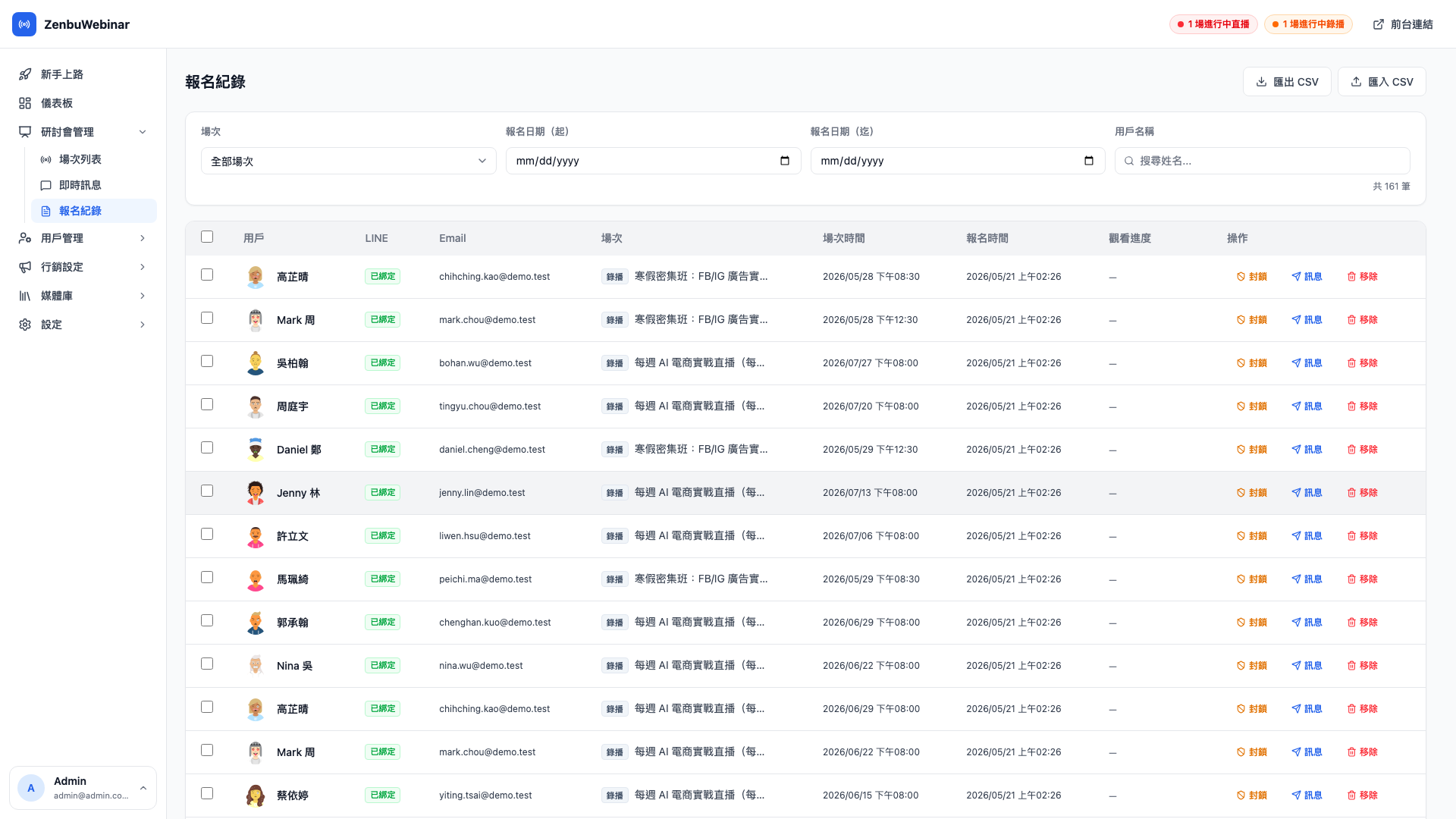
The fields
| Field | What it means |
|---|---|
| User | The registrant's LINE display name (with avatar) |
| Name / Email / Phone / Company | What they entered on the signup form (which fields exist depends on the session) |
| Session | Which session they signed up for (recurring sessions note which occurrence) |
| Signup time | When they pressed Sign up |
| Attended | Detected automatically, or marked by an admin |
| Watch progress | Pre-recorded and built-in streaming types only — what percentage of the video they watched |
Filtering
The filters at the top combine:
- Session — signups for one session only
- Signup date range — "last week", "last month"
- Attended — attended / didn't attend / all
- LINE linked — plain visitors vs. LINE sign-ins
Use case: finding the no-shows within 24 hours of a stream
Once the stream ends, filter by that session + didn't attend to get everyone who signed up but never turned up. Bulk-tag them "signed up, didn't attend" and start a dedicated win-back flow sending them "no problem you missed it — here's the replay".
How attendance is determined
The system decides automatically from two signals:
| Signal | Source |
|---|---|
| Entered the live room | The user opened /session/:id/live |
| Watch duration | Accumulated watch seconds in WatchLog |
Accumulated watch time ≥ 50% of the video's length → automatically marked as attended.
You can also tick a record and change it to attended or not attended by hand — for instance when a VIP mentions privately that they watched on a desktop without signing in to LINE.
Question: Why is the threshold 50% rather than 100%?
People routinely skip to the end, and the last few seconds are usually a thank-you slide that nobody absorbs anyway. In practice, watching half is already a strong commitment, so the system sets the bar at 50%.
If your sessions front-load the value — a sponsored stream where 10 minutes is enough to order, say — you can set a different watch ratio under automatic tags (tag "watched the opening" at ≥ 20%, for instance).
Bulk actions
Tick several records and you can:
- Bulk-tag: tag everyone who attended a session as "superfan", for instance
- Export CSV: export the selected rows to a CSV file
- Bulk delete: remove test signups you created by accident
Use case: tagging everyone who showed up as a superfan
After the stream → filter by "Build Your First Online Store: YouTube Live Debut + attended" → select all → bulk-tag → "superfan".
Build a lookalike audience from that tag in Meta Ads afterwards and your ads reach prospects who resemble your superfans, where CTR is typically at least three times better than cold traffic.
CSV export and import
Exporting
Tick the columns you want and press Export CSV. Commonly used for:
- Moving data into your own CRM (HubSpot, Salesforce)
- Sending physical gifts (which needs names and addresses)
- Giving the instructor the attendee list
- Giving finance a record for reconciliation
The export includes: LINE userId, name, email, phone, signup time, session title, occurrence time, attendance status, watch progress and all tags.
Importing
If you have a signup list in an existing system you want to bring across, use this. The system tries to match on LINE userId where one is present; matches are linked to the existing user, and the rest are stored as data-only signups.
Note: imported records that don't match a LINE userId can't be notified
On import the system matches by LINE userId. A record with only an email and no LINE link becomes orphaned data and will never receive a LINE notification — there's no userId to push to.
For new campaigns, have people sign up through LINE so the data is complete. CSV import suits backfilling historical data.
Reading watch progress
Watch progress = seconds watched ÷ total video length. It's only meaningful for two session types:
- Pre-recorded (RECORDED) — genuine second-by-second tracking
- Built-in streaming (LIVE) — live tracking of watch duration
| Progress | What it means |
|---|---|
| 0% | Signed up but never entered the live room |
| 1–49% | Entered but left partway (below the attendance bar) |
| 50–79% | Attended (met the automatic threshold) |
| 80% and above | Watched deeply (triggers the "watched deeply" tag automatically) |
| 100% | Watched the whole video |
Question: What if one person watches the same video twice?
The longest single watch counts. If they reach 30% the first time and come back two days later to reach 80%, the final progress reads 80%.
The reasoning is that all you care about is whether they got to the important part, so the deepest point they reached is enough. Leaving partway doesn't make the system "forget" what they'd already watched.
Question: How do recurring (WEEKLY / MULTI) sessions look here?
Each occurrence's signup is its own record. If "AI E-commerce in Practice" ran 12 occurrences and someone signed up for three, this page shows three records for them, each with its own occurrence time.
To see one person's overall attendance rate across a whole weekly series, the user detail page is clearer.
Want to know where a signup came from?
Give each source its own entry point with split links. Signups are attributed automatically, so this page can tell you who came from advertising and who came from an email campaign.