Message automation
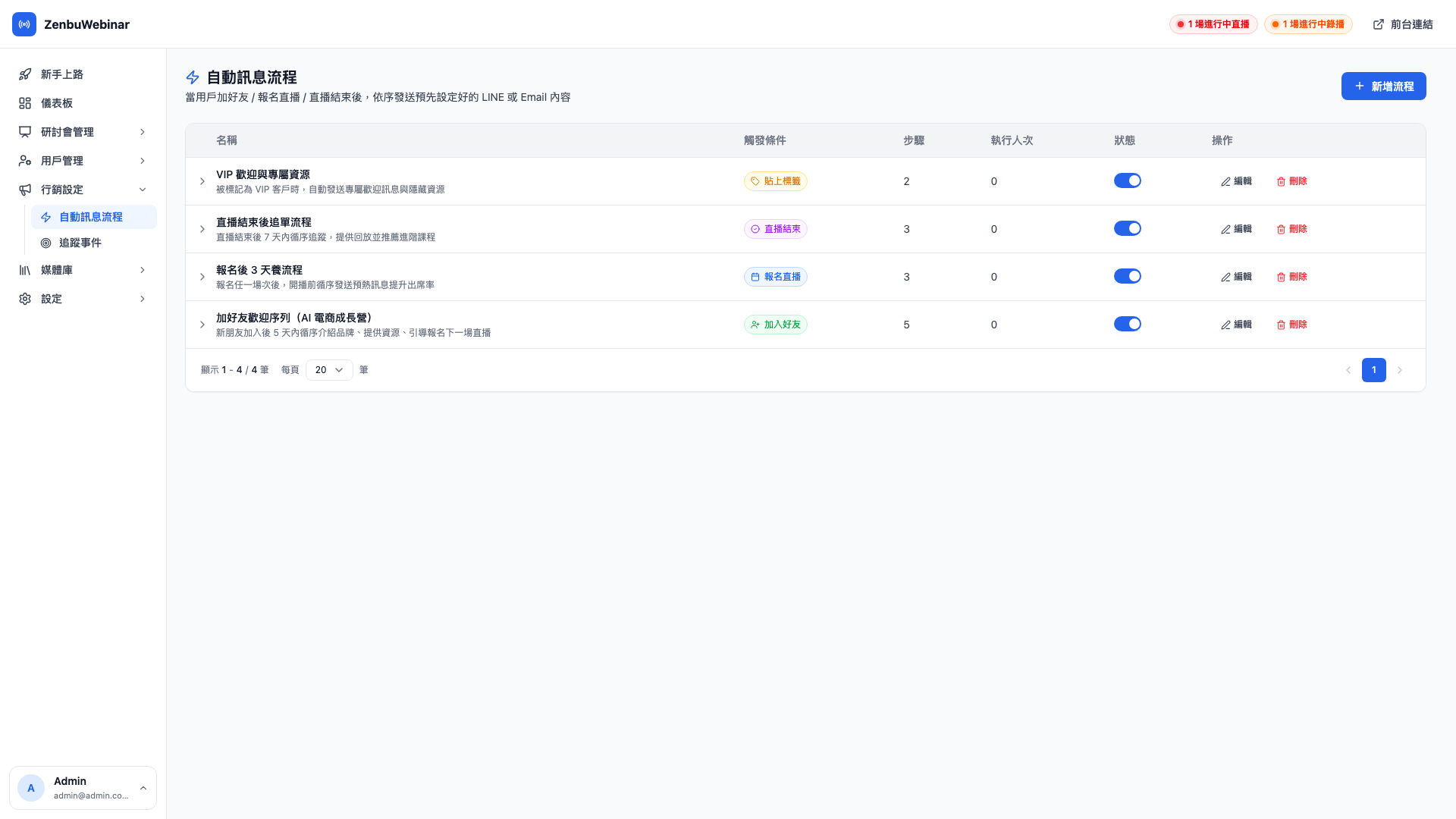
This is one of the most important features in zenbu webinar. Once something happens (the trigger), a sequence of messages goes out to the user automatically, in the order and at the intervals you designed in advance.
Two kinds of "automation"
zenbu webinar has automation at two different levels, and getting the distinction clear saves a lot of confusion:
| Notification rules | Message automation | |
|---|---|---|
| Where you configure it | Inside the new / edit session form | Marketing → Message automation |
| Scope | Only affects registrants of that one session | Can fire across sessions and across users |
| Trigger types | After signup, before the stream, after it ends | Adding a friend, signing up for any session, receiving a tag, a session ending |
| Step complexity | A single message | A multi-step sequence (several messages with intervals) |
| Typical use | "Remind them 1 hour before", "push the replay 1 hour after" | "A 7-day welcome sequence after adding a friend", "a 5-day sales sequence after finishing a course" |
The two don't conflict. Someone who registers for a stream may receive both session-level notification rules and messages from several automation flows.
Why automate?
The hard truth about webinar marketing: most people are not persuaded to buy the first time. But you also can't manually send five messages to every new friend.
Automation's job is to schedule the messages you'd want to send each new friend in advance, and have the system send them around the clock on your behalf.
Typical scenarios
Scenario 1: a 7-day welcome sequence after adding a friend
Trigger — someone adds your LINE Official Account as a friend.
- Immediately: "Hi! Welcome to the AI × E-commerce Growth Camp ✨ I'm Luke"
- After 1 day: "Here's a free cheat sheet I put together on AI-assisted product selection"
- After 3 days: "We have a free live session at 8pm next Wednesday on…"
- After 7 days: "If you want to go deeper, take a look at our full paid course"
By day 7 a new friend already knows something about you, and closes far better than someone who only ever got a "welcome".
Scenario 2: signup reminders plus follow-up for no-shows
Trigger — someone registers for a stream.
- Immediately (notification rule): "Thanks for signing up! See you at 8pm on 4/28"
- 1 hour and 10 minutes before (notification rules)
- 1 hour after it ends (automation flow): "Missed it? Here's the replay link"
- 3 days after it ends (automation flow): "Want to go deeper? 20% off the full course"
Scenario 3: a sales sequence after finishing a course
Trigger — the user is tagged "finished course X" (via an automatic tag).
- Immediately: "Congratulations on finishing! Here's an advanced resource pack"
- After 2 days: "You may be wondering about…"
- After 5 days: "48 hours only: 40% off the full course"
- After 7 days: "Last 24 hours — this won't come round again"
This is the classic content marketing → trust → time-limited purchase formula.
The four trigger events
| Trigger | When it fires |
|---|---|
| Added as friend | The moment someone adds your LINE Official Account |
| Signed up for a session | When someone completes a signup (any session, or one you specify) |
| Session ended | When a session finishes (for everyone who signed up for it) |
| Tag applied | Name a tag, and the flow fires whenever any user receives it |
Creating a flow
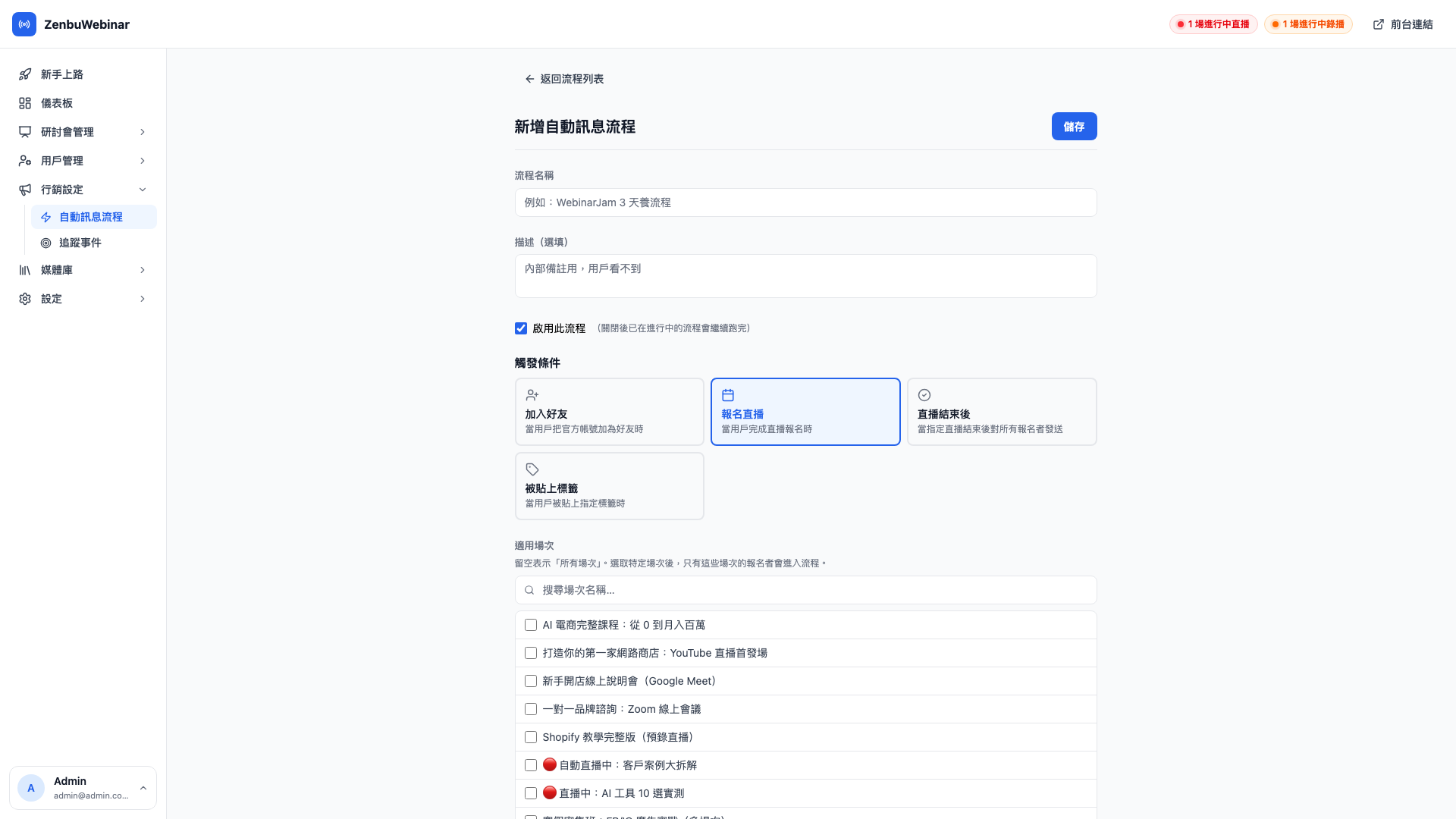
- Name it — for your own reference (users never see it)
- Choose the trigger event
- For "signed up for a session" or "tag applied", also specify which session or which tag (blank means any)
- Add messages step by step:
- How long to wait since the previous step or the trigger (minutes, hours, days)
- Which channel to send on (LINE / email / both)
- The message content (variables are supported — see below)
- Whether it's enabled (a disabled flow never fires)
Variable substitution
Message content can insert user or session data dynamically. These are the supported variables:
| Variable | What it inserts | Example |
|---|---|---|
{{user.name}} | The user's name | "Hi Ying-chen" |
{{session.title}} | The session title | "Build Your First Online Store" |
{{session.description}} | The session description | The session blurb you wrote in the admin |
{{session.scheduledAt}} | The scheduled time (formatted automatically in Taipei time) | "2026/04/28 (Tue) 20:00" |
{{liveUrl}} | The live room link | https://liff.line.me/.../session/... |
Note: only the variables in the table above are substituted
Any other variable name ({{user.email}}, {{session.url}}, {{user.phone}}) is not recognized and the literal text is left exactly as typed — so a typo is immediately visible to you rather than silently turning into a blank. Stick to the five in the table.
Question: Can I combine several variables in one message?
Yes. For example Hi {{user.name}}, "{{session.title}}" is about to start — see you at {{session.scheduledAt}}! The system resolves every variable in one pass.
Question: I made part of a variable bold or colored in the email editor and it stopped being substituted
That used to happen. Rich text editors insert HTML tags mid-string, splitting {{user.name}} into {{user.<b>name</b>}} so the system couldn't recognize it. The system now strips tags and whitespace from inside a variable before matching, so substitution still works even if you accidentally styled half of one. To be safe, though, keep the whole {{...}} in a single style.
Each step's delay is relative
If step one is "immediately", step two is "after 1 day" and step three is "after 3 days", those 3 days are counted from step two, not from the trigger.
The actual send times:
- Day 0: step one
- Day 1: step two
- Day 4: step three (1 + 3)
If you want "3 days after the trigger", set step three to "after 2 days" — step two has already consumed one.
Note: this is the single most common beginner mistake
For your first few flows, sketch the timeline on paper and check the arithmetic, so you're sure the messages really go out when you intend.
Monitoring execution
Every triggered user produces an execution record with one of four statuses:
| Status | What it means |
|---|---|
| Running | Working through the steps; not finished yet |
| Completed | Every step has been sent |
| Failed | A step failed to send (the user blocked you, for instance) |
| Cancelled | You manually cancelled this execution |
Click into a flow to see every user currently running through it, which step they're on, and when the next message is due.
Quick setup for session-level notification rules
The notification rules section of the new / edit session form has quick preset buttons:
- Signup thank-you — send a "thanks for signing up" message immediately
- 1 day before — push 24 hours ahead
- 1 hour before — push 60 minutes ahead
- 10 minutes before — the familiar last call
- After the stream (replay) — push the replay link once it ends
- 3 days after — an upsell message
Each rule can be enabled or disabled independently, so you can pause one without deleting it. Message content supports variable substitution too.
Four send timings
Each rule offers four send timings:
| Timing | When it sends | Typical use |
|---|---|---|
| After signup | The moment they register (or N minutes later) | Thanking them, confirming details |
| Before the stream | N minutes / hours / days before the scheduled start | Go-live reminders, last call |
| After the stream | N minutes / hours / days after the scheduled end | The replay link, follow-up selling |
| After signup (before the stream only) | Sent after signup, but only valid before the stream starts | Remind on signup, but don't send late to people who register after it's begun |
Question: Does each timing come with default content I can see?
Yes. Once you choose a timing, the system fills in matching default content for you to read and edit. "After the stream", for instance, arrives pre-filled with "📺 The stream has ended / You can watch the replay here / Watch replay →". Use it as is, or rewrite it in your own voice.
Message style: card vs. plain text
Each LINE notification rule can be sent in one of two styles:
| Style | How it looks | Link behavior |
|---|---|---|
| 🎴 Card (default) | A polished Flex card with a button at the bottom | URLs typed into the body are not clickable — put the main link in the button link field |
| 📝 Plain text | A plain text message, no card and no button | URLs in the body become clickable links automatically |
Use case: when should I use plain text?
When you want several links in one message (a replay link plus a course link plus a survey link), a card only has room for one button — switch to plain text, type all three URLs into the body, and they all become clickable. Conversely, if you're pushing a single attractive "sign up now" call to action, a card looks better.
Question: So what exactly separates notification rules from automation flows?
A notification rule is bound to one session — you set "remind them 1 hour before" while creating the session, and it affects only that session's registrants.
An automation flow is independent of any session — it defines "when X happens → run sequence Y". For example, "when anyone is tagged 'high intent' → run the 5-day sales sequence".
Can several flows run at once?
Yes. One user can be running the friend welcome sequence, the post-signup follow-up and the post-completion upsell simultaneously. Flows don't interfere with each other.
Question: If I edit a flow's content midway, does it affect users already running through it?
Yes, immediately. Say someone has just completed step 2 and hasn't reached step 3; if you change step 3 now, what they receive two days later is the new version.
So think before you edit: if they've already read step 2 saying "the next message has the course link" and you change step 3 to something unrelated, it reads oddly. Generally only minor adjustments (fixing a typo, swapping a link) are advisable. For a substantial rewrite it's safer to disable the old flow and build a new one.
Question: What happens to users mid-flow when I disable it?
They stop where they are, and the remaining messages are not sent. Disabling is the safest way to cancel a flow entirely, with no need to hunt down users one by one. If you later re-enable it, the old executions do not resume.
Did the message actually go out?
Every LINE message and email sent is retained in the message logs, with failure reasons and a resend action. When a customer says a reminder never arrived, look there first.