Live messages
While a stream is running, this is the page where you reply to comments, keep the energy up and answer questions.
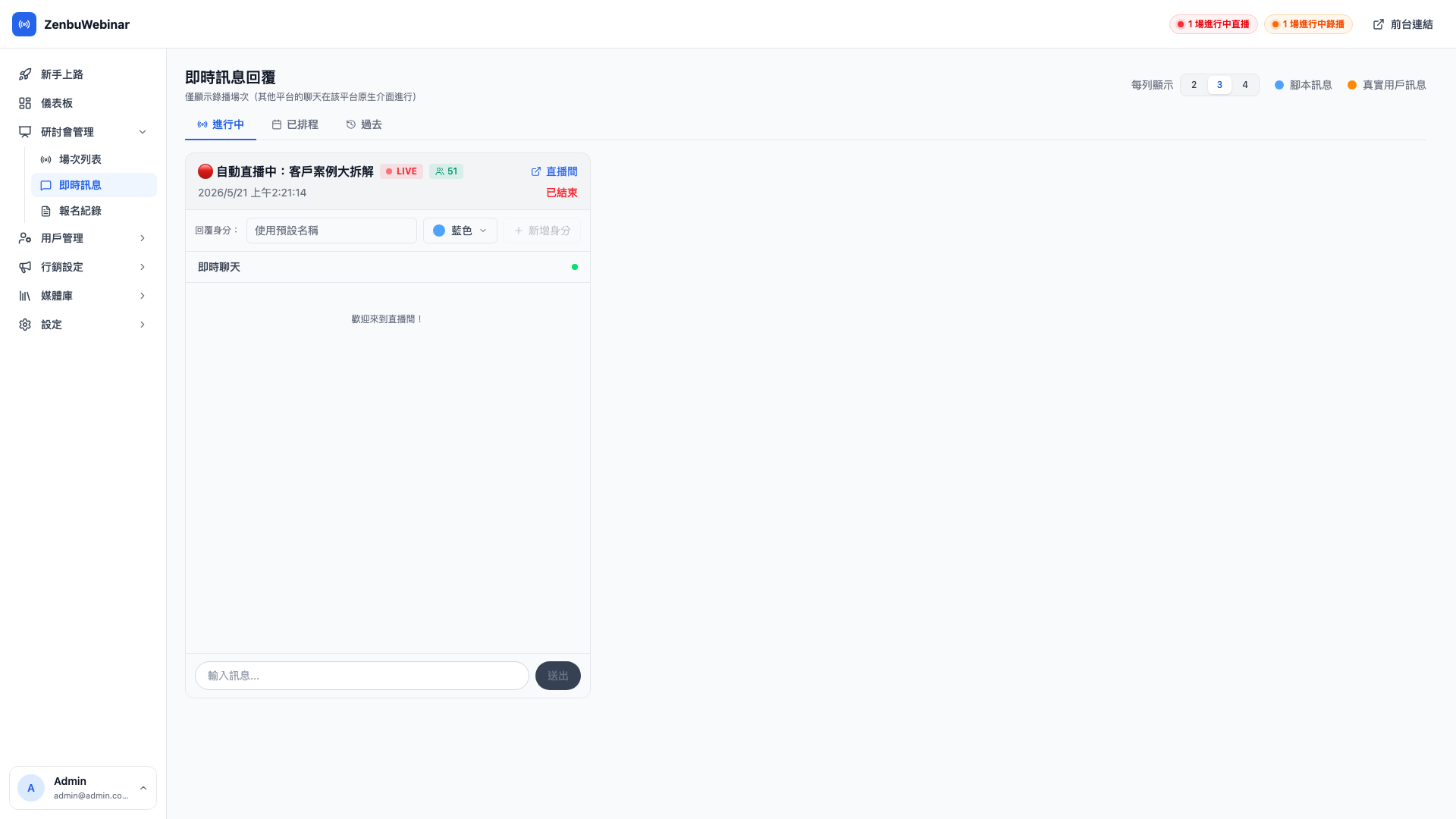
Three tabs: In progress / Scheduled / Past
Three tabs sit at the top, defaulting to In progress:
| Tab | What it shows | What it's for |
|---|---|---|
| In progress | Sessions streaming right now, plus any starting within 3 minutes | The host's console |
| Scheduled | Future sessions not yet started (sorted by start time, earliest first) | Previewing what's on today or this week |
| Past | Ended sessions (sorted by start time, most recent first, paginated) | Reviewing yesterday's or last week's chat |
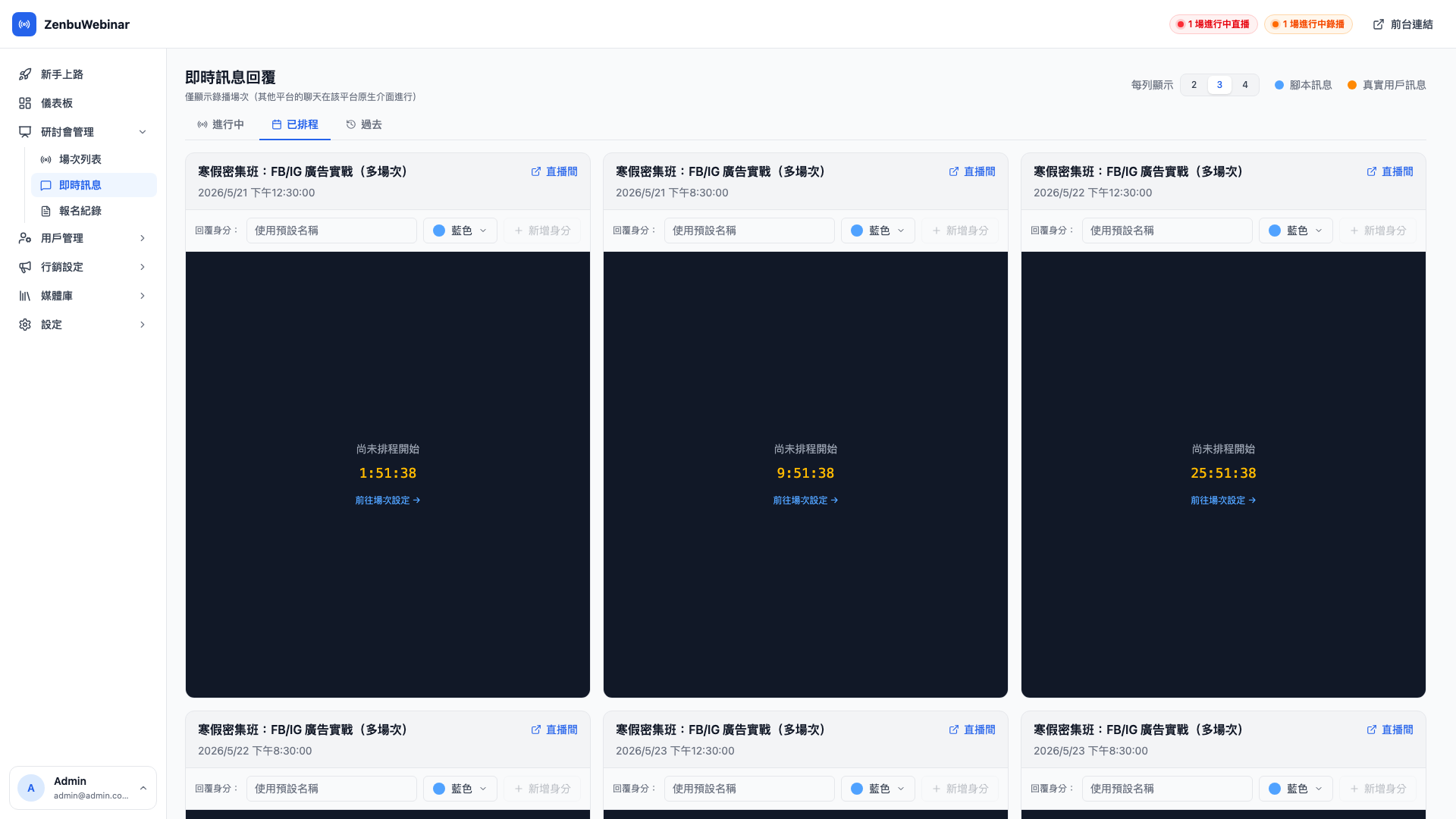
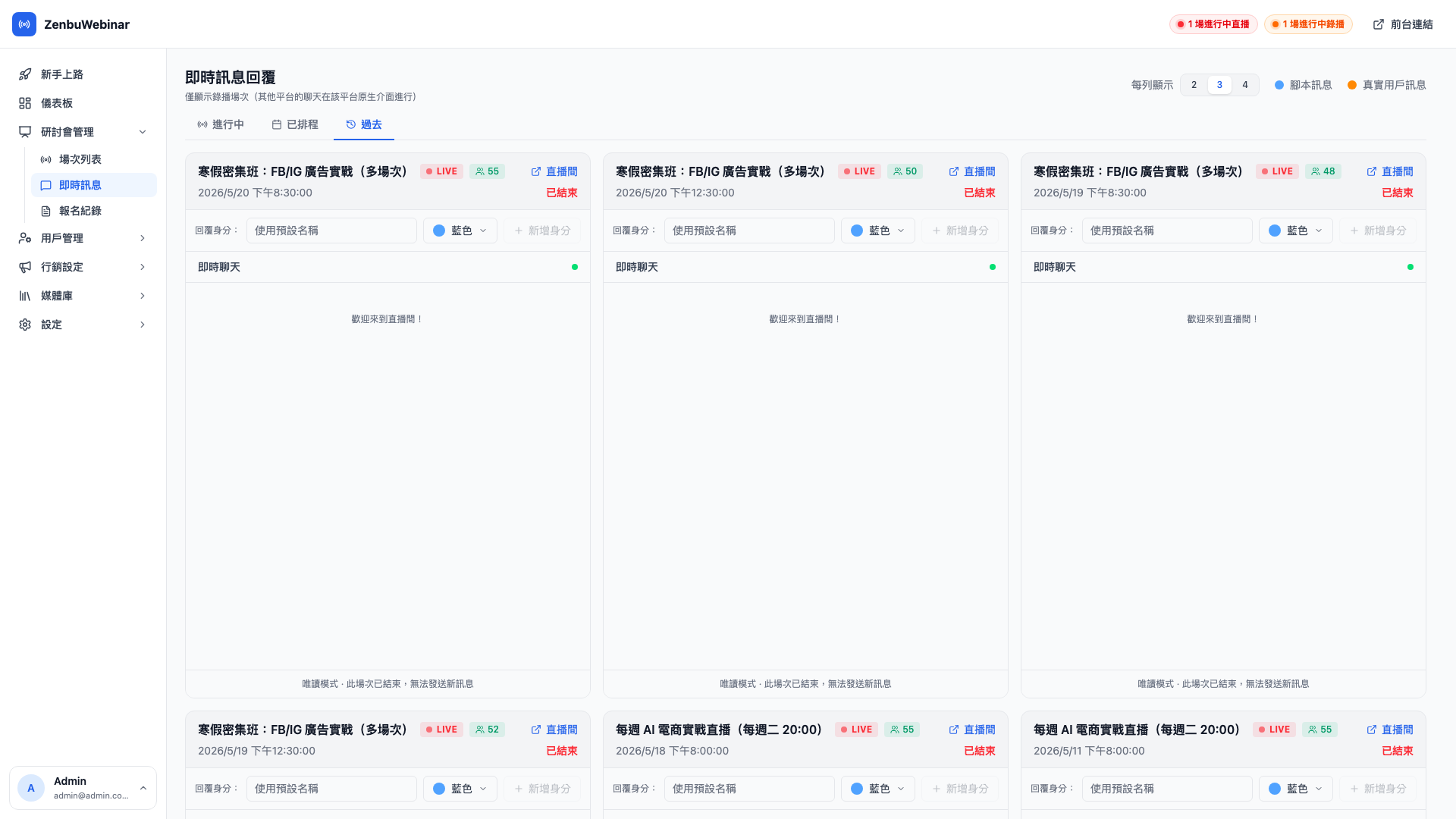
Switching tabs adds ?status=upcoming or ?status=past to the address bar, so refreshing doesn't bounce you back to the default and a link sent to a colleague opens on the same tab.
Question: How far back does the Past tab go?
All the way. Every ended session appears here, loaded page by page so nothing is crammed in at once. The most recently ended are at the top and it gets older as you scroll.
Question: Can I edit a session straight from the Scheduled tab?
No — the Scheduled tab is for previewing. To edit, click the session title and go to Webinar management → Sessions.
When does "In progress" actually have anything in it?
The In progress tab only has content when a session is actually streaming (or is due to start within 3 minutes).
With nothing in progress it reads "no streams in progress", which isn't a fault — it simply isn't time yet. Switch to Scheduled to see what's coming.
Use case: the host's console during a stream
Say you're streaming at 8pm. You can open this page and wait from five minutes before.
- At 8:00 the stream starts and you begin teaching.
- The audience types comments as they listen, and each one appears here in real time.
- You spot "could you share the slides?" and reply directly below as the instructor.
- After the stream every message is retained, so you can go back and see which parts drew the most interaction.
The main elements
The session title bar
- Left: the name of the session currently streaming
- Middle: a red LIVE marker and a countdown of the time remaining
- Right: a Live room button that opens the attendee-side page in a new tab
Reply identities
A host replying live doesn't necessarily want to use their real name, hence the idea of an identity:
- Name — what the audience sees next to your comment ("Helper", "Lin from support")
- Color — the colored dot beside your name, so the audience recognizes who's replying
Click Add identity to store several and switch between them. Identities are stored in the browser on your machine, so a different computer means setting them up again.
The live chat
The middle block is every audience comment, ordered by time from the top down.
- Audience comments: their name plus a colored circular avatar
- Host comments: your identity name in your chosen color
The input box
Your input box sits below. Type your message and press Send or Enter, and the audience sees it immediately.
When several streams run at once
If two or more sessions are streaming simultaneously, each becomes a panel shown side by side. Top right you can switch between 2 / 3 / 4 panels per row.
Question: When is this most useful?
A company with several instructors and several Official Accounts can watch three streams on one machine, with a different person replying on each.
What are "script messages" and "real user messages"?
Two colored dots appear at the top right:
- Script messages — sent by message automation, or from a message script (see the media library).
- Real user messages — actually typed and sent by a person.
If you only want to see what real people said, filter with the dots. That's very useful when reviewing a session afterwards.
After the stream ends
The session status switches to Ended automatically and it stops appearing on this page. To go back and read that day's messages, go to Sessions → click the session → Chat history.
Question: If I switch to a different identity, will the audience think it's a different person?
Yes. All they see is a name and a color, so switching from "Instructor" to "Lin from support" reads as two different hosts replying.
In practice you can use this to prime the conversation — ask a question under one identity and answer it as the instructor, so it looks like other attendees are joining in.