Onboarding
The first time you open the zenbu webinar admin, the screen is completely empty — no sessions, no signups, no users. This page is built for new admins, and lays out in one place what to do, in what order, and what it looks like once it's running.
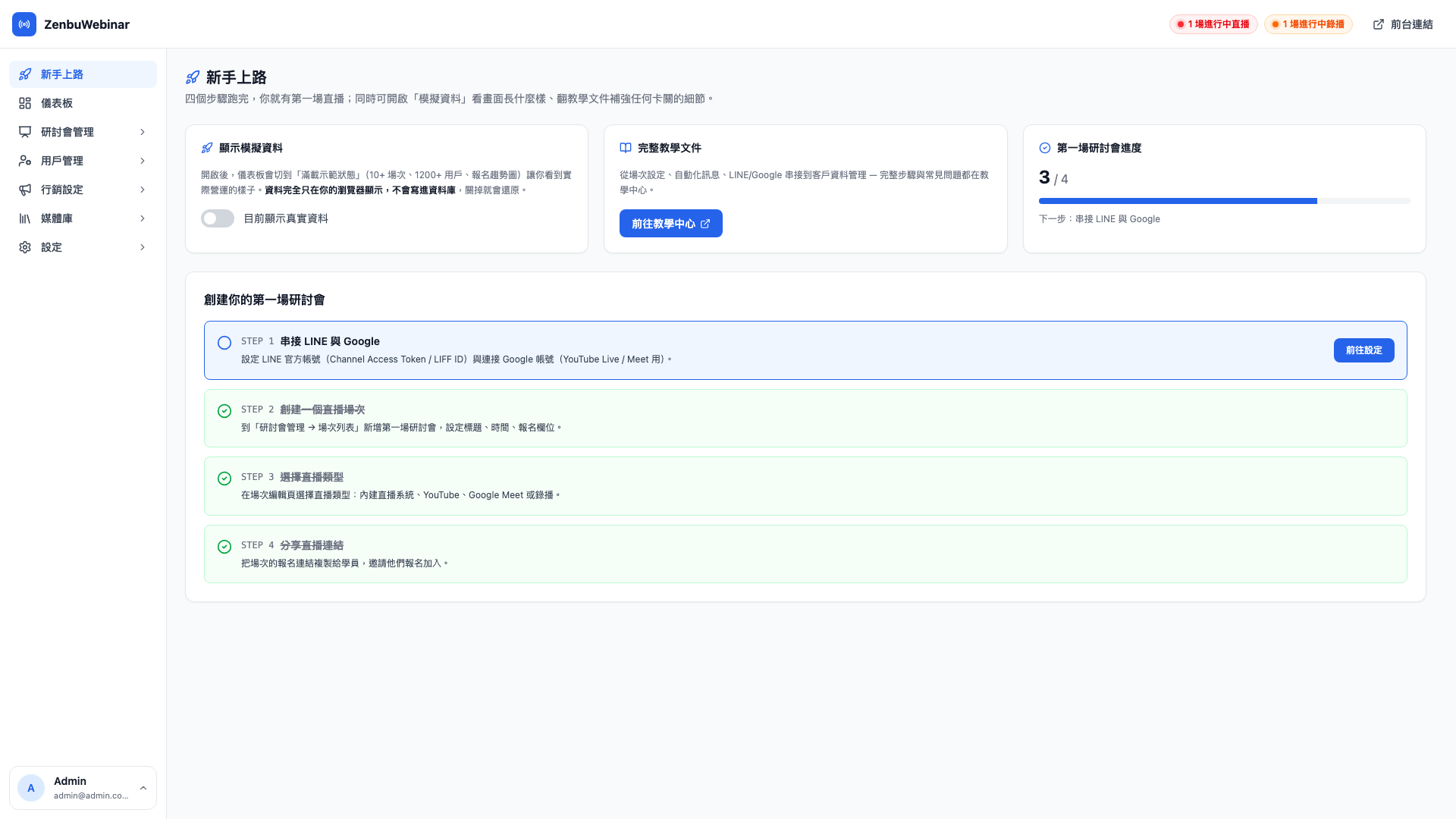
Onboarding is the first item in the sidebar, and it's worth opening the moment you first sign in.
Three sections
A. The demo data toggle
A switch at the top of the page renders the entire admin with fake data — the dashboard fills with KPI figures, the session list fills with webinars, the signup records run into the thousands. It lets you see what a running system looks like before deciding to build your first session.
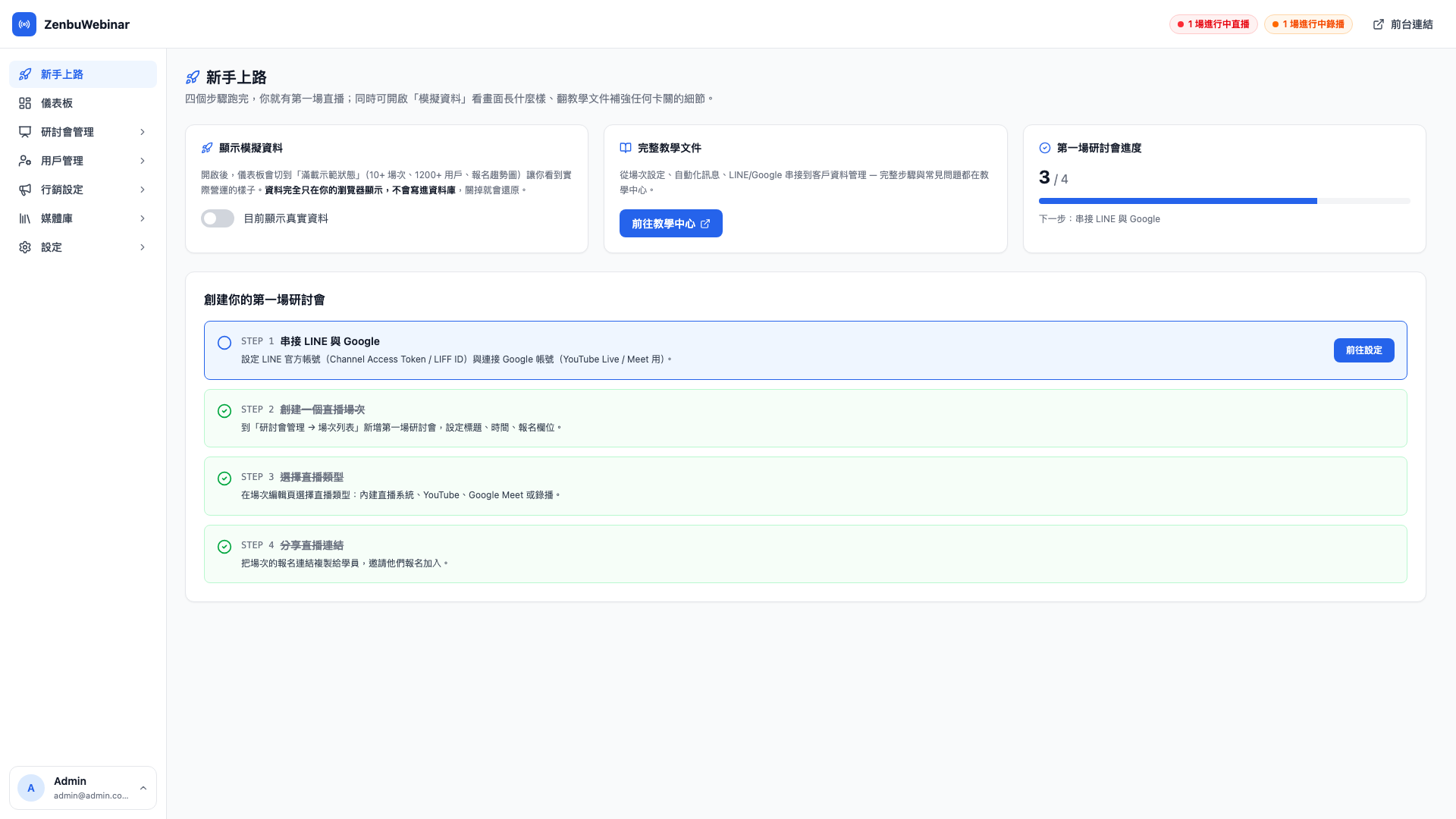
Use case: a pre-sales demo
You're introducing zenbu webinar to a client, but your admin has no data in it at all and the pitch falls flat. Turn on Show demo data and the screen instantly becomes a healthy tenant that's been running for three months with 1,000 users and 12 completed webinars. Turn it off when you're done and go back to your real admin.
Question: Does demo data affect real data?
No. Demo data is rendered on the front end only and never written to the database. The toggle's state lives in your browser's localStorage; switch it off and you're back to real data immediately, with no lasting side effects.
Question: Will the rest of my team see the demo data too?
No. The toggle is per browser and lives on your machine, so it doesn't change what colleagues see. Everyone decides for themselves.
Note: don't create, edit or delete while in demo mode
In demo mode the admin looks full of data, but the actual database is empty. Slipping up and creating, editing or deleting while in demo mode can hit the real database and leave things inconsistent. Switch the toggle off before you practice.
B. First webinar checklist
Four steps, shown in order. The system detects whether each one is complete and ticks it off in real time:
- Connect LINE and Google
- Detected by: a LINE Channel Access Token being filled in, plus a linked Google account
- Done under: Settings → LINE Official Account, Settings → Google account
- Create a live session
- Detected by: at least one session record existing
- Done under: Webinar management → Sessions → New session
- Choose a stream type
- Detected by: the session's providerType no longer being the default
- Four types: built-in streaming, YouTube, Google Meet, pre-recorded video
- Share the session link
- Detected by: the session having at least one registration
- Done under: Sessions → Copy link → paste into your sales page or a LINE message
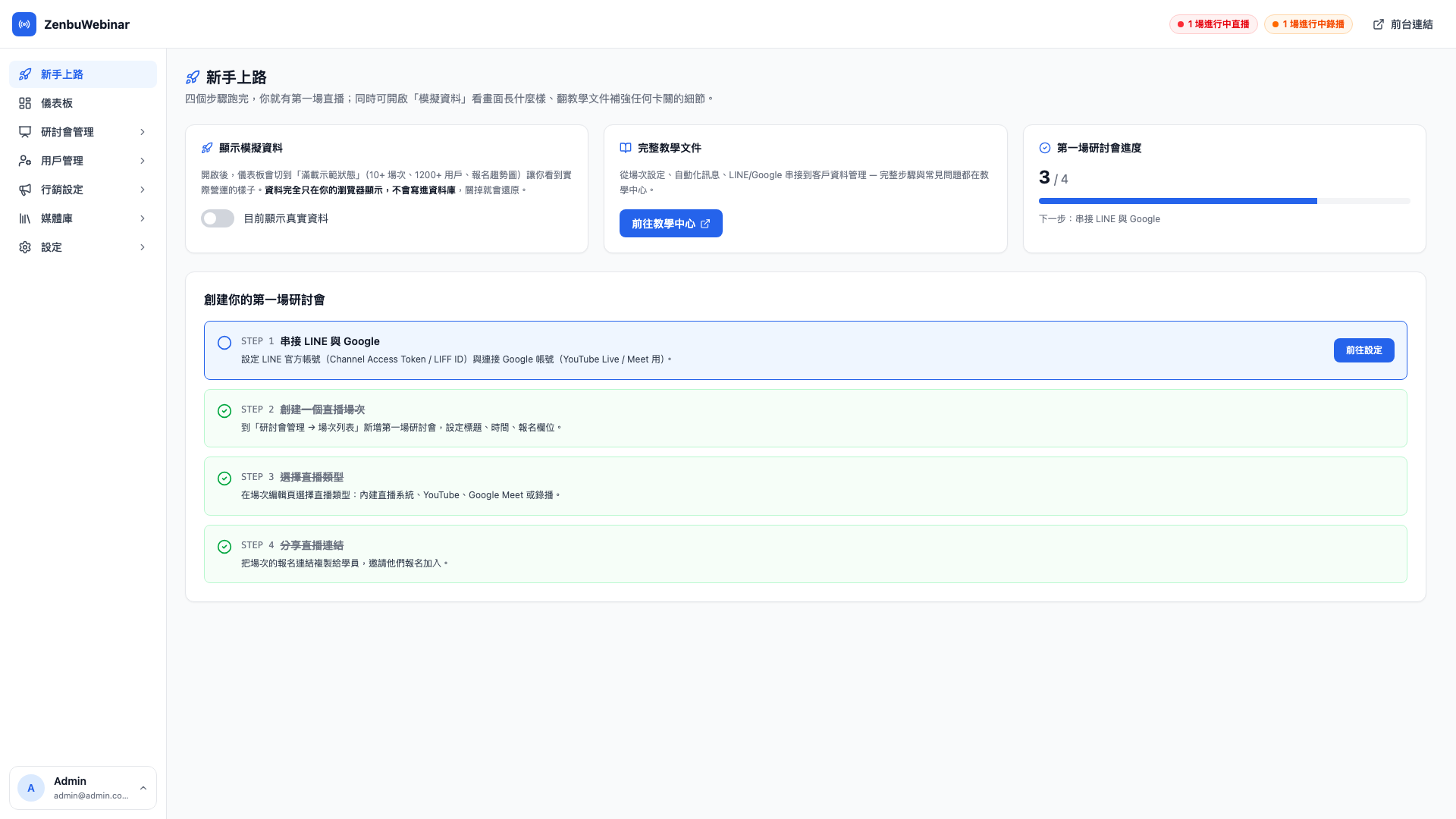
Any step still showing as incomplete has a Go and finish it button next to it that jumps straight to the relevant page, so there's nothing to hunt for.
Question: Does the checklist disappear once everything is ticked?
No, it turns into a celebration. With all four green, the checklist area becomes a "🎉 You've created your first webinar" card, along with suggestions for what to explore next — message automation, ad tracking, user tags.
C. Straight to the docs
Lower down the page is a 📖 Full documentation card that opens the documentation you're reading now in a new tab.
When a new admin hits any "how does this feature work" question, the habit of returning to Onboarding and tapping through to the docs finds a plain-language explanation of everything.
Who it's for
The Onboarding page isn't only for genuine beginners:
- Genuine beginners: admins who've just received the admin and are starting from zero
- Sales demos: showing the full experience to a prospect using demo data
- Training: new staff walk through the checklist and grasp every key feature within half an hour
- A quick audit: treat the page as a configuration status check and confirm periodically that the integrations are still healthy
Skipping onboarding
If you already know the admin and don't need the guidance, just click any other sidebar item and get on with your work. Onboarding is a suggested entry point, not a gate that blocks you.
It's worth leaving it at the top of the sidebar, though — the next colleague you add will want it.