Google account
To create YouTube Live or Google Meet sessions in the zenbu webinar admin, you must first link a Google account.
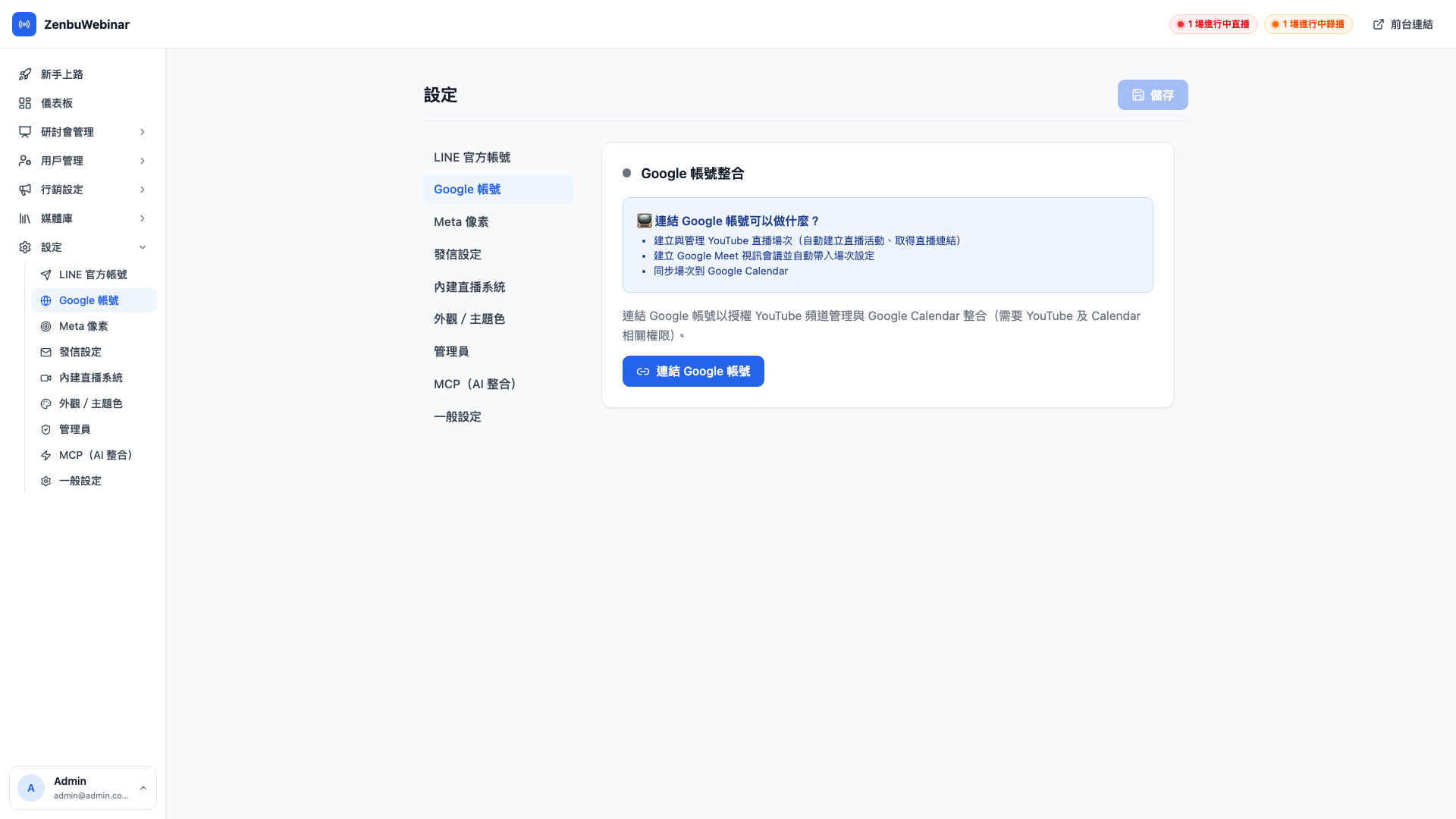
Why link Google?
| Feature | Why Google authorization is needed |
|---|---|
| YouTube Live | The system needs to read your channel details, list existing broadcasts, and create new ones on your behalf |
| Google Meet | The system needs to create calendar events carrying a Meet link |
If you don't need either (using only built-in streaming or pre-recorded video), no linking is required.
Linking
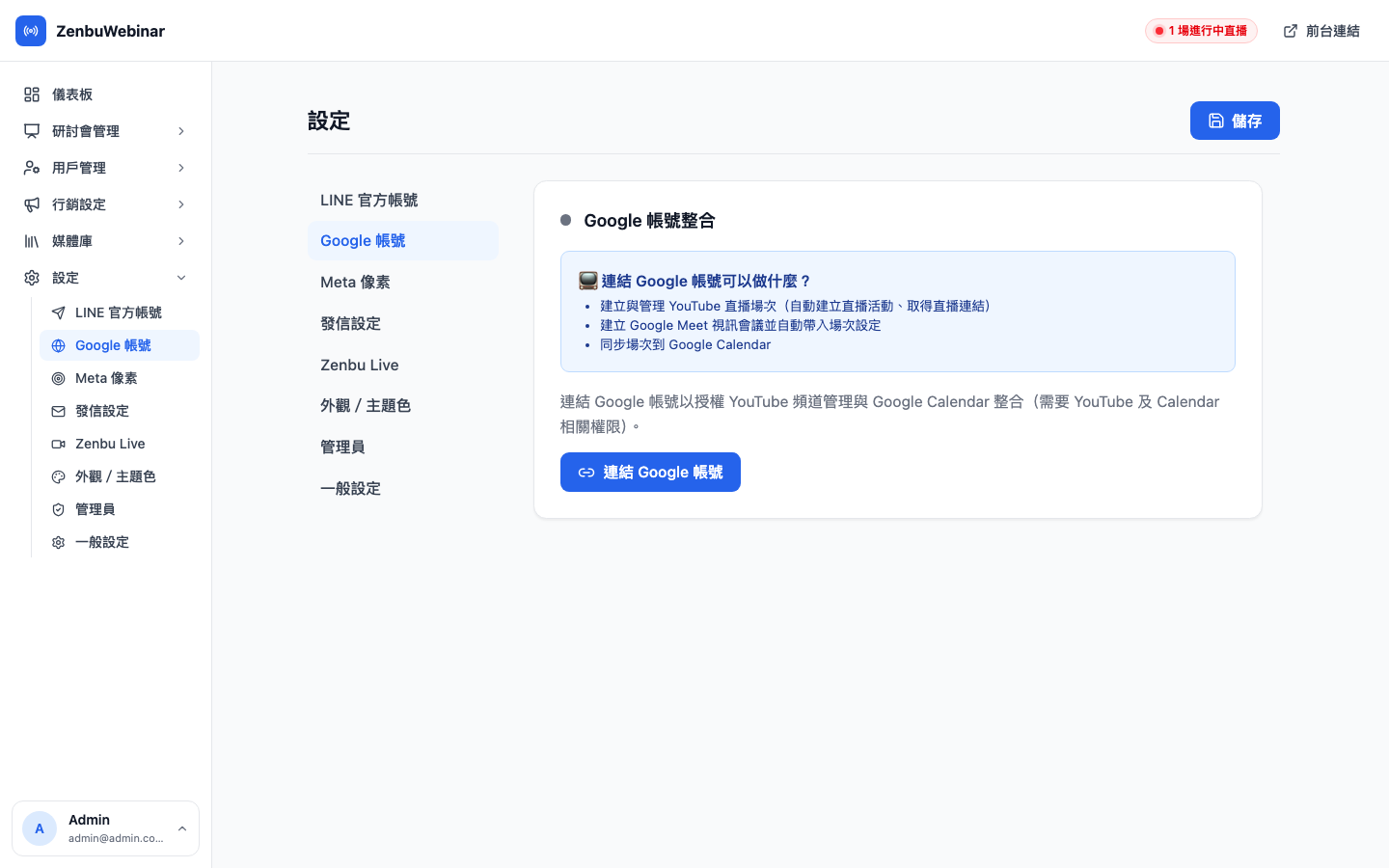
- On the Google account tab, click Link Google account
- You're taken to Google's authorization page — grant the permissions requested:
- Read your email and basic profile
- Manage your YouTube account (create / list / delete broadcasts)
- Create Google Meet video meeting events
- Click Continue to return to the admin
- It shows "✓ Linked: your email / channel name"
Once linked, YouTube Live and Google Meet become selectable types in the New session form.
Use case: linking Google for the first time
Cheng-han wants to run a YouTube live class. While creating the session he finds the YouTube Live option disabled, with a note reading "link a Google account first". He goes to Settings → Google account and links it once; back in the session form the option is available, and choosing YouTube brings up a Create new broadcast button. Everything is configured within a minute.
The link belongs to the admin who created it
Note: each admin links their own Google account
Google account linking is per admin, not shared at site level.
If Cheng-han links cheng@aiec.tw, his colleague Hsiao-chi sees "Google account not linked" when she signs in and has to link one herself — which can be the same Google account or a different one.
Question: Why is it designed per person?
Because a YouTube broadcast belongs to whichever Google account authorized it, and a Google Meet event is created in the authorizer's calendar. With one shared link, every admin's broadcasts would end up under the same account and it would be impossible to tell whose was whose. Per-person linking is cleaner.
What you see once linked
A successful link shows:
- Your Google email (the account that authorized)
- Your YouTube channel name (if that account has one)
- An Unlink button
Unlinking
Unlink clears that admin's Google authorization. Afterwards:
- You personally can't create new YouTube or Meet sessions
- But sessions already created keep working — the broadcast URL and Meet link are generated at platform level and don't depend on your authorization persisting
- To use it again, link once more
Question: Will sessions I created earlier break after unlinking?
No. When a session is created, the YouTube broadcast or Meet meeting URL is already written into the session record and no longer depends on your authorization. Unlinking only affects whether you can create new sessions.
No Google account yet?
If you have no Google account at all (or no YouTube channel), the recommended route is:
- Create a free Google account (google.com)
- Enable a channel in YouTube Studio (free, one minute)
- Confirm live streaming is enabled on the channel (first time round this needs phone verification, then a 24-hour wait)
- Come back to zenbu webinar and link
Step 3 is where new channels most often get stuck: YouTube requires new channels to wait 24 hours before streaming, so complete your YouTube setup at least a day in advance.
Note: the authorization scope covers only what's needed
zenbu webinar requests only enough scope to create, list and delete your YouTube broadcasts, and create Meet events. The system doesn't read your Gmail, touch your Drive files, or look at your contacts.