Joining the live room
The screen users reach after pressing Enter live room. This is the system's high point — the stream is running, they're watching, and you're replying.
Before entering: the identity form
The first time someone enters a live room, they see a dark-themed entry page asking for a few details:
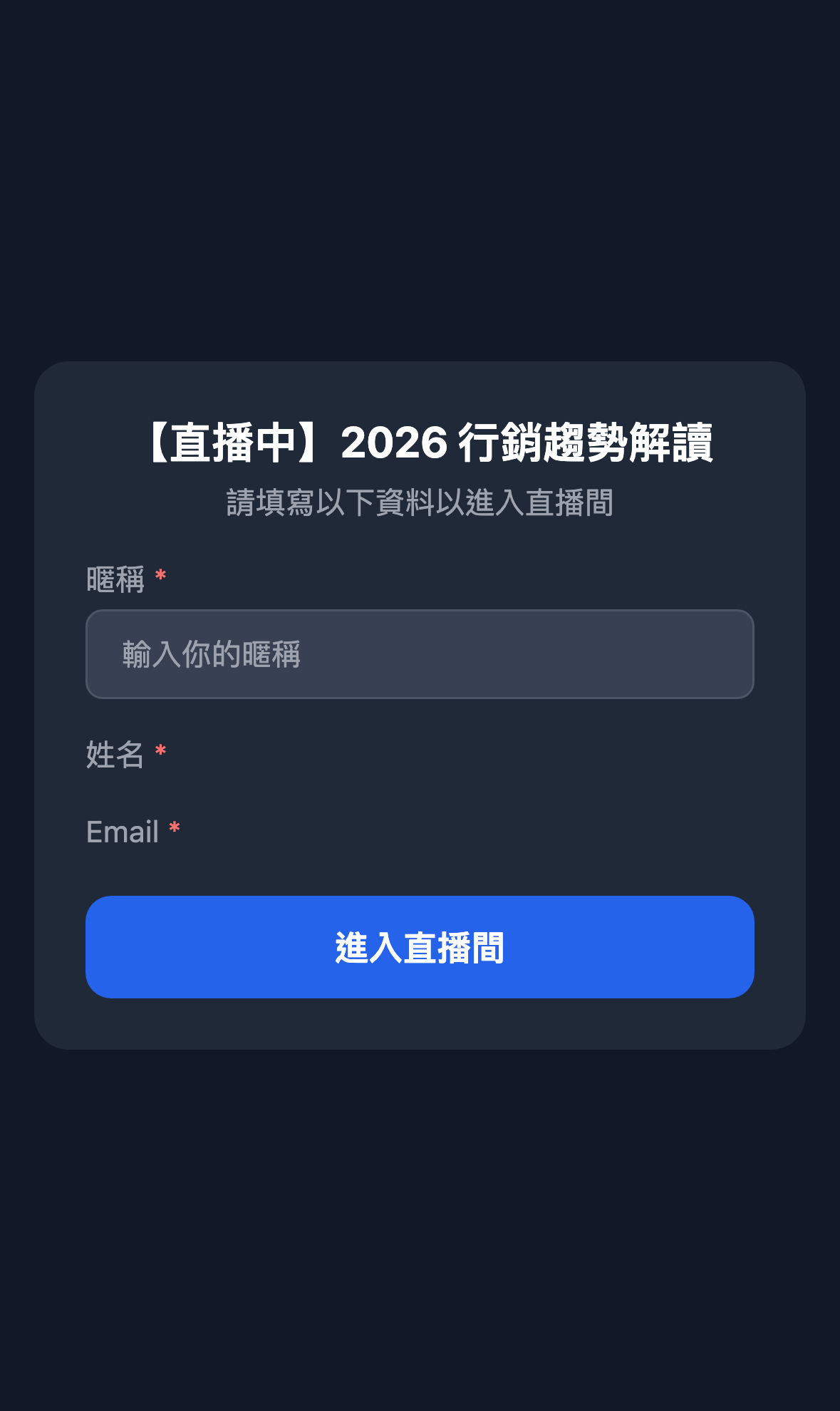
| Field | Purpose |
|---|---|
| Nickname | The name shown in the chat (not their LINE display name — they can choose something else) |
| Name | Whatever you asked for in the session settings |
| Likewise, depending on your configuration | |
| Other custom fields | Any fields you configured on the session, in order |
They must fill this in and press Enter live room to reach the chat screen.
Use case: why ask for a nickname again?
Someone's LINE display name may be a very formal full name, or a string of characters ("Wang Hsiao-ming", "luke0909"), which reads stiffly in a live chat.
Letting them pick something else ("Hsiao-ming", "Lucy from marketing") makes the chat feel more human and makes people readier to speak up. This field only affects the chat display; it doesn't change your admin records.
Question: Does someone who already signed up for this session have to fill it in?
No. Once they've filled it in, returning takes them into the live room with the same details and no form.
Once inside: four screens by stream type
Inside the live room, the layout depends on the session's stream type:
| Stream type | Video area | Chat area |
|---|---|---|
| YouTube | An embedded YouTube stream inside LIFF | zenbu webinar's own chat in the lower half |
| Google Meet | A button opening Meet externally (they leave LIFF) | Not applicable — chat happens in Meet |
| Built-in streaming | The instructor's camera and screen share (under 1 second of latency) | Live chat in the lower half, plus attendee camera consent options |
| Pre-recorded | A LIFF video player | Chat in the lower half, plus automatically played message scripts |
Built-in streaming is the most interactive of the four: attendees can not only comment but, with consent, turn on their own camera and microphone for the instructor to see. See Joining the live room (built-in streaming).
Live chat
A comment appears instantly on:
- The commenter's own screen
- Every other viewer's screen
- The Live messages page in your admin
Replies you send from the admin likewise appear instantly on every viewer's screen.
Use case: using chat to build energy
Ten minutes in, you reach an important point but the audience hasn't warmed up yet. From the admin, send this as the host:
"This part is today's key idea — type 1 if it makes sense so I know!"
The message appears in every viewer's chat and sets off a wave of 1s. That sense of a crowd keeps people watching.
Pre-recorded video comes with message scripts
If the session is pre-recorded and you configured a message script in the media library, then as the video reaches specific seconds, the corresponding messages appear in the chat automatically, as though other viewers were commenting.
This is very effective at filling the awkward silence of an empty room — viewers feel that others are watching and talking, and are less likely to leave than they would be from a silent chat. For the configuration, see Media library → message scripts.
Question: If someone leaves partway and comes back, where do they resume?
It depends on the session type:
- A live session (YouTube / Zoom): they resume at whatever is happening live right now — that's the nature of live streaming
- A pre-recorded session: it resumes where they left off, rather than starting again
Question: Is chat history kept? Do users lose earlier comments if they leave?
It's kept. Entering a live room loads recent chat history automatically, so there's no wait for new comments. They can even come back for a few days after the stream has ended and still read that day's conversation.
That's useful for people who want to watch the replay and see what was discussed at the time.
Question: Can I kick someone out or mute them mid-stream?
There's no kick function at present, but you can block someone under User management in the admin. Once blocked:
- Their comments are no longer delivered to anyone else
- You stop receiving their messages in any session
The effect is much like a permanent mute.
After the stream ends
- YouTube / Meet sessions: the video window becomes a "this stream has ended" screen, and users can go back or check whether you've published a replay
- Built-in streaming: once the instructor ends the stream, attendees see a "stream has ended" message and are returned automatically to the session detail page
- Pre-recorded: ended is ended, and it can't be watched again — unless you enabled replay in the session settings, in which case users can return and rewatch
They can go back to the session detail page or to My registrations to re-enter at any time.